Upgrading OpenCart 3 to 4.1 in 2026: Why the Upgrade Script Isn’t the Answer, and a Migration Plan That Works
OpenCart 4.1.0.4's upgrade script only supports 4.1.x. How to move an OpenCart 3 store to 4.1 anyway: a fresh install plus data migration, keeping customer passwords working, SEO URLs and redirects, extensions and themes, and a launch checklist.
 Rupak NepaliPublished Oct 26, 2026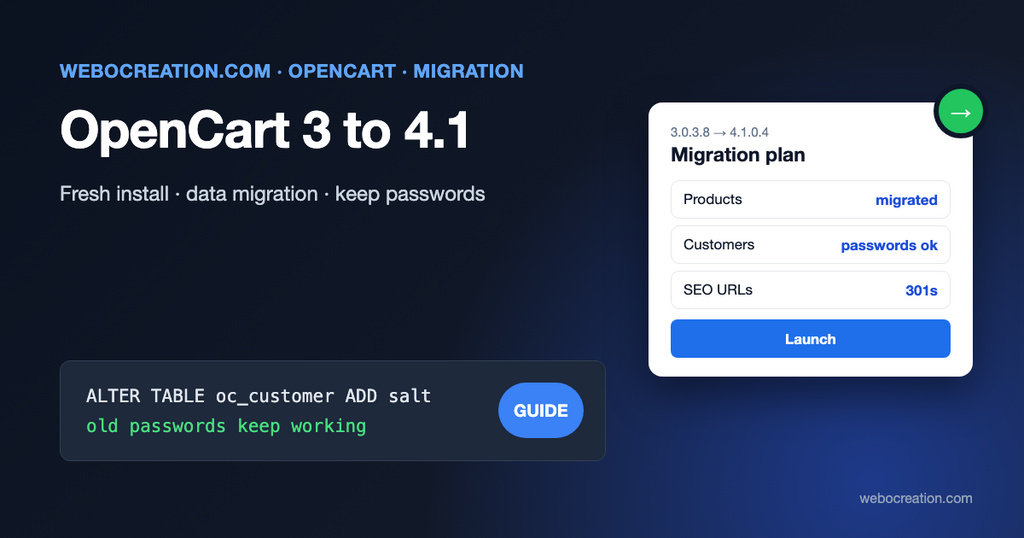
Many OpenCart stores still run version 3. It works, it’s familiar, and its extensions and themes cost money. But OpenCart 3’s architecture is from 2017, its extensions and themes don’t run on OpenCart 4, and every PHP upgrade makes it harder to keep alive. At some point, the move to 4.1 has to happen.
We wrote about upgrading from 3.0.3.8 to 4.0.2.2 in 2024. The situation in 2026 is different, and this post explains why and what to do instead.
The official position in 4.1.0.4
OpenCart 4.1.0.4’s UPGRADE.md starts with the versions it supports:
Upgrading from versions 4.1.0.0 – 4.1.0.3
OpenCart, UPGRADE.md
For everything older, the file says: “If you have an older version and want to upgrade to 4.1.0.4, you may try to contact our dedicated support.” In other words, running the 4.1.0.4 upgrade script on an OpenCart 3 database isn’t a supported path.
Even when an upgrade script runs, it only converts the database. It can’t convert your theme or extensions, because OpenCart 4 changed how both work: namespaced controllers, a extension/ folder per extension, events instead of vQmod, new Twig templates, Bootstrap 5. Everything you bought for OpenCart 3 needs an OpenCart 4 version or a replacement anyway.
That’s why we recommend treating the move as a new store plus a data migration, not as an upgrade.
Step 0: Decide whether to stay on 3.0.5.1 for now
Moving is a project. If you need time, update OpenCart 3 to 3.0.5.1 first. Released together with 4.1.0.4 in August 2026, it includes PHP 8.4 fixes (3.0.5.0) and PHP 8.5 support (3.0.5.1). It keeps the store running on supported PHP versions while you plan; see our PHP 8 compatibility guide. It doesn’t change the long-term picture: new features and extensions are on the 4.x branch.
Step 1: Inventory what the store actually uses
Before touching anything, list:
- Extensions: Extensions > Extensions in every category, plus vQmod and OCMOD modifications. For each: still needed? Is there an OpenCart 4.1 version? Is there a built-in replacement in 4.1? (OpenCart 4.1 includes a blog/CMS, variants, subscriptions, admin 2FA and product identifiers.)
- Theme customizations: what was changed in the theme files and why.
- Custom code: anything edited in core files. Ask your developer; check the files against a clean copy of your exact OpenCart 3 version.
- Data: number of products, customers, orders, languages, stores, currencies.
- URLs: export every SEO URL keyword (Design > SEO URL), so you can keep or redirect them.
- Integrations: payment and shipping accounts, feeds, ERP or accounting connections, email services.
The inventory usually shows that a third of the extensions aren’t needed anymore. Drop them now rather than migrating them.
Step 2: Build the new store
- Install OpenCart 4.1.0.4 on a staging subdomain, protected with a password, on the PHP version you’ll use in production (8.3 or 8.4 is a good choice in 2026).
- Configure settings, languages, currencies, tax classes and rates, geo zones, order statuses and customer groups to match the old store. Keep the same IDs where you can (for example create customer groups and order statuses in the same order), because migrated data refers to them by ID.
- Install the theme and the OpenCart 4 versions of your extensions. Many of the functions OpenCart 3 stores needed extensions for are now free or built in; for example our free abandoned cart recovery, product structured data and GA4 ecommerce events.
Step 3: Migrate the data
There are three ways to move products, customers and orders.
| Method | Good for | Watch out for |
|---|---|---|
| Migration service or extension (paid) | Most stores; handles mapping between the two schemas | Test with a full run on staging; check what it does with SEO URLs, options and customer passwords |
| Export and import (CSV tools) | Catalogs without complex options; you’re happy to leave old orders behind | Order history usually isn’t migrated; customers must reset passwords unless you handle hashes (below) |
| SQL migration by a developer | Large or customized stores | Needs someone who knows both schemas; repeatable scripts so you can run it again at launch |
Whatever you choose, plan two runs: a full test migration to staging, and a final one at launch after the old store stops taking orders (put it in maintenance mode first).
What changed in the data model
The tables that need the most attention:
- Products: OpenCart 4.1 adds variants (
master_id,variant,override) and moves SKU/UPC/EAN/JAN/ISBN/MPN into the identifiers system (product_codetable, managed under Catalog > Identifiers). Map your old columns there. Specials and quantity discounts are merged into oneproduct_discounttable with a type (fixed, subtract, percentage) and a special flag, as explained in our B2B pricing guide. - SEO URLs: OpenCart 4 stores keywords per store and language with a
key/valuepair (product_id,40) instead of OpenCart 3’s singlequerycolumn (product_id=40), and it puts the language code in the URL (/en-gb/...). - Orders: payment and shipping methods are stored as JSON in OpenCart 4. Migration tools differ in how well they convert old orders; for history and reports, that’s usually fine. For returns and reorders on old orders, test.
- Settings: don’t migrate the
settingtable. Configure the new store instead; settings keys changed between versions.
Keeping customer passwords working
This one detail decides whether thousands of customers can log in after launch. OpenCart 3 stored passwords as a salted SHA-1 hash with a salt column. OpenCart 4 uses PHP’s password_hash(). A fresh 4.1.0.4 database has no salt column.
The good news is in OpenCart 4.1.0.4’s own login code (system/library/cart/customer.php). When a customer logs in, it first tries password_verify(), and if that fails and the customer row has a salt, it checks the old OpenCart 3 hash:
} elseif (isset($customer_query->row['salt']) && $customer_query->row['password'] == sha1($customer_query->row['salt'] . sha1($customer_query->row['salt'] . sha1($password)))) {On success, it re-hashes the password with password_hash() and saves it. So the rule is simple: add a salt column to the new customer table before migrating, and copy both password and salt:
ALTER TABLE `oc_customer` ADD `salt` VARCHAR(9) NOT NULL DEFAULT '' AFTER `password`;Customers then log in with their existing passwords and are silently upgraded to the modern hash on their first login. The admin user table works the same way (system/library/cart/user.php). Without the column, every migrated customer has to use “Forgotten password”, which you’ll see as a wave of support emails and lost orders in the first week. Ask any migration service whether they handle this.
Step 4: Protect your search rankings
A new platform version changes URLs, and URL changes are where migrations lose traffic.
- Decide on the URL structure. OpenCart 4 adds the language to SEO URLs; many stores remove it for the default language (how to remove en-gb from OpenCart 4 URLs).
- Migrate SEO keywords so products and categories keep the same slugs.
- Map every old URL that changes to its new URL, including
index.php?route=product/product&product_id=40style URLs that Google may still know, and set up 301 redirects. Our free redirects manager for OpenCart 4 handles this inside OpenCart. - Keep the same domain and HTTPS setup.
- After launch, watch Google Search Console’s Pages report and 404s daily for two weeks.
The website redesign redirect checklist has the full process.
Step 5: Test like a customer
On staging, with migrated data:
- Log in as a migrated customer with their old password (create a test customer in the old store before the test migration to have one you know).
- Browse categories with filters, search, and product pages with options and variants.
- Add to cart, apply a coupon, use reward points, check out with every payment and shipping method.
- Check order confirmation emails and their deliverability (SPF, DKIM and DMARC).
- In the admin: open migrated orders, change a status, print an invoice, run reports.
- Run a speed test and fix Core Web Vitals before launch, not after (guide).
Step 6: Launch
- Announce a short maintenance window.
- Put the old store in maintenance mode, run the final data migration, and check counts (products, customers, orders) against the old store.
- Switch the domain to the new server or folder; update
config.phpURLs. - Test checkout with a real payment and refund it.
- Enable redirects, submit the sitemap in Search Console, check analytics tracking.
- Keep the old store and database backup untouched for a few months.
When to get help
A migration is very doable for a store with a few hundred products, a standard theme and a handful of extensions. Bring in an experienced OpenCart developer when you have many languages or stores, heavily customized checkout or pricing, integrations with ERP or accounting systems, or tens of thousands of orders you need to keep usable. Either way, a staging run and the password detail above are what separate a quiet launch from a bad week.
For what’s in the version you’re moving to, read OpenCart 4.1.0.4: what’s new.

Author of four Opencart book.
The recent are Opencart 4 developer book and Opencart 4 user manual