Cloudflare Rules for WooCommerce: The Security, Rate Limiting, and Cache Rules Every Store Needs
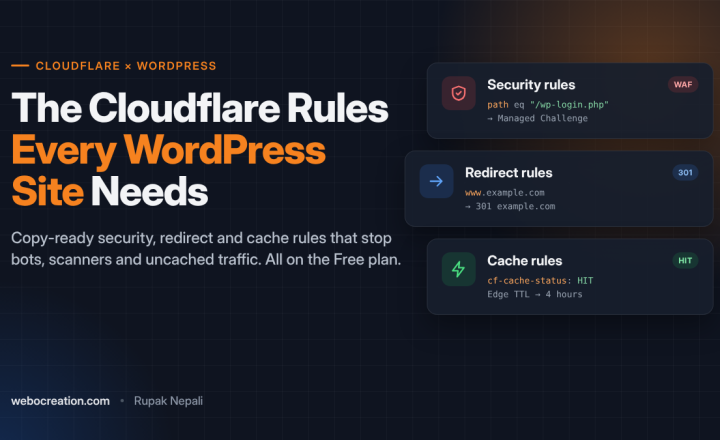
Copy-ready Cloudflare custom, rate limiting, redirect and cache rules for WooCommerce stores, with what each one might break.
 Rupak NepaliPublished Nov 11, 2026
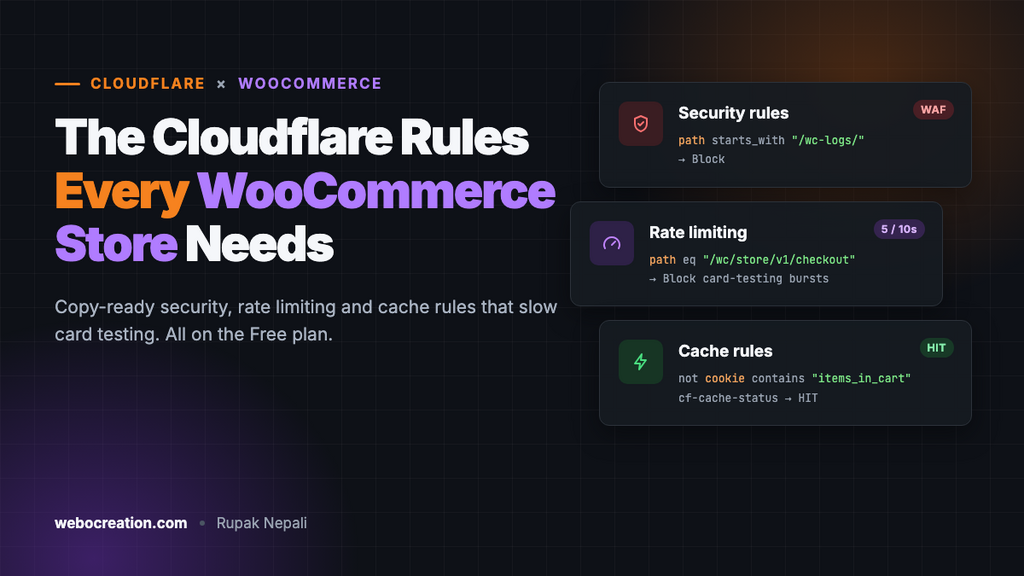
A WooCommerce store gets all the junk traffic a WordPress blog gets, plus some of its own: bots that run stolen cards through your checkout, scripts hammering the Store API, and scanners looking for WooCommerce log files and downloadable products. A few Cloudflare rules stop most of it before it reaches PHP. The same setup lets you cache product and category pages for visitors who haven’t added anything to their cart, without ever caching someone’s cart or checkout.
This guide lists the rules, ready to copy. Each one has the expression to paste, the action to pick, and what it might break. Replace example.com with your domain. It’s the fourth guide in the series, after Cloudflare Rules for WordPress, Cloudflare Rules for Drupal and Cloudflare Rules for Laravel. If you’ve already set up the WordPress rules, keep them and add the WooCommerce parts below.
Where the rules live
You create every rule in the Cloudflare dashboard for your domain. Menu names move around, so look for these:
| Rule type | Dashboard location | Free plan allowance (at the time of writing) |
|---|---|---|
| Custom rules (security) | Security → Security rules (older: Security → WAF → Custom rules) | 5 rules |
| Rate limiting rules | Security → Security rules (older: Security → WAF → Rate limiting rules) | 1 rule, 10-second window |
| Redirect rules | Rules → Redirect Rules | 10 rules |
| Cache rules | Caching → Cache Rules | 10 rules |
To paste an expression, open a new rule and click Edit expression under the expression builder.
Before you start: three settings that matter for stores
1. Make your server see real visitor IPs
Behind Cloudflare, every request arrives from a Cloudflare IP address. For a store that matters more than for a blog. WooCommerce saves the customer IP on every order, and payment gateways such as Stripe send it to their fraud scoring. Login-limit plugins and WooCommerce’s own Store API rate limiter count requests per IP. If they all see Cloudflare’s IPs, fraud checks get worse and one bot can lock out real customers.
Fix it in the web server, not in a plugin. On Nginx, add Cloudflare’s ranges and read the CF-Connecting-IP header:
# /etc/nginx/conf.d/cloudflare-realip.conf
# Full, current list: https://www.cloudflare.com/ips-v4 and /ips-v6
set_real_ip_from 173.245.48.0/20;
set_real_ip_from 103.21.244.0/22;
set_real_ip_from 103.22.200.0/22;
# ...one line per range...
set_real_ip_from 2400:cb00::/32;
real_ip_header CF-Connecting-IP;
On Apache, enable mod_remoteip:
RemoteIPHeader CF-Connecting-IP
RemoteIPTrustedProxy 173.245.48.0/20
RemoteIPTrustedProxy 103.21.244.0/22
# ...one line per range...
Cloudflare’s ranges change occasionally, so regenerate the list from those two URLs every few months. To check it worked, place a test order and look at the customer IP in the order screen. It should be your IP, not a Cloudflare one.
2. Leave Bot Fight Mode off
Bot Fight Mode (Security → Bots) on the Free plan can’t be skipped for specific paths. It can challenge the webhooks Stripe, PayPal and other gateways send to your store, so orders stay “pending payment” even though the customer paid. The custom rules below give you most of the protection without that risk. On Pro and above, Super Bot Fight Mode can be skipped for webhook paths, so it’s safer to use there.
3. SSL and Rocket Loader
Set SSL/TLS to Full (strict) and turn on Always Use HTTPS. Leave Rocket Loader off. It rewrites how scripts load, and payment fields that load in iframes (Stripe Elements, PayPal buttons) are the first thing to break.
Security rules
These use four of your five custom rule slots and leave one for your own exceptions, such as a Skip rule for an uptime monitor.
Rule 1: Block probes for secrets, logs and private files
Action: Block.
(http.request.uri.path contains "/.env")
or (http.request.uri.path contains "/.git")
or (ends_with(http.request.uri.path, ".sql"))
or (http.request.uri.path eq "/wp-config.php")
or (http.request.uri.path contains "/wp-config.php.")
or (starts_with(http.request.uri.path, "/wp-content/") and ends_with(http.request.uri.path, ".log"))
or (starts_with(http.request.uri.path, "/wp-content/uploads/wc-logs/"))
or (starts_with(http.request.uri.path, "/wp-content/uploads/woocommerce_uploads/"))
or (starts_with(http.request.uri.path, "/wp-content/uploads/") and ends_with(http.request.uri.path, ".php"))
What each part does:
/.env,/.gitand.sqlcatch the scans every site gets for leaked credentials and database dumps./wp-config.php.catches editor backups such aswp-config.php.bakorwp-config.php.save, which the server would send as plain text, passwords included.wc-logsis where WooCommerce writes its log files, which can include customer names, addresses and gateway responses.woocommerce_uploadsholds the files you sell as downloadable products. WooCommerce protects both folders with an.htaccessfile, but Nginx ignores.htaccess, so on Nginx they’re often readable by anyone who knows the URL.- PHP files under
/uploads/are almost always a backdoor someone uploaded. Nothing legitimate runs from there.
What it might break: if your downloadable products use the Redirect only download method (WooCommerce → Settings → Products → Downloadable products), customers download straight from woocommerce_uploads and this rule blocks them. Switch to Force downloads or X-Accel-Redirect/X-Sendfile, which serve the file through PHP after checking the order. “Redirect only” is the insecure option anyway, because anyone with the link can download.
Rule 2: Block XML-RPC and user enumeration
Action: Block.
(http.request.uri.path eq "/xmlrpc.php")
or (starts_with(http.request.uri.path, "/wp-json/wp/v2/users") and not http.cookie contains "wordpress_logged_in")
or (http.request.uri.query contains "rest_route=/wp/v2/users" and not http.cookie contains "wordpress_logged_in")
or (http.request.uri.query contains "author=" and not starts_with(http.request.uri.path, "/wp-admin"))
Password-guessing bots first collect usernames from /wp-json/wp/v2/users and ?author=1, then use xmlrpc.php to try hundreds of passwords in one request. Logged-in editors can still load the users endpoint, which the block editor needs.
What it might break: Jetpack, and the WordPress or WooCommerce mobile apps when they log in with a site password, use xmlrpc.php. If you use them, delete the first line, or the mobile app connection will fail.
Rule 3: Challenge the admin login
Action: Managed Challenge.
(http.request.uri.path eq "/wp-login.php")
or (starts_with(http.request.uri.path, "/wp-admin/")
    and not http.request.uri.path in {"/wp-admin/admin-ajax.php" "/wp-admin/admin-post.php"})
Customers log in on My account, not wp-login.php, so only you and your staff see the challenge, usually as a checkbox or nothing at all, once per session. admin-ajax.php and admin-post.php are excluded because themes and plugins call them from the storefront.
If your team always works from fixed IPs, add and not ip.src in {203.0.113.10 198.51.100.0/24} to the rule so they skip the challenge, or change the action to Block for everyone else.
Rule 4: Close the Store API back door
Action: Block. Use this only if your permalinks are set to anything other than “Plain” (Settings → Permalinks), which is true for almost every store.
(http.request.uri.query contains "rest_route=/wc/store")With pretty permalinks, the Checkout and Cart blocks call the Store API at /wp-json/wc/store/.... The same API also answers at /?rest_route=/wc/store/..., and card-testing bots use that form because path-based rate limits don’t see it. Real customers never use it, so blocking it costs nothing and pushes bots onto the path the rate limiting rule watches.
This brings you to four of the five custom rule slots.
Rate limiting: slow down card testing
Card testing is when bots run stolen card numbers through your checkout to find the ones that work. Each failed attempt costs you gateway fees, can trigger chargebacks, and can get your Stripe or PayPal account flagged. Bots usually skip the checkout page and post straight to the endpoints behind it. There are three, and they often hit the third one because many guides forget it:
/?wc-ajax=checkout, used by the classic (shortcode) checkout./wp-json/wc/store/v1/checkout, the Store API used by the Checkout block, which is the default for new stores./?rest_route=/wc/store/v1/checkout, the same Store API reached through a query string. It works on every WordPress site, so a rule that only checks the/wp-json/path misses it.
The Free plan gives you one rate limiting rule, and on Free it can only match the URL path, not the request method or query string. That covers the Store API checkout and both login forms, but not ?wc-ajax=checkout, whose path is just /. Rule 4 below closes the rest_route loophole. Create the rate limiting rule with:
- Expression: below
- Counting characteristic: IP
- Rate: 5 requests per 10 seconds
- Action: Block, for 10 seconds (the Free plan maximum)
http.request.uri.path in {"/wp-login.php" "/my-account/" "/wp-json/wc/store/v1/checkout"}Because Free can’t tell a page view from a form post, the rule counts both. Five in ten seconds still leaves plenty of room for a real person. On Pro and higher, which can match the method and query string, use this instead so only form posts count and the classic checkout is covered too:
(http.request.method eq "POST" and (
    http.request.uri.path in {"/wp-login.php" "/my-account/"}
    or http.request.uri.query contains "wc-ajax=checkout"
    or (starts_with(http.request.uri.path, "/wp-json/wc/store/") and ends_with(http.request.uri.path, "/checkout"))
))
A real customer never submits checkout five times in ten seconds, so this doesn’t get in their way. If you’ve renamed the My account page, change /my-account/ to match.
Be realistic about what it does. A 10-second window stops fast bursts, but a bot that tries one card every few seconds stays under it. Pro and higher plans allow longer windows (one minute or more), which work much better here. On any plan, add these on the WooCommerce side too:
- Turn on your gateway’s own card-testing protection. Stripe and WooPayments both have it.
- Add Cloudflare Turnstile or reCAPTCHA to checkout with a plugin that supports the Checkout block.
- Turn on WooCommerce’s built-in Store API rate limiter. It’s off by default. Add this to a small plugin or your theme’s
functions.php:
add_filter( 'woocommerce_store_api_rate_limit_options', function () {
    return [
        'enabled'       => true,
        'proxy_support' => false, // keep false once the real-IP fix above is in place
        'limit'         => 25,    // requests...
        'seconds'       => 10,    // ...per this many seconds
    ];
} );
Our earlier post Carding Attacks 101 explains the attack itself and what to do if you’re already being hit.
Note what the rule leaves alone: gateway webhooks such as /?wc-api=wc_stripe and /wp-json/wc-stripe/... aren’t in it, so payments keep confirming even during an attack.
Redirect rule: one hostname
Send www to the bare domain (or the reverse) at the edge, so WordPress never has to. In Rules → Redirect Rules, create a rule:
- When incoming requests match:
(http.host eq "www.example.com") - Type: Dynamic
- Expression:
concat("https://example.com", http.request.uri.path) - Status code: 301
- Preserve query string: on
Make sure the WordPress Address and Site Address in Settings → General use the same hostname, or WordPress will redirect back and you’ll get a loop.
Cache rules: fast product pages, private carts
By default Cloudflare caches images, CSS and JavaScript but not HTML, so every product page still runs PHP. Caching HTML for anonymous visitors makes the shop much faster, but a store can only do it if the cart, checkout, account pages and anyone with items in their cart always skip the cache. WooCommerce sets cookies you can check for that.
Cache rules work differently from security rules: every matching rule applies, and a later rule overrides an earlier one. So you create the “cache it” rule first and the “never cache” rule second.
Cache rule 1: Cache HTML for everyone
- Expression:
(http.host eq "example.com") - Cache eligibility: Eligible for cache
- Edge TTL: Ignore cache-control header and use this TTL: 2 hours
- Browser TTL: Respect origin
Cache rule 2: Bypass for carts, accounts and logged-in users
- Expression: below
- Cache eligibility: Bypass cache
(http.cookie contains "wordpress_logged_in")
or (http.cookie contains "woocommerce_items_in_cart")
or (http.cookie contains "woocommerce_cart_hash")
or (http.cookie contains "wp_woocommerce_session_")
or (http.cookie contains "comment_author")
or (http.cookie contains "wp-postpass")
or (starts_with(http.request.uri.path, "/wp-admin"))
or (http.request.uri.path eq "/wp-login.php")
or (starts_with(http.request.uri.path, "/wp-json"))
or (starts_with(http.request.uri.path, "/cart"))
or (starts_with(http.request.uri.path, "/checkout"))
or (starts_with(http.request.uri.path, "/my-account"))
or (http.request.uri.query contains "wc-ajax")
or (http.request.uri.query contains "add-to-cart")
or (http.request.uri.query contains "wc-api")
or (http.request.uri.query contains "rest_route")
If your cart, checkout or account pages have different slugs (for example in another language), use yours. Check them in WooCommerce → Settings → Advanced → Page setup.
Things to know before you turn it on
- Stock levels can be up to 2 hours old on cached pages. A product can show “In stock” after it sells out. WooCommerce still checks stock at checkout, so nobody can buy what you don’t have, but the customer gets an error late. If you sell limited stock, use a shorter TTL such as 30 minutes.
- Purge after edits. The official Cloudflare WordPress plugin purges a page when you update it. Stock changes caused by orders don’t count as edits, so they don’t trigger a purge, which is the reason for the short TTL above.
- Prices by country. If WooCommerce → Settings → General → Default customer location is set to Geolocate, a cached page shows the first visitor’s prices and taxes to everyone. Use Geolocate (with page caching support), which adds a
?v=value to URLs so each location gets its own cache entry, or don’t cache HTML. - Don’t stack caches blindly. If you already use a page-cache plugin (WP Rocket, LiteSpeed Cache), let one layer handle HTML. Two caches with different purge rules are hard to debug.
Cloudflare’s Automatic Platform Optimization (APO) for WordPress, a paid add-on that’s included with Pro, does the same thing with WooCommerce cookie bypasses built in and purges automatically. If you’d rather not maintain cache rules, it’s a reasonable alternative.
Test everything
Run these from your own computer after saving the rules:
# Should return 403 (Rule 1)
curl -sI https://example.com/.env | head -1
curl -sI https://example.com/wp-content/uploads/wc-logs/ | head -1

# Should return 403 (Rule 2)
curl -sI https://example.com/xmlrpc.php | head -1

# Anonymous product page: run twice, the second should say HIT
curl -sI https://example.com/product/sample-product/ | grep -i cf-cache-status

# With a cart cookie: should say BYPASS or DYNAMIC
curl -sI -H "Cookie: woocommerce_items_in_cart=1" https://example.com/product/sample-product/ | grep -i cf-cache-status
Then do a real test order in a private window, all the way through payment, and check that:
- the cart shows the right items after you add them,
- checkout completes and the order changes from “pending payment” to “processing” (which proves the webhook got through),
- the customer IP on the order is yours, not Cloudflare’s.
For the first week, open Security → Events every day or two. It shows each request a rule blocked or challenged and which rule did it, so you’ll spot anything you blocked by mistake.
Summary
| Rule | Type | Action | Stops |
|---|---|---|---|
| 1. Secrets, logs, private files | Custom | Block | .env and backup scans, exposed WooCommerce logs and downloads, upload backdoors |
| 2. XML-RPC and user enumeration | Custom | Block | Username harvesting and bulk password guessing |
| 3. Admin login | Custom | Managed Challenge | Bots on wp-login.php and wp-admin |
| 4. Store API via rest_route | Custom | Block | Bots dodging path-based rate limits |
| Checkout and login | Rate limiting | Block 10 s | Card-testing bursts and login floods |
| www to bare domain | Redirect | 301 | Duplicate hostnames |
| Cache HTML, bypass carts | Cache (2 rules) | Cache / Bypass | Slow product and category pages |
Running OpenCart instead? See How to set up Cloudflare for eCommerce websites like OpenCart.

Author of four Opencart book.
The recent are Opencart 4 developer book and Opencart 4 user manual