HubSpot Personalization Cheat Sheet: Tokens, Defaults, HubL Conditions and Smart Content
A practical cheat sheet for HubSpot personalization: contact and company tokens, default values that prevent "Hi ,", HubL conditions in coded templates, smart content, and the required email links.
 Rupak NepaliPublished Nov 13, 2026
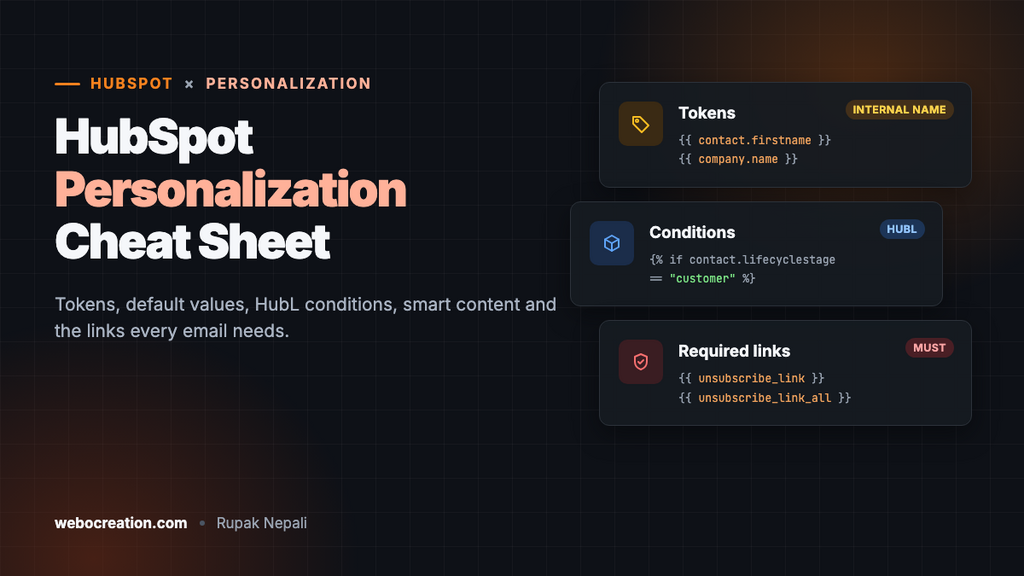
HubSpot makes personalization easy to add: click a button in the editor, pick a property, done. It also makes it easy to send “Hi ,” to the third of your list with no first name. This cheat sheet covers the tokens you’ll use, default values, the HubL behind them for coded templates, smart content, and the links every marketing email needs.
The examples come from our free HubSpot email templates, where they’re already in place.
Personalization tokens
In the email and page editors, the Personalize button inserts a token for any property. Behind the scenes, tokens read properties by their internal name:
| Token | Reads | Example output |
|---|---|---|
{{ contact.firstname }} | The contact’s first name | Jamie |
{{ contact.lastname }} | Last name | Rivera |
{{ contact.company }} | The company name typed on the contact record | Acme Inc. |
{{ contact.jobtitle }} | Job title | Marketing Manager |
{{ company.name }} | The name of the associated company record | Acme Inc. |
{{ contact.your_custom_property }} | Any custom property, by internal name | Whatever you store |
A property’s internal name is shown in Settings → Properties when you open it. It’s not the label: the “First name” label has the internal name firstname. In the editor, always insert tokens with the Personalize button, which gets the name right and lets you set a default.
There are two “company” tokens because HubSpot has two places for it: a text property on the contact (contact.company), and the separate company record the contact is associated with (company.name). They can differ. Use whichever your team keeps clean.
Always set a default
When you insert a token with the Personalize button, HubSpot asks for a default value. Always fill it in. In a coded template, the equivalent is the default filter:
Hi {{ contact.firstname|default("there", true) }},The second argument, true, tells HubL to use the default for empty values too, not only for missing properties. Without it, a contact whose first name is an empty string still gets “Hi ,”.
HubL also has a function that does the same thing, and is what the editor itself inserts:
Hi {{ personalization_token("contact.firstname", "there") }},Either works. Choose defaults that read naturally in the sentence:
| Token | Default | Reads as |
|---|---|---|
| First name | there | “Hi there,” |
| Company | your team | “Built for your team” |
| Job title | marketer | “Tips for every marketer” |
Be careful with tokens in subject lines. A wrong or oddly capitalized company name (“ACME INC”) in the subject looks automated. Personalize subject lines only with properties you keep clean.
Show or hide content: smart content and HubL
For content that changes by who’s reading, HubSpot has two tools.
Smart content (no code)
In the email or page editor, make a module smart and add rules. Each rule shows a different version of the module:
- Emails: by contact list membership or lifecycle stage, for example a “Book a demo” block for leads and a “What’s new in your account” block for customers.
- Pages: also by country, device type, referral source, preferred language and more.
Smart content is the right tool for most marketers: editors manage it in the editor, and the rules are visible to everyone.
HubL conditions (coded templates)
In a coded template, HubL’s if does the same job, and can test any property:
{% if contact.lifecyclestage == "customer" %}
  <p>Log in to see what's new in your account.</p>
{% else %}
  <p><a href="https://www.example.com/demo">Book a 20-minute demo</a> with our team.</p>
{% endif %}
Conditions compare against a property’s internal value, not its label. For lifecycle stage, the internal values are lowercase, such as lead and customer. You can check any property’s internal values in its settings.
A condition can also check whether a property has a value at all:
{% if contact.jobtitle %}
  <p>Here are this month's ideas for {{ contact.jobtitle }}s.</p>
{% endif %}
Keep HTML balanced inside conditions: open and close every tag inside the same branch, or the layout breaks for half your list.
The links every email needs
| Variable | What it does |
|---|---|
{{ unsubscribe_link }} | Opens the subscription preferences page, where contacts can leave one email type and keep the others |
{{ unsubscribe_link_all }} | Unsubscribes the contact from all marketing email |
{{ view_as_page_url }} | Opens the web version of the email |
{{ site_settings.company_name }} and the address variables | Your company name and postal address, from your account settings |
HubSpot’s default templates include these already. In a coded template you add them yourself, and HubSpot won’t let you use the template without the unsubscribe link and address. Offer the preferences page first, so people can drop one email type instead of all of them.
Personalization on landing pages
Tokens and smart content work on HubSpot pages too, with one difference: they only work for visitors HubSpot recognizes, usually people who have filled in a form or clicked a tracked email link. Everyone else sees the default. So:
- Always set defaults on page tokens, because most visitors are anonymous.
- Prefill: HubSpot forms can fill in known fields for recognized visitors, so returning contacts type less.
- Don’t put anything private in page tokens. A shared or forwarded link can show one person’s details to someone else.
Mistakes that end up in sent emails
| Mistake | Fix |
|---|---|
| “Hi ,” when the first name is missing | Set a default in the token, or use |default("there", true) in code |
| A token prints nothing even though the property has a value | The token uses the label instead of the internal name. Insert it with the Personalize button. |
| A HubL condition never matches | It compares against the label (“Customer”) instead of the internal value (“customer”) |
| Company name is wrong or different from the CRM | You used contact.company where company.name was meant, or the other way round |
| A coded template can’t be used | The unsubscribe link or company address variables are missing |
Test personalization properly
- Create two test contacts: one with every property filled in, one with only an email address.
- In the email editor, use Preview → Preview as a specific contact for each one.
- Check every token, default and smart content rule, in the subject, preview text and body.
- Send real test emails too: previews don’t show how Outlook or Gmail render the result.
See it all in a working template: download the free HubSpot newsletter and event invitation, or read how to build a coded HubSpot email template. Using Pardot or Marketo too? Here are the Pardot HML and Marketo tokens cheat sheets.

Author of four Opencart book.
The recent are Opencart 4 developer book and Opencart 4 user manual