Tax and VAT Setup in OpenCart 4: Geo Zones, Tax Classes, EU OSS, UK VAT and US Sales Tax Nexus (2026)
Set up taxes correctly in OpenCart 4.1: how geo zones, tax rates, tax classes and the tax address settings work together, destination VAT for EU One-Stop Shop, B2B reverse charge with customer groups, IOSS and UK VAT for sellers abroad, US sales tax nexus thresholds in 2026, and tax reports that match your returns.
 Rupak NepaliPublished Oct 28, 2026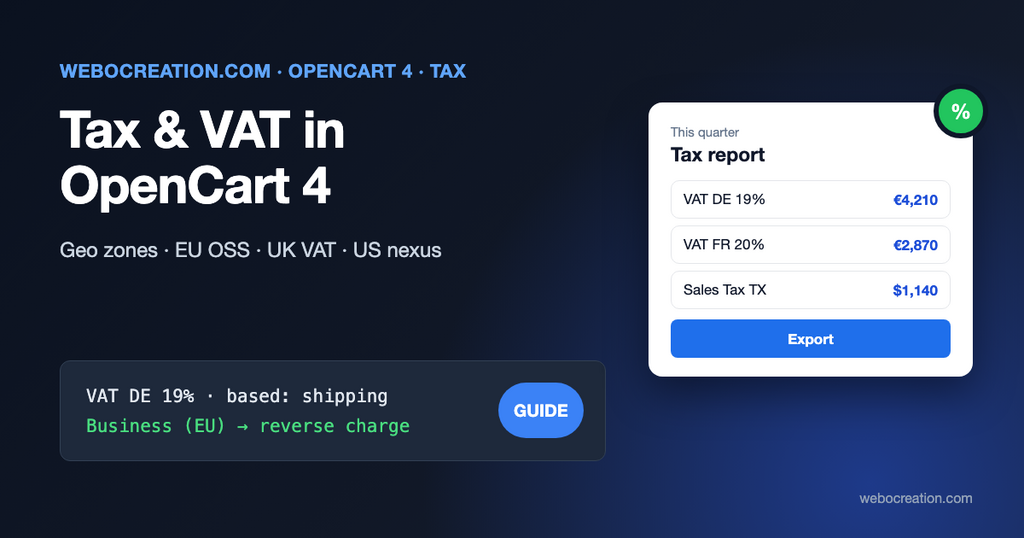
OpenCart 4 can charge almost any tax setup you need, but its tax settings are spread over four screens, and the defaults are for a demo store in the UK. The result in many stores: VAT charged at the home rate to every country, digital products taxed on a shipping address they don’t have, or business customers charged VAT they shouldn’t pay.
This post explains how OpenCart’s tax system works and then sets it up for the situations most stores face in 2026: selling across the EU under the One-Stop Shop, B2B sales with reverse charge, selling into the EU or UK from outside, and US sales tax.
This isn’t tax advice. Thresholds, rates and registration rules change and depend on your business. Use this to configure OpenCart once you know what you have to charge; ask an accountant what that is.
How OpenCart calculates tax
Four things work together:
| Screen | What it is | Example |
|---|---|---|
| System > Localisation > Geo Zones | A list of countries, or regions within countries | “Germany”, “EU”, “Texas” |
| System > Localisation > Taxes > Tax Rates | A rate for one geo zone and one or more customer groups. Percentage or fixed amount | “VAT DE 19%”: 19%, Germany, Default group |
| System > Localisation > Taxes > Tax Classes | A set of rules: which rates apply, and whether each is based on the shipping, payment or store address | “Taxable Goods”: all EU VAT rates, based on shipping address |
| Catalog > Products > Data > Tax Class | Which class each product uses. Shipping methods have a tax class too | “Taxable Goods” |
When a customer shops, OpenCart works out their shipping and payment addresses, finds every rate in the product’s tax class whose geo zone contains the matching address and whose customer group matches the customer, and adds them up.
Two details from the code (system/library/cart/tax.php) that matter in practice:
- Every percentage is calculated on the net price. OpenCart doesn’t compound taxes (tax on tax). Two rates of 5% and 7% give 12%. If a jurisdiction needs a compound tax, that has to be a single combined rate.
- Priority only sets the display order. It doesn’t change the amounts.
The two tax address settings
In System > Settings > Option > Taxes:
- Display Prices With Tax: prices in the catalog include tax (normal for consumer stores in the EU, UK and Australia) or not (normal in the US).
- Use Store Tax Address: before a guest has entered an address, OpenCart uses your store’s address to estimate tax, as their shipping or payment address. So a guest sees your home-country rate until checkout.
- Use Customer Tax Address: a logged-in customer’s default address is used straight away.
The store address comes from System > Settings > Store: the country and region you set there.
Situation 1: an EU business selling to consumers in other EU countries
Since July 2021, distance sales of goods to consumers in other EU countries are taxed in the customer’s country once your cross-border EU sales to consumers pass €10,000 a year (in total, across all EU countries, including certain digital services). Below that, you can keep charging your own country’s VAT.
Above the threshold, you charge each customer their own country’s VAT rate, and instead of registering in every country, you declare and pay all of it in one quarterly return in your home country through the One-Stop Shop (OSS). The European Commission’s OSS page explains the scheme, and its VAT rates database lists each country’s current rates.
Set it up
- Geo zones: one per EU country. System > Localisation > Geo Zones > Add: “VAT Germany” with country Germany, all zones. Repeat for each EU country you ship to. (Don’t use one “EU” zone for this: the rate is different in each country.)
- Tax rates: one per country. Taxes > Tax Rates > Add: name “VAT DE 19%”, rate 19, type Percentage, customer group Default, geo zone “VAT Germany”. Then France 20%, Netherlands 21%, Italy 22%, Ireland 23% and so on, from the Commission’s current list.
- Tax class. Taxes > Tax Classes > edit “Taxable Goods”: add a rule for each country’s rate, based on Shipping Address. Goods are taxed where they’re delivered.
- Products and shipping. Check that products use “Taxable Goods”. In the EU, shipping charged to the customer follows the VAT treatment of the goods, so give your shipping methods the same tax class.
- Reduced rates. Books, food or children’s clothing often have reduced rates that differ by country. Create a second class (“Reduced Rate Goods”) with each country’s reduced rate, and assign it to those products.
Name each rate with the country and the rate. OpenCart’s tax report (Reports, “Tax Report”) groups by the tax name on each order. With names like “VAT DE 19%”, the report gives you the per-country figures the OSS return asks for. With a single name like “VAT”, it gives you one meaningless total.
Prices with tax, when the tax changes by country
With destination VAT and Display Prices With Tax on, the same product costs €119.00 in Germany and €123.00 in Ireland, because OpenCart adds each country’s VAT to the same net price. Many stores accept that. If you want one gross price everywhere, you have to set net prices per country, which OpenCart doesn’t support out of the box; most stores don’t bother.
Guests see your home-country price until they enter an address (see “Use Store Tax Address” above). To show the right price earlier, use a geolocation extension that sets the shipping country from the visitor’s IP, or tell customers that “VAT is calculated for your country at checkout”.
Digital products
Downloads, e-books and software sold to consumers are taxed in the customer’s country (with the same €10,000 threshold). A download has no shipping address, so a rule based on shipping address never applies to a cart that has only downloads, and no VAT is charged at all. Use a separate class, “Downloadable Products”, with the same country rates based on Payment Address, and enable the payment address in checkout (System > Settings > Option, Checkout > Billing Address required).
Situation 2: B2B customers and the reverse charge
When an EU business sells goods to a VAT-registered business in another EU country, the buyer usually accounts for the VAT (reverse charge), and the seller charges 0%. OpenCart handles this with customer groups, because every tax rate has a list of customer groups it applies to:
- Customers > Customer Groups > Add: “Business (EU)”. Turn on Approve New Customers, so you check each account first.
- Add a custom field for the VAT number (Customers > Custom Fields, location Account, required, for the Business group).
- In each EU VAT rate, tick Default but not “Business (EU)”. Business customers in other EU countries then pay no VAT.
- Keep your home country’s VAT rate ticked for “Business (EU)” too: domestic B2B sales aren’t reverse charged.
- Before approving, check the VAT number in the Commission’s VIES service, and keep a record of the check.
Invoices for reverse-charge sales need the customer’s VAT number and a reverse-charge note; add both to your invoice template. Our post on customer groups in OpenCart 4 covers the group settings, and the B2B wholesale guide shows the pricing side.
Situation 3: selling into the EU or UK from outside
EU: IOSS and the new €3 duty
For goods sent from outside the EU to EU consumers in consignments worth up to €150, VAT can be charged at checkout and declared through the Import One-Stop Shop (IOSS), so the customer pays nothing on delivery. Without IOSS, the carrier collects import VAT (often with a handling fee) from the customer, which is a common cause of refused parcels.
In OpenCart, IOSS looks like Situation 1: a geo zone and rate per EU country, based on the shipping address. Only apply it to orders up to €150; above that, the customer pays import VAT on delivery and you shouldn’t also charge it.
From 1 July 2026, the EU also charges a flat €3 customs duty on items in low-value consignments under €150, as a temporary measure (Council of the EU announcement). Ask your carrier or IOSS intermediary how they bill it. If you pass it on, a fixed-amount line is easier to explain as a handling or duty charge in your shipping price than as a tax rate.
UK: VAT at checkout up to £135
For goods sent from outside the UK to UK consumers in consignments worth up to £135, the seller must charge UK VAT (standard rate 20%) at checkout and register with HMRC. In OpenCart: a “UK” geo zone (United Kingdom, all zones), a “VAT UK 20%” rate, added to your tax class based on the shipping address. UK businesses selling in the UK register for VAT once taxable turnover passes £90,000.
Situation 4: US sales tax
US sales tax is set by each state, plus counties and cities in many states. Since the Supreme Court’s Wayfair decision in 2018, a remote seller has to collect a state’s tax once it has economic nexus there, usually from its sales into that state:
- Most states: $100,000 in sales a year.
- A few have higher thresholds, such as $500,000 in California and Texas (New York: $500,000 and 100 transactions).
- Some states also count transactions (often 200), but that test is disappearing: South Dakota, Indiana, North Carolina and others dropped it in recent years, Utah from July 2025 and Illinois from 1 January 2026. Check each state’s revenue department for the current rule.
You also have nexus where you have a physical presence: an office, staff or inventory (including in a fulfilment warehouse).
Set it up for the states where you collect
- Geo zones: one per state where you’re registered. Geo Zones > Add: “Texas” with country United States, zone Texas.
- Tax rate per state. Name it “Sales Tax TX 6.25%”, rate 6.25, Percentage, geo zone Texas.
- Tax class “Taxable Goods”: add each state’s rate, based on Shipping Address. Most states tax by the delivery address (destination); a few tax in-state sales by the seller’s location, which only matters in your home state.
- Display Prices With Tax: off. US customers expect prices before tax.
- Shipping. States differ on whether shipping is taxable. Give each shipping method a tax class only if shipping is taxable where you collect, or create a “Taxable Shipping” class with the rates of the states that tax it.
The limit: local rates
OpenCart’s geo zones stop at the state level. They can’t tell two ZIP codes apart, so OpenCart can’t add the county and city taxes many states have on top of the state rate (Texas allows up to 2% more, for example). For one or two states, you can approximate it; our older post on setting up US taxes for California residents shows that method. Once you collect in many states, use a sales tax service (Avalara, TaxJar, TaxCloud, Kintsugi and similar) through an OpenCart extension. They calculate the exact rate for each address at checkout and can file the returns.
Testing your setup
- Create one test customer per situation: a consumer in another EU country, an approved business customer, a customer in each US state you collect in.
- Log in as each one, with their address as the default (and Use Customer Tax Address set), and add a taxable product, a reduced-rate product and a download to the cart.
- Check the tax lines in the cart and at checkout: the right name, rate and amount; nothing for reverse-charge business customers; VAT on the download based on the billing address.
- Place one test order of each and open Reports > Tax Report for today: you should see one line per tax name.
- Check a guest checkout too: the estimate shows your store’s rate first, and the correct rate once the address is entered.
When something looks wrong
| Symptom | Likely cause |
|---|---|
| No tax at all | The product has no tax class, the rate isn’t ticked for the customer’s group, or the rule is based on an address the order doesn’t have |
| Home-country VAT for every country | One rate for one geo zone, or Use Store Tax Address applied because the customer isn’t logged in yet |
| No VAT on downloads | The rule is based on shipping address; downloads have none |
| Tax twice | Two rates for overlapping geo zones in the same class (for example “EU” and “Germany”) |
| Business customers charged VAT | The EU rates are ticked for the business customer group |
| Tax report shows one total | Every rate has the same name |
If you sell in several currencies, the tax is calculated in your default currency and converted with everything else; our guide to currencies in OpenCart 4 covers rate updates. For prices in Google Shopping, Merchant Center wants tax-inclusive prices for most countries, but prices before tax for the US and Canada; our Merchant Center guide covers the feed side.

Author of four Opencart book.
The recent are Opencart 4 developer book and Opencart 4 user manual