2 Free HubSpot Landing Page Templates: Webinar Registration and Content Download (Coded HubL)
Two free coded HubSpot landing page templates, a webinar registration page and a gated content download page, with fully styled forms, error states and repeatable speakers.
 Rupak NepaliPublished Nov 13, 2026
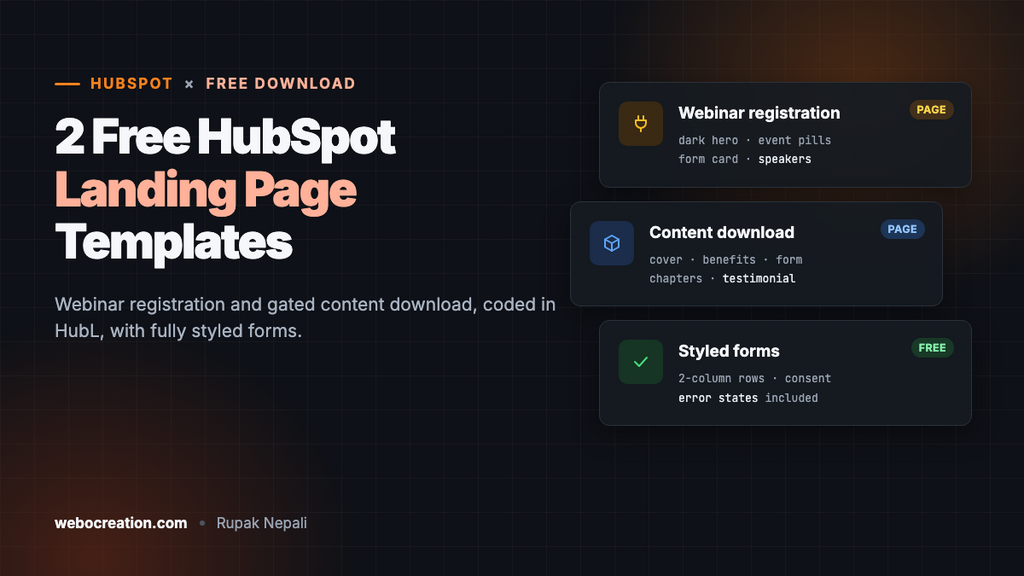
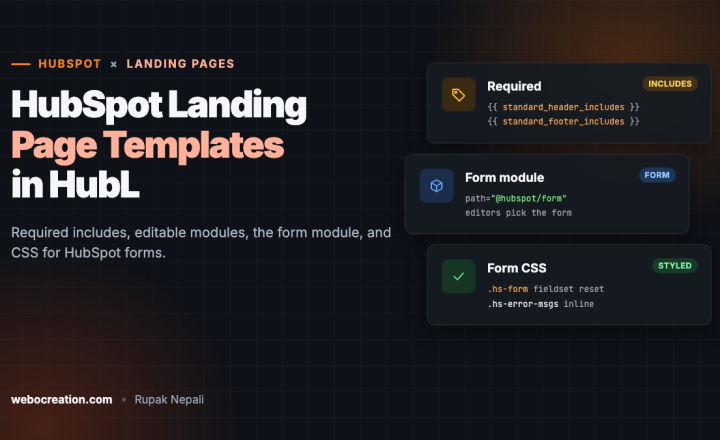
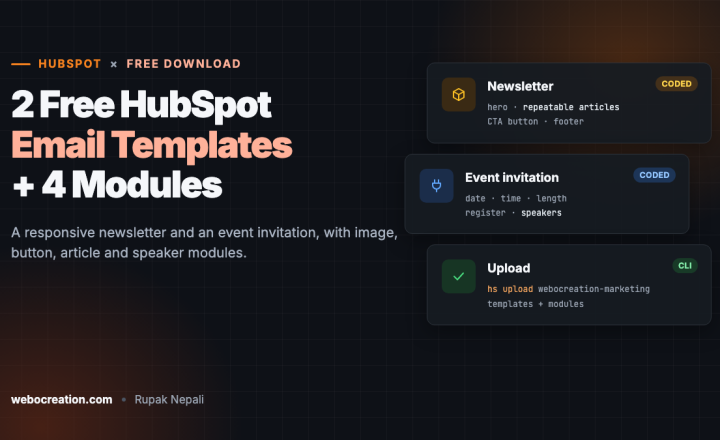
Here are two free coded landing page templates for HubSpot: a webinar registration page and a gated content download page for ebooks, reports and guides. Both are responsive, have every editable part set up as a module, and include CSS that makes HubSpot’s form match the design, from two-column name fields to error messages.
Download both templates and their modules (ZIP, 12 KB). Free to use and change, with no attribution needed.
Template 1: Webinar registration
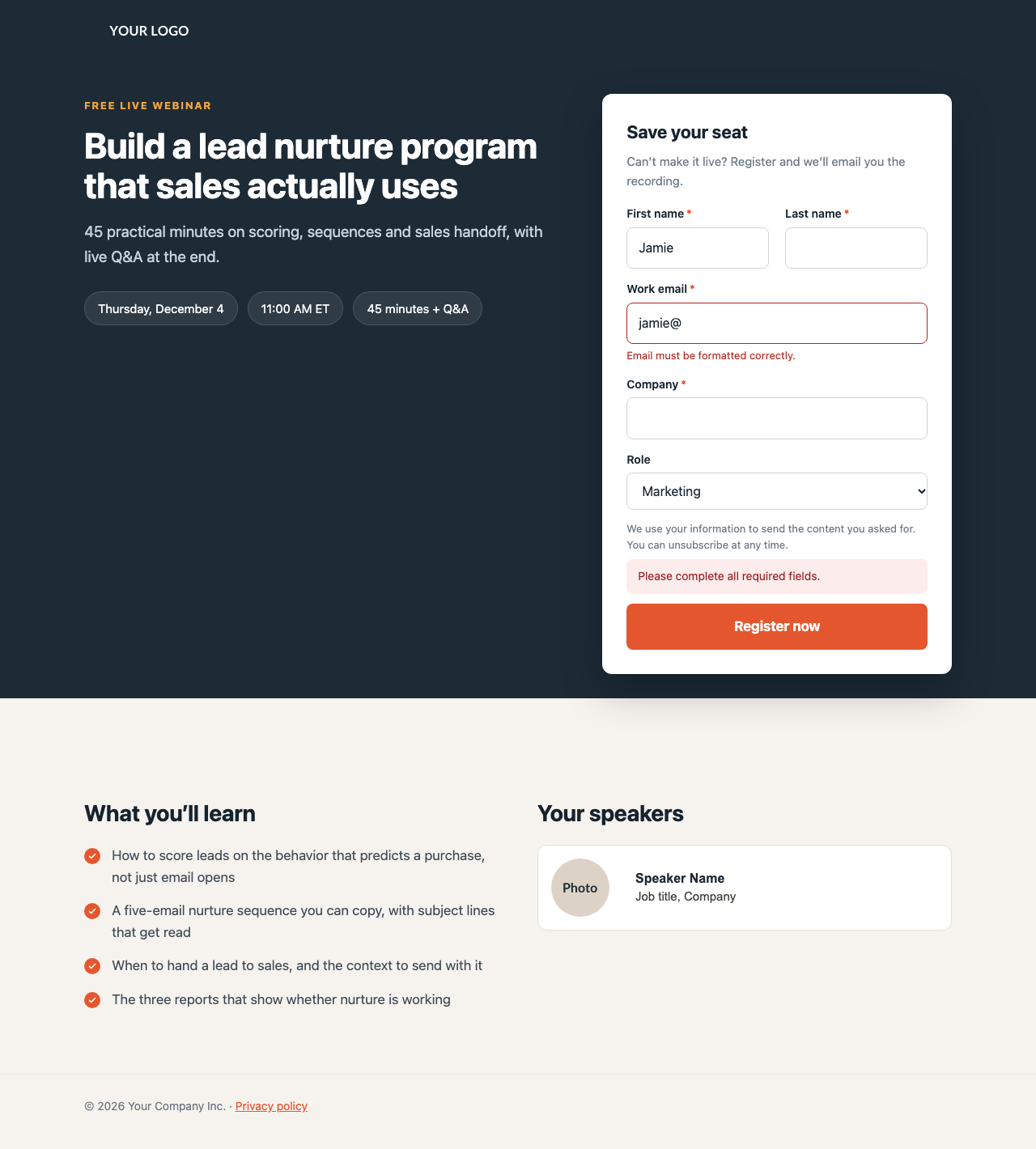
- Dark hero with a label, headline, description and event details as pills.
- Form card overlapping the hero, with its own heading and note.
- “What you’ll learn” with check-mark bullets.
- Repeatable speakers: add one entry per speaker.
It pairs with the free HubSpot event invitation email template, which uses the same colors.
Template 2: Content download
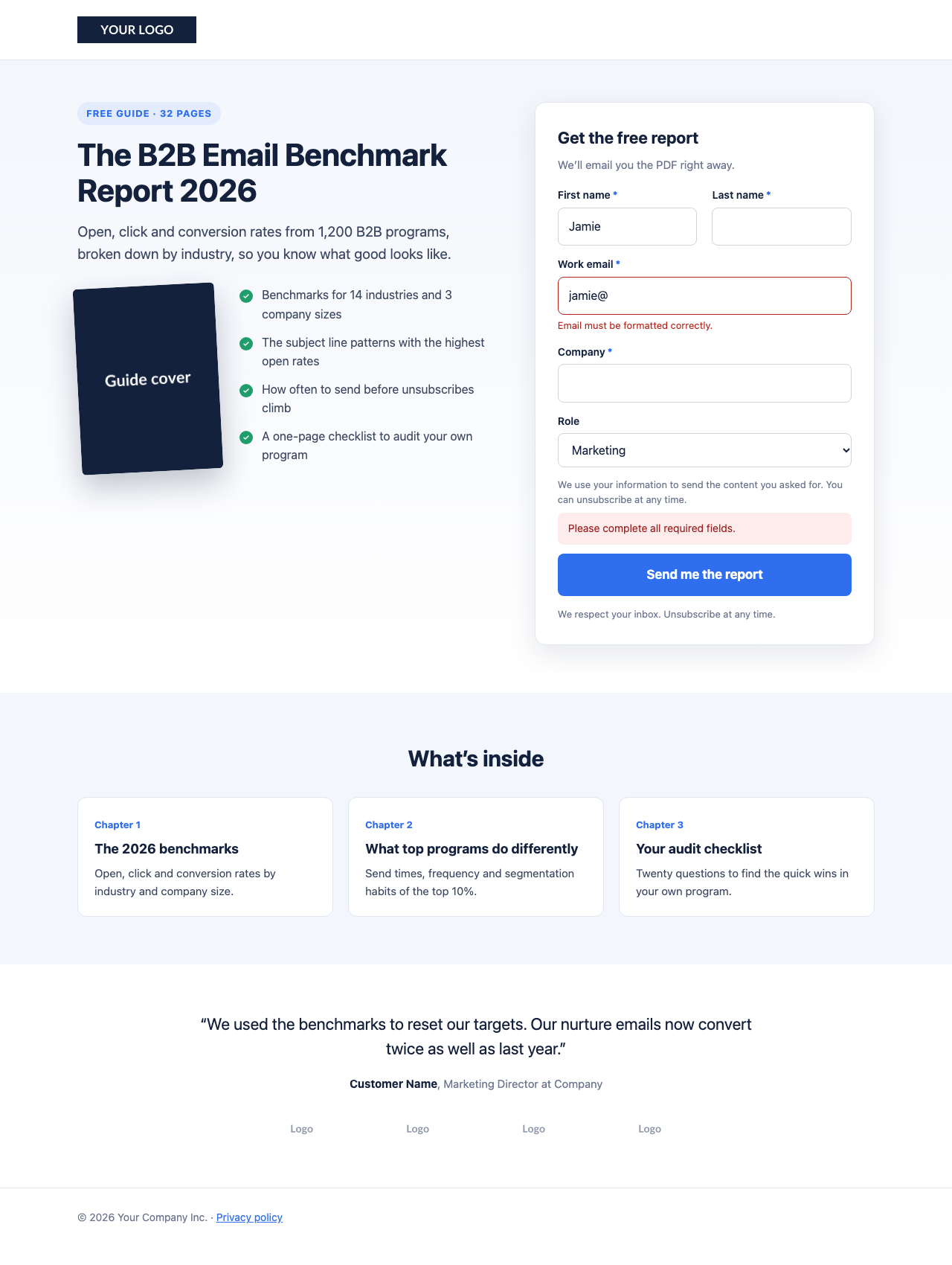
- Badge, headline and description (“Free guide · 32 pages”).
- Tilted cover image next to a benefits list.
- Form card with a privacy note under the button.
- “What’s inside”: three chapter cards.
- Testimonial and four customer logos.
What’s built in
| Feature | Details |
|---|---|
| Required HubSpot code | standard_header_includes, standard_footer_includes, page title, meta description and language already in place |
| Editable modules | Text modules for headlines and labels (so formatting can’t drift), rich text for longer copy, image and speaker modules, and the form |
| Form styling | Fieldsets reset, two-column rows, labels, required markers, fields, checkboxes, consent text, the button, field errors and the error summary |
| Responsive | Two columns on desktop; one column below 900 pixels, with name fields stacking below 480 |
| Performance | CSS inline in the template, system fonts and no extra JavaScript |
| Easy colors | CSS variables at the top of the stylesheet |
To understand each part or adapt your own design, see How to Build a HubSpot Landing Page Template in HubL.
How to install the templates
The quickest way is the HubSpot CLI, which uploads the templates and their modules together:
npm install -g @hubspot/cli
hs init
unzip hubspot-landing-page-templates.zip
hs upload webocreation-marketing webocreation-marketing
If you already uploaded the email templates, this adds the page templates to the same folder; the shared modules are simply updated. Without the CLI, create the folder structure in the Design Manager by hand, as described in the README in the ZIP.
Then:
- Create a landing page and choose “Webocreation – Webinar registration” or “Webocreation – Content download”.
- Choose the form in the form module, and set its follow-up: a thank-you message, or a redirect to a thank-you page.
- Edit the modules: headline, description, details, images, speakers or chapters.
- Set the page title, URL and meta description in the page settings.
- Test it: submit the form empty to see the errors, then for real to check the follow-up, notifications and workflows. Check the page on a phone.
Change the colors
Each template defines its colors once, at the top of the stylesheet:
/* Webinar registration */
:root{--ink:#16232e;--text:#3d4a56;--muted:#6c7884;--accent:#e4572e;--accent-dark:#c9461f;--soft:#f6f3ee;--line:#e5e0d8;--card:#ffffff;--dark:#1d2b36;--gold:#f2a541}

/* Content download */
:root{--ink:#14213d;--text:#3b4660;--muted:#6b7590;--accent:#2f6fed;--accent-dark:#1f57c9;--soft:#f3f6fc;--line:#e1e6f0;--card:#ffffff;--green:#1f9d6b}
Change --accent to your brand color and --accent-dark to a slightly darker shade for the button’s hover. Also update the focus ring color: search for rgba(228,87,46 (webinar) or rgba(47,111,237 (download).
Deliver the content after a download
For the content download page, use the form’s follow-up and a workflow together:
- Set the form module’s follow-up to a thank-you message with a download button, or a redirect to a thank-you page. Host the file in HubSpot’s file manager.
- Create a workflow enrolled by “Form submission” on this form (on this page), which sends a follow-up email with the same link.
The email gives people the link again later, and confirms the email address works. Many teams also add the contact to a list for a short nurture sequence about the guide’s topic.
Frequently asked questions
My form doesn’t pick up the styles. Forms built in HubSpot’s newer form editor use different markup and are styled through the form’s style settings. The template’s CSS targets forms from the classic editor. Either build the form in the classic editor or set the new form’s style settings to match.
Can editors add sections? These templates have a fixed structure, which keeps pages consistent. To let editors add sections, add a drag-and-drop area under the hero; the landing page guide shows the code.
Can I use them as website pages? Yes. Templates with templateType: page are available for both landing pages and website pages, and the custom modules’ meta.json allows both.
More in this series: how to build a coded HubSpot email template and the HubSpot personalization cheat sheet. Using Pardot or Marketo? Get the Pardot and Marketo landing page templates.

Author of four Opencart book.
The recent are Opencart 4 developer book and Opencart 4 user manual