Photo Reviews for OpenCart 4: Let Customers Add Photos to Their Reviews, Shown After You Approve (Free Extension)
Customers add photos to product reviews. Uploads are checked, resized and stripped of GPS data, appear after approval, and fill a customer photo gallery with a lightbox.
 Rupak NepaliPublished Nov 22, 2026

A star rating tells shoppers that someone liked a product. A photo shows them what it actually looks like on a real desk, a real wrist or in a real kitchen. Photo reviews are one of the most persuasive things a product page can have, and OpenCart 4 doesn’t support them out of the box.
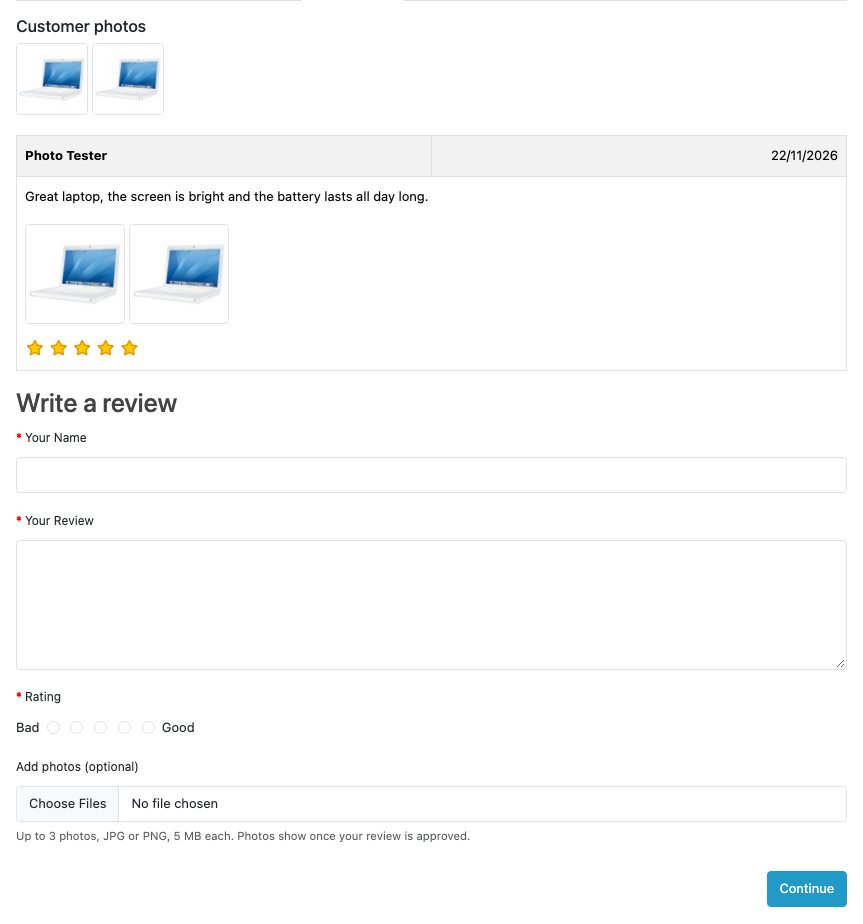
This free extension adds photos to OpenCart’s own review form. Customers attach up to three photos, you approve the review as usual, and the photos appear under the review and in a “Customer photos” gallery at the top of the reviews.
Download Photo Reviews for OpenCart 4 (free, tested on OpenCart 4.1.0.4)
What it does
- Photos in the review form. An “Add photos (optional)” field under the rating. Photos upload as soon as they’re chosen, with a thumbnail and a remove button for each.
- Photos only after approval. Photos belong to the review, so they appear when you enable the review in Catalog > Reviews, and never before.
- Customer photo gallery. The latest 12 photos at the top of page 1 of the reviews.
- Lightbox. Clicking a photo opens it full size in a Bootstrap modal, without another script library.
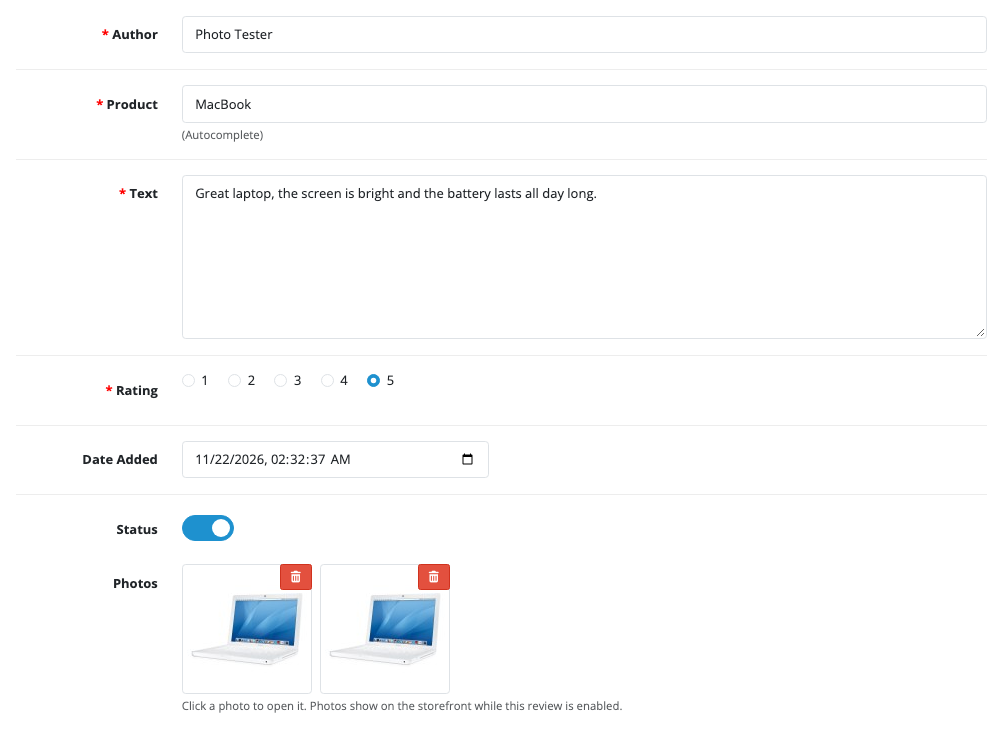
- Admin review form. The review’s photos with a delete button for each. Deleting a review deletes its photos.
- Safe uploads. JPG and PNG only, checked, resized and re-saved (details below).
Install
- Go to Extensions > Installer, upload
photoreview.ocmod.zipand click the green + button. - Go to Extensions > Extensions, choose Modules, and install Photo Reviews.
- Click Edit, turn Status on and save.
Reviews must be switched on in System > Settings > Option > Reviews. If guests may write reviews there, they can add photos too.
Settings
- Photos per review: 3 by default, up to 10.
- Largest photo: 5 MB by default. Phone photos are usually 2 to 6 MB. Photos are resized to 1600 pixels on their longest side, so big uploads don’t fill your server.
- Thumbnail size under each review: 100 pixels.
- Customer photo gallery on or off.
The settings page also shows the latest 24 photos with the product and author, marked “Waiting for approval” until you enable the review. Click one to open the review.
Approving reviews with photos
Nothing changes in your workflow. New reviews still arrive disabled in Catalog > Reviews. Open one and the photos are at the bottom of the form, each opening full size in a new tab. Delete an unsuitable photo with its trash button and keep the review, or delete the whole review. Enable the review and its photos go live with it.
Upload safety
A file upload on a public form is something attackers look for, so every photo goes through these steps:
- The upload needs a one-time token tied to the visitor’s session and the product page they opened, so it can’t be called from elsewhere. A wrong token is refused.
- The file must be a real JPEG or PNG, checked with
getimagesize()and then decoded by PHP’s GD library. A file named.jpgthat isn’t an image is refused (“Please choose a JPG or PNG photo”). - Every photo is re-encoded as a new JPEG. Nothing the customer uploaded is stored byte for byte, which removes anything hidden inside the file.
- Re-encoding also removes EXIF data, including the GPS location phones store in photos. A customer photographing a product at home doesn’t publish their address. Phone photos stored sideways are rotated upright first.
- A review can only claim photos uploaded by the same visitor for the same product. We tested sending a review with a made-up photo code: it was ignored.
- Photos uploaded but never sent with a review are deleted after a day.
Photos are stored in image/catalog/photoreview/ by month, and thumbnails go through OpenCart’s normal image cache.
How it works
No core or theme files are changed. Four storefront events do the work:
catalog/view/product/review/beforeadds the photo field to the review form template, before the captcha.catalog/model/catalog/review.addReview/afterattaches the uploaded photos to the new review ID.catalog/model/catalog/review.getReviewsByProductId/afternotes which reviews the list will show.catalog/view/product/review_list/beforeadds the photos and the gallery to the list template.
One detail is useful if you write your own OpenCart extensions. In a view/…/before event the template code ($code) is empty unless the Theme Editor has an override for that template: OpenCart’s own event/theme fills it at priority 500. So these events run at sort order 600, after the theme event, and read the template file themselves when $code is still empty. That way a Theme Editor override is respected too. Read more in OpenCart 4 Theme Editor.
Another detail: OpenCart 4.1’s getReviewsByProductId() doesn’t return review IDs, only the author, rating, text and date. The extension matches each listed review back to its ID by product, author, date and text.
Works with
- The All Reviews page and Product Questions & Answers extensions.
- Captcha extensions such as Cloudflare Turnstile: the photo field goes in above the captcha.
Uninstall
Uninstalling removes the events. The photos and their table stay, because they’re your customers’ content, and they come back if you reinstall.

Rupak Nepali is a web developer, manage Webocreation website and the author of six books:
Getting Started with OpenCart Module Development (Packt, 2013),
OpenCart Theme and Module Development (Packt, 2015),
OpenCart 4: Dev Guide for Themes & Extensions (2024),
OpenCart 4: User Manual (2025),
Cloudflare for the Enterprise Website (2026) and
The Technical Web Guide for Marketers (2026).
Rupak has built OpenCart stores and extensions since 2010, has published more than 600 tutorials on Webocreation, and shares free OpenCart extensions on GitHub.
Find Rupak on
GitHub | Amazon | LinkedIn | X | YouTube.