TikTok Pixel and Events API for OpenCart 4: ViewContent, AddToCart and Purchase, Deduplicated and With Consent (Free Extension)
Track ViewContent, AddToCart, InitiateCheckout and Purchase with the TikTok Pixel, send Purchase from the server too, and respect cookie consent. Free, no theme edits.
 Rupak NepaliPublished Nov 21, 2026
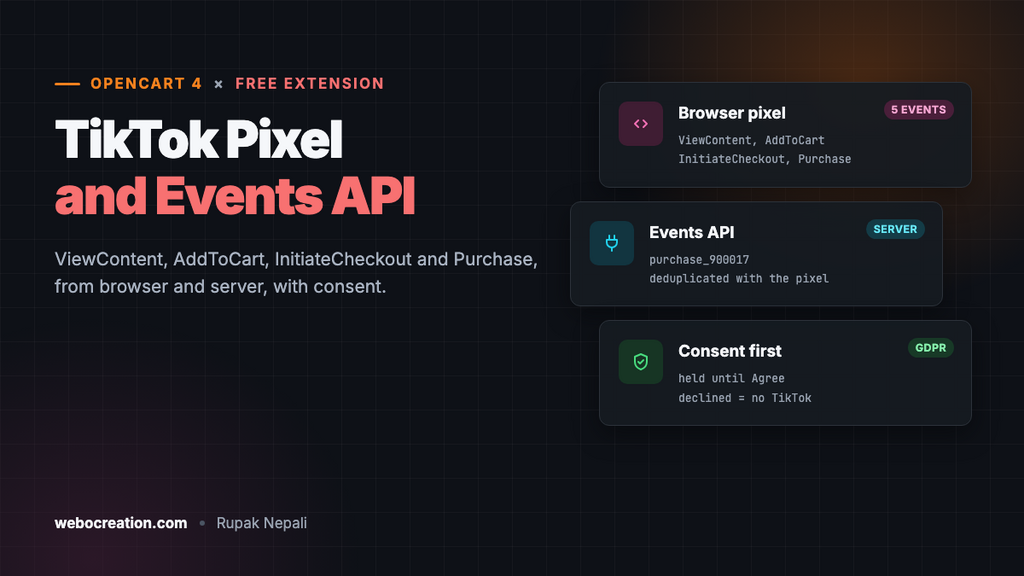
If you advertise on TikTok, TikTok needs to know what happens after the click: who viewed a product, added it to the cart and bought it. Without that, TikTok can’t optimise your ads for sales or show you which ads paid off. It learns this from the TikTok Pixel in the browser and the Events API from your server.
This free extension sets up both for OpenCart 4, with no theme edits. It sends the standard ecommerce events with product IDs, prices and currency, sends purchases from the server too so ad blockers don’t hide them, and only tracks visitors who agreed to it.
Download TikTok Pixel and Events API for OpenCart 4 (free, tested on OpenCart 4.1.0.4)
What it tracks
| Event | When | Sent from |
|---|---|---|
| PageView | Every page | Browser |
| ViewContent | A product page is opened | Browser |
| AddToCart | Any add to cart: product page, category grid, modules, quick-add buttons | Browser |
| InitiateCheckout | The checkout page is opened | Browser |
| Purchase | An order is placed and reaches a processing or complete status | Browser and server |
Each event carries contents (product ID, name, price, quantity), value and currency, the parameters TikTok needs for value-based optimisation and catalog ads. TikTok renamed its CompletePayment event to Purchase. The old name still works, but new setups should use Purchase, and this extension does.
Why send purchases from the server too?
The pixel runs in the shopper’s browser, so ad blockers, browser tracking protection and closed tabs can stop it. The Events API sends the same purchase from your server, where none of that applies.
Both carry the same event_id (purchase_ plus the order number), so when TikTok gets the purchase twice, it counts it once. The server event also carries what helps TikTok match the order to a person: the hashed email, the customer’s IP address and browser, and the ttclid click ID that TikTok adds to links from its ads. The extension saves the ttclid when the shopper lands and keeps it with the order.
Install it
- Download
tiktok.ocmod.zip. - Go to Extensions → Installer, upload it, and click the green +.
- Go to Extensions → Extensions → Modules and install TikTok Pixel and Events API.
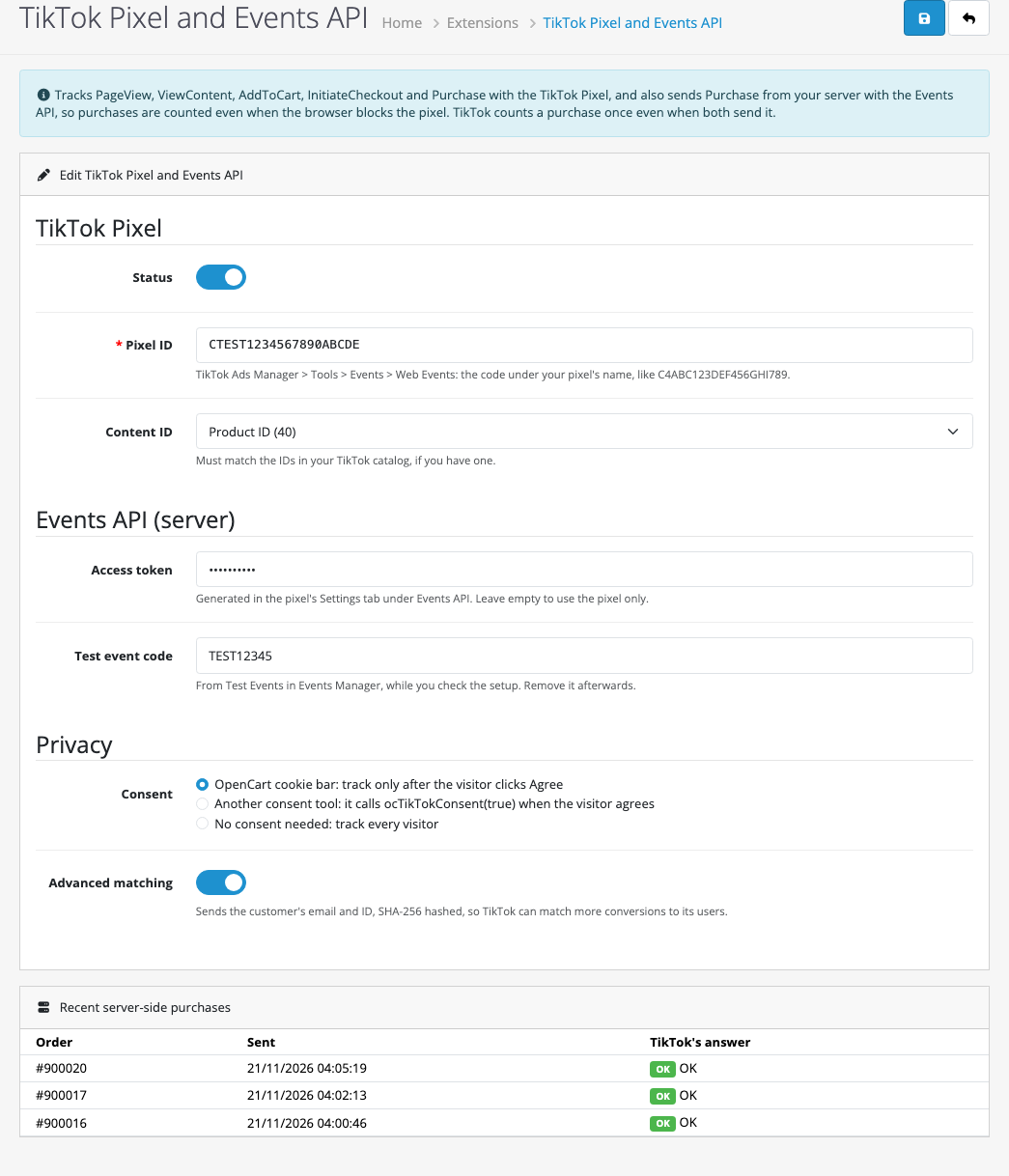
- Click Edit, fill in the settings below, turn Status on and save.
Where to find your pixel ID and access token
- In TikTok Ads Manager, go to Tools → Events → Web Events and create a pixel if you don’t have one. Choose to set it up manually.
- Copy the pixel ID, the code shown under the pixel’s name (usually 20 capital letters and numbers, starting with C). Paste it into Pixel ID.
- Open the pixel’s Settings tab and generate an access token in the Events API section. Paste it into Access token. Leave it empty if you only want the pixel.
The access token lets anyone send events to your pixel, so treat it like a password. The field hides it.
The settings
| Setting | What it does |
|---|---|
| Pixel ID | Your pixel. Saving with Status on and no valid ID is refused. |
| Content ID | The product identifier sent to TikTok: the OpenCart product ID, or the model. If you have a TikTok catalog, it must match the IDs there. |
| Access token | Turns on the server-side Purchase. |
| Test event code | Paste the code from Test Events in Events Manager while you check the setup, then remove it. |
| Consent | When tracking is allowed. See below. |
| Advanced matching | Sends the logged-in customer’s email and customer ID, SHA-256 hashed, so TikTok can match more conversions. The raw email never leaves your store. |
Consent
In the EU, the UK and many other places, advertising pixels need the visitor’s consent first. The extension uses TikTok’s own consent controls: the pixel loads in a “hold” state, events wait, and they’re released only when the visitor agrees.
- OpenCart cookie bar (the default). Uses OpenCart’s built-in bar. Events wait until the visitor clicks the agree button. The bar only appears when you choose a cookie policy page in System → Settings → Option → Legal, and the settings page warns you if it’s off.
- Another consent tool. If you use a consent platform (Cookiebot, CookieYes, Iubenda…), have it call
ocTikTokConsent(true)when the visitor accepts marketing cookies andocTikTokConsent(false)when they decline. - No consent needed. Tracks everyone. Only use it where the law allows.

Visitors who decline get no TikTok script at all. Their orders aren’t sent from the server either, and no click ID is stored with them. The extension records the consent with each order, so a payment confirmation that arrives later, from the payment provider’s server, still respects it.
Check it’s working
- Add your test event code, open your store in a private window, accept cookies and buy something with a test payment method (Cash on Delivery or bank transfer).
- In Events Manager, open Test Events: you should see PageView, ViewContent, AddToCart, InitiateCheckout and Purchase from the browser, and Purchase from the server.
- Check the Recent server-side purchases table in the extension. Each order should say OK. If TikTok rejected it, its message is shown there.
- Remove the test event code.
The TikTok Pixel Helper Chrome extension also shows each browser event and its parameters as you click around.
How it’s built
Everything is done with OpenCart 4 events, without editing your theme:
| Event | What the extension does |
|---|---|
catalog/view/common/header/after | Adds the pixel base code, the consent state and PageView |
catalog/view/product/product/after | ViewContent |
catalog/controller/checkout/cart.add/after | Adds the AddToCart data to the add-to-cart answer, which the page then sends to TikTok |
catalog/view/checkout/checkout/after | InitiateCheckout |
catalog/view/common/success/after | Purchase in the browser |
catalog/model/checkout/order.addOrder/after | Saves consent, ttclid and the _ttp cookie with the order |
catalog/model/checkout/order.addHistory/after | Purchase from the server, the first time the order reaches a processing or complete status |
Hooking AddToCart into OpenCart’s checkout/cart.add answer means every add-to-cart button is tracked, including buttons from other extensions, because they all use that route.
Two details are worth knowing if you build something similar:
- OpenCart’s consent cookie is HttpOnly, so JavaScript can’t read it. The extension reads it on the server and writes the visitor’s choice into the page.
- The checkout success page forgets the order before it renders. The extension notes the order number just before (
catalog/controller/checkout/success/before) so the browser Purchase can use it.
The server request looks like this (with the email hashed):
POST https://business-api.tiktok.com/open_api/v1.3/event/track/
Access-Token: your-access-token

{
  "event_source": "web",
  "event_source_id": "CTEST1234567890ABCDE",
  "data": [{
    "event": "Purchase",
    "event_time": 1795233646,
    "event_id": "purchase_900017",
    "user": {
      "email": "d95c0c85722a0d29…",
      "external_id": "6a97982dccf77dd3…",
      "ip": "…",
      "user_agent": "…",
      "ttclid": "E.C.P.testclick123"
    },
    "properties": {
      "content_type": "product",
      "contents": [{"content_id": "40", "content_name": "iPhone", "price": 101, "quantity": 2}],
      "value": 207,
      "currency": "USD"
    },
    "page": {"url": "https://yourstore.com/index.php?route=checkout/success"}
  }]
}
Testing
We tested with a made-up pixel ID, without sending anything to TikTok. The browser blocked TikTok’s script, so we could read the pixel’s queue of calls. The Events API was pointed at a local server that checks the access token and answers like TikTok. Because TikTok’s script never loaded, there was no _ttp cookie to pass in these tests.
| Test | Result |
|---|---|
| Save with Status on and no pixel ID | “Enter your pixel ID: 10 to 30 letters and numbers.” |
| First visit, cookie bar not answered yet | holdConsent, then PageView, held |
| Click “Yes, that’s fine!” | grantConsent; later pages start with holdConsent + grantConsent |
iPhone page opened from a link with ttclid | ViewContent: content_id 40, price 123.2, USD |
| Add 2 to cart | AddToCart: quantity 2, value 246.4, with its own event_id |
| Checkout page | InitiateCheckout with the cart’s contents |
| Order placed (Cash on Delivery) | Browser Purchase purchase_900017, value 207; server Purchase with the same event_id, the hashed email, the ttclid and the test event code; TikTok mock answered OK |
| New visitor clicks “No Thanks!”, then buys | No TikTok script on later pages, no server event, no click ID saved |
Troubleshooting
| Problem | Cause and fix |
|---|---|
| No events at all | Check Status and the pixel ID. With the OpenCart cookie bar mode, the bar must be switched on and you must click agree. A visitor who declined is never tracked: clear your cookies to test again. |
| Browser events but no server purchases | Check the access token. Purchases are only sent from the server when the order reaches a processing or complete status, and only with consent. |
| An error in Recent server-side purchases | The message is TikTok’s. An invalid access token is the usual cause: generate a new one in the pixel’s settings. |
| Purchases counted twice | Another TikTok integration (a theme setting, Google Tag Manager, or another extension) is also sending Purchase. Keep only one. |
| Some orders show no browser Purchase | By design for orders whose status isn’t a processing or complete status (System → Settings → Option → Checkout), for example a bank transfer set to an “awaiting payment” status. They aren’t paid yet. The server sends Purchase when you move the order to a processing or complete status. |
Related: Meta Pixel tracking in OpenCart 4, the Meta Conversions API, GA4 ecommerce events, Google Ads enhanced conversions, Google Consent Mode v2, and paid social advertising on Meta, LinkedIn and TikTok.

Rupak Nepali is a web developer, manage Webocreation website and the author of six books:
Getting Started with OpenCart Module Development (Packt, 2013),
OpenCart Theme and Module Development (Packt, 2015),
OpenCart 4: Dev Guide for Themes & Extensions (2024),
OpenCart 4: User Manual (2025),
Cloudflare for the Enterprise Website (2026) and
The Technical Web Guide for Marketers (2026).
Rupak has built OpenCart stores and extensions since 2010, has published more than 600 tutorials on Webocreation, and shares free OpenCart extensions on GitHub.
Find Rupak on
GitHub | Amazon | LinkedIn | X | YouTube.