Mailchimp Template Language Guide: mc:edit, mc:repeatable, mc:variant, mc:hideable and Merge Tags (With Examples)
How to build a custom-coded Mailchimp template that non-developers can edit: editable regions with mc:edit, repeatable blocks and variants, hideable sections, labels, editable images, merge tags for personalisation and the footer, and the rules that silently break templates.
 Rupak NepaliPublished Nov 16, 2026
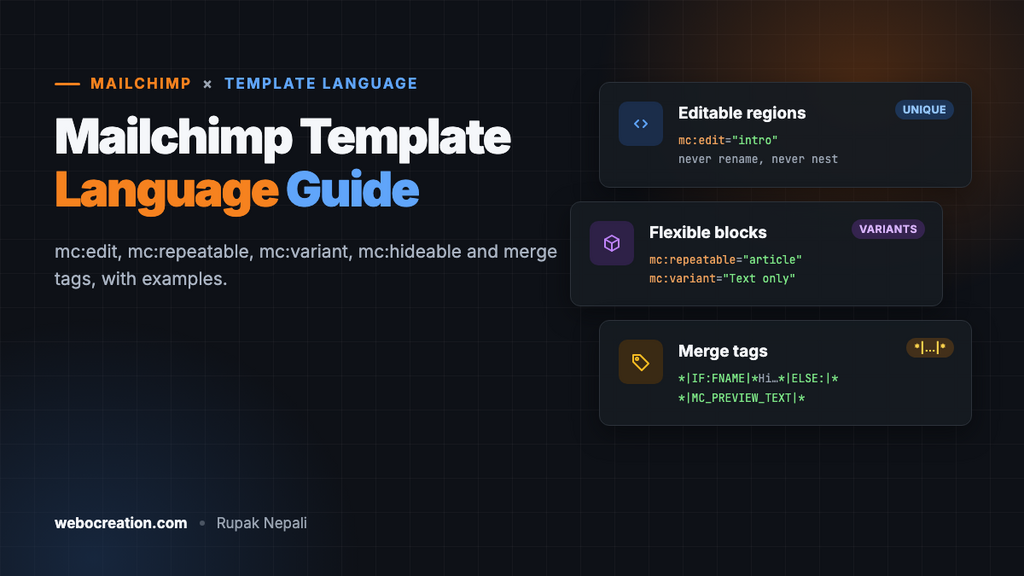
A coded Mailchimp template is ordinary HTML email with a handful of extra attributes. Those attributes, Mailchimp’s template language, tell the editor which parts can be changed, which blocks can be repeated or swapped, and which can be hidden. Add merge tags for personalisation and the required footer, and you have a template that a developer builds once and anyone on the team can use.
This guide covers each attribute with real examples from our two free Mailchimp templates, and the rules from Mailchimp’s documentation that break templates when ignored. It’s the Mailchimp companion to our HubSpot, Marketo and Pardot template guides.
One limitation up front: Mailchimp says custom-coded templates work in its legacy (classic) builder, which is available to accounts created before July 2023. Newer accounts use the new builder, which doesn’t support them.
The five attributes
| Attribute | Does | Goes on |
|---|---|---|
mc:edit="name" | Makes an area editable | A div, td or img |
mc:repeatable="name" | Lets editors duplicate a block | A block element (not lists), or an inline element |
mc:variant="Label" | Offers alternative layouts for a repeatable block | Only alongside mc:repeatable |
mc:hideable | Lets editors hide a section per campaign | Any element, but not one that’s also repeatable |
mc:label="Friendly name" | Names an editable area in the editor | Any mc:edit element (optional) |
mc:edit: editable regions
<div mc:edit="intro" mc:label="Intro">
  <h1>November: new arrivals, a winter guide and a thank-you</h1>
  <p>Hi *|FNAME|*,</p>
  <p>Here's what's new this month...</p>
</div>
Everything inside becomes editable in the campaign editor; the HTML you wrote is the starting content. Three rules from Mailchimp’s documentation matter:
- Names must be unique. Each
mc:editname is stored as a field. - Don’t rename them later. Because names are stored as fields, renaming one in a template that’s already been used loses that content in existing campaigns.
- Don’t nest them. An
mc:editinside anothermc:editdoesn’t work, and an editable image shouldn’t sit inside an editable text area.
Editable images
<img src="https://placehold.co/1200x560?text=Hero" mc:edit="hero_image" mc:label="Hero image"
     alt="" width="600" class="fluid-img" style="display:block; width:100%; max-width:600px;">
Editors can replace, resize and link the image. Mailchimp strips hard-coded width and height attributes from editable images in favour of the editor’s settings, so set a max-width in the style and add a class you can override on mobile:
@media only screen and (max-width: 620px) {
  .fluid-img { width: 100% !important; max-width: 100% !important; height: auto !important; }
}
We learned the second max-width the hard way: without max-width: 100% !important, the inline max-width:260px kept product images narrow on phones even though the width was 100%.
Editable buttons
Put mc:edit on the table cell that holds the link, so editors can change both the text and the URL:
<td align="center" bgcolor="#2563eb" style="border-radius:6px;" mc:edit="cta_button">
  <a href="https://www.example.com/new" style="display:inline-block; padding:14px 28px; color:#ffffff; text-decoration:none;">Shop new arrivals</a>
</td>
mc:repeatable and mc:variant: flexible blocks
A repeatable block can be duplicated, reordered and deleted by the editor. Give it a name:
<table role="presentation" mc:repeatable="product_row" width="100%">
  <tr>
    <td><img src="..." mc:edit="product_image_a"> <div mc:edit="product_text_a">...</div></td>
    <td><img src="..." mc:edit="product_image_b"> <div mc:edit="product_text_b">...</div></td>
  </tr>
</table>
Add variants to let editors choose between layouts for the same block. All variants share the repeatable name, differ in mc:variant, and must sit next to each other in the HTML:
<table mc:repeatable="article" mc:variant="Article with image on the left"> ... </table>
<table mc:repeatable="article" mc:variant="Article with image on the right"> ... </table>
<table mc:repeatable="article" mc:variant="Text only"> ... </table>
In the editor, each article block then has a variant switcher. The newsletter template uses exactly this, so one email can mix image-left, image-right and text-only stories.
Style repeatable blocks with classes or inline styles, not ids: duplicated blocks would repeat the id. Putting mc:edit directly on a repeatable element is allowed, but nesting a repeatable inside an mc:edit gives you content that’s editable but can’t be repeated.
mc:hideable: optional sections
<tr mc:hideable>
  <td>
    <div mc:edit="offer">A thank-you for reading: 10% off until 30 November...</div>
  </td>
</tr>
Editors get a hide button on the section; hidden sections aren’t sent. Use it for things that appear in some campaigns but not others: a hero, a coupon box, an event banner. It takes no value, and Mailchimp’s documentation says not to combine it with mc:repeatable on the same element (repeatable blocks can be deleted anyway).
Merge tags
Merge tags are replaced with each subscriber’s data, or campaign data, when the email is sent. The ones a template typically needs:
| Merge tag | Outputs | Use |
|---|---|---|
*|FNAME|* | First name, if known | Greeting |
*|MC:SUBJECT|* | The subject line | The <title> |
*|MC_PREVIEW_TEXT|* | The campaign’s preview text | A hidden div at the top of the body |
*|ARCHIVE|* | Link to the web version | “View in browser” |
*|UNSUB|* | Unsubscribe link | Footer (required) |
*|UPDATE_PROFILE|* | Preferences page link | Footer |
*|HTML:LIST_ADDRESS_HTML|* | Your audience’s mailing address, formatted | Footer |
*|LIST:COMPANY|* | Your audience’s company name | Copyright line, logo alt text |
*|CURRENT_YEAR|* | This year | Copyright line |
*|HTML:REWARDS|* | Mailchimp’s referral badge (free plans) | Footer |
A default for missing names
“Hi ,” looks careless. Mailchimp’s conditional merge tags handle missing data:
*|IF:FNAME|*Hi *|FNAME|*,*|ELSE:|*Hi there,*|END:IF|*The templates use the same pattern for the rewards badge, so it disappears on paid plans:
*|IF:REWARDS|*<p>*|HTML:REWARDS|*</p>*|END:IF|*The required footer
Mailchimp describes the unsubscribe option as required “by law and our Terms of Use”. In practice your footer needs an unsubscribe link and your mailing address, the address coming from the audience’s required footer content:
<p>*|HTML:LIST_ADDRESS_HTML|*</p>
<p>
<a href="*|UPDATE_PROFILE|*">Update your preferences</a> |
<a href="*|UNSUB|*">Unsubscribe</a>
</p>
<p>© *|CURRENT_YEAR|* *|LIST:COMPANY|*</p>Keep the unsubscribe link outside any mc:edit area if you don’t want editors to delete it by accident. Mailchimp also adds the one-click unsubscribe headers that Gmail and Yahoo require (see our one-click unsubscribe guide).
A skeleton to start from
<!doctype html>
<html>
<head>
<meta charset="UTF-8">
<meta name="viewport" content="width=device-width, initial-scale=1">
<title>*|MC:SUBJECT|*</title>
<style>
  @media only screen and (max-width: 620px) { .container { width: 100% !important; } }
</style>
</head>
<body style="margin:0; background:#eef1f5;">
<div style="display:none; max-height:0; overflow:hidden;">*|MC_PREVIEW_TEXT|*</div>
<table role="presentation" width="100%"><tr><td align="center">
  <table role="presentation" class="container" width="600">
    <tr><td><img src="logo.png" mc:edit="logo" mc:label="Logo" alt="*|LIST:COMPANY|*" style="max-width:180px;"></td></tr>
    <tr><td><div mc:edit="body" mc:label="Body">*|IF:FNAME|*Hi *|FNAME|*,*|ELSE:|*Hi there,*|END:IF|*</div></td></tr>
    <tr mc:hideable><td><div mc:edit="offer">Optional offer</div></td></tr>
    <tr><td>*|HTML:LIST_ADDRESS_HTML|* <a href="*|UNSUB|*">Unsubscribe</a></td></tr>
  </table>
</td></tr></table>
</body>
</html>
Checking a template before importing
Most template problems are invisible until an editor complains. We check four things with a short script before shipping a template: unique mc:edit names, no nested editable regions, mc:variant only on repeatable blocks, and balanced HTML tags. Our two templates pass with 11 and 13 editable regions. Then send a test to Gmail, Outlook and an iPhone; Mailchimp’s Preview and Test menu and an inbox-preview tool help.
Common problems
| Problem | Cause |
|---|---|
| An area isn’t editable | It’s inside another mc:edit, or the attribute is on an element Mailchimp doesn’t support for editing (use a div or td) |
| Content vanished from old campaigns | An mc:edit name was renamed in the template |
| No variant switcher | The variants don’t share the repeatable name, or aren’t adjacent |
| Images too small or stretched on phones | Hard-coded sizes were stripped; add a class with a mobile override |
| “Code your own” isn’t offered | Your account uses the new builder, which doesn’t support coded templates |
| “Hi ,” with no name | Use *|IF:FNAME|* with an *|ELSE:|* |
Download the finished examples: 2 free Mailchimp email templates. For Klaviyo’s Django-style tags, see free Klaviyo templates.

Rupak Nepali is a web developer, manage Webocreation website and the author of six books:
Getting Started with OpenCart Module Development (Packt, 2013),
OpenCart Theme and Module Development (Packt, 2015),
OpenCart 4: Dev Guide for Themes & Extensions (2024),
OpenCart 4: User Manual (2025),
Cloudflare for the Enterprise Website (2026) and
The Technical Web Guide for Marketers (2026).
Rupak has built OpenCart stores and extensions since 2010, has published more than 600 tutorials on Webocreation, and shares free OpenCart extensions on GitHub.
Find Rupak on
GitHub | Amazon | LinkedIn | X | YouTube.