DNS Records Explained for Marketers: A, CNAME, MX, TXT and What Breaks When You Change Them
Landing page tools, email platforms and Google all ask you to add DNS records. Here is what A, CNAME, MX and TXT records do, in plain language, and how to change DNS without breaking your email.
 Rupak NepaliPublished Oct 23, 2026
Sooner or later every marketer gets this message from a new tool: “To finish setup, add the following DNS records to your domain.” HubSpot, Mailchimp, Klaviyo, Unbounce, Webflow, Google Search Console and Meta Business Manager all ask for it.
Adding a record is usually easy. The risk is in the details: adding it in the wrong place, replacing a record instead of adding one, or moving DNS to a new company and forgetting the email records. This guide explains what each record does so you know what you are changing.
DNS in one paragraph
DNS (Domain Name System) is the address book of the internet. When someone visits yourcompany.com or sends an email to hello@yourcompany.com, their computer asks DNS where to go. The answers are stored as records at your DNS host. Each record has a name (which part of the domain), a type (what kind of answer) and a value (the answer).
The records marketers deal with
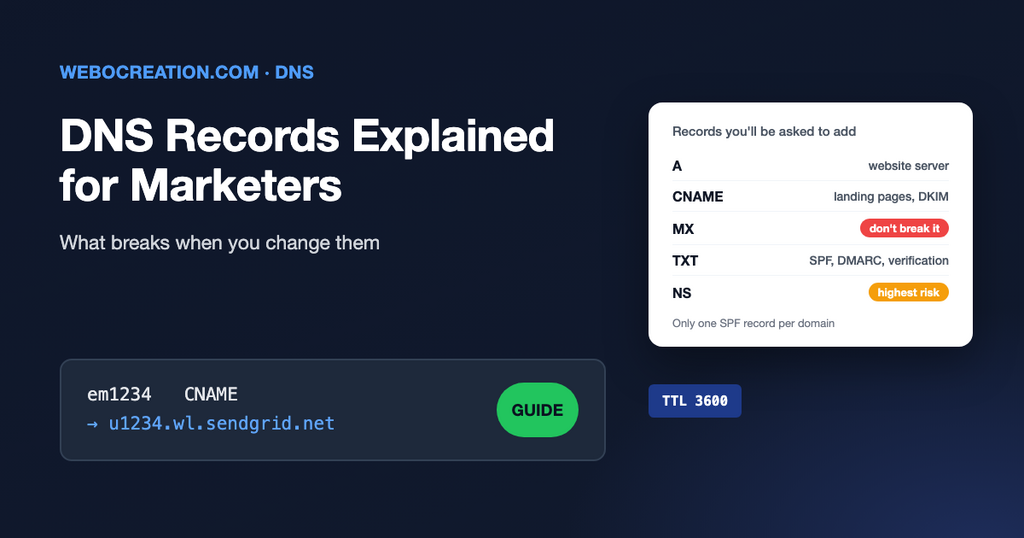
| Type | What it does | When marketers touch it |
|---|---|---|
| A / AAAA | Points a name to a server’s IP address (AAAA is the IPv6 version). | Moving the website to a new host. |
| CNAME | Points a name to another name. “go.yourcompany.com is really yourcompany.unbouncepages.com.” | Landing pages, link tracking domains, email platform DKIM, help centers. |
| MX | Says which servers receive email for the domain. | Almost never, and it’s the record you must not break. |
| TXT | Free text that services read. Used for verification and email authentication. | Verifying Google Search Console, Meta, Microsoft; SPF and DMARC for email. |
| NS | Says which company hosts the DNS for the domain. | Moving DNS to Cloudflare or a new host. The highest-risk change. |
Reading the instructions a tool gives you
A typical instruction looks like this:
Type:  CNAME
Host:  em1234
Value: u1234567.wl.sendgrid.net
TTL: 3600- Host (also called Name) is the part before your domain.
em1234meansem1234.yourcompany.com. Most DNS hosts add your domain automatically, so if you typeem1234.yourcompany.comyou may end up withem1234.yourcompany.com.yourcompany.com. Check how your DNS host shows existing records and copy that style. - @ means the domain itself, with nothing in front (
yourcompany.com). - TTL (time to live) is how many seconds other computers remember the answer. 3600 means one hour. It is also roughly how long a change takes to be seen everywhere.
Five mistakes that break things
1. Two SPF records
Every email platform tells you to add an SPF record starting with v=spf1. A domain may only have one. If you add a second, SPF fails for all of them. Instead, add the new service to the existing record, for example v=spf1 include:_spf.google.com include:sendgrid.net ~all. Our SPF, DKIM and DMARC guide shows how.
2. Editing instead of adding
Verification TXT records from Google, Meta and Microsoft can live side by side on the same name. If you overwrite the existing TXT record instead of adding a new one, the old verification disappears and you may lose access to Search Console data or a business account.
3. A CNAME on the root domain
Standard DNS doesn’t allow a CNAME on yourcompany.com itself, because it would conflict with the MX and TXT records there. If a website builder asks for one, use the A records it also provides, or your DNS host’s ALIAS or “CNAME flattening” feature.
4. Moving DNS and forgetting email
This is the big one. A new web developer moves the domain’s name servers to their preferred host or to Cloudflare, sets up the website, and doesn’t copy the MX, SPF, DKIM and DMARC records. The website works. Email stops arriving, or starts going to spam, and nobody connects it to the website change for days.
Before anyone changes name servers, export or screenshot every existing record, and check them one by one on the new host before switching.
5. Leaving old records behind
When you stop using a landing page tool or help desk, remove its CNAME. A CNAME that points to a service you no longer pay for can sometimes be claimed by someone else, who then serves their content on your subdomain. This is called subdomain takeover.
How to check a record worked
- Google Admin Toolbox Dig: type the name, choose the type, and see what the world sees.
- MXToolbox: checks MX, SPF and DMARC records and points out common errors.
- The tool that asked for the record usually has a “Verify” button. If it fails, wait for the TTL to pass and try again before changing anything.
A change log saves hours
Keep a simple note of every DNS change: date, who, which record, old value, new value, why. When something stops working, the first question is always “what changed?”, and the log answers it in seconds.
Learn the rest of the technical side
DNS sits under your website, your email and most of your marketing tools. My book, The Technical Web Guide for Marketers, explains it alongside email, tracking, search and AI, so you know what you are changing before you change it. (I’m the author; the Amazon link is an affiliate link.)

Author of four Opencart book.
The recent are Opencart 4 developer book and Opencart 4 user manual