Cloudflare Rules for Nextcloud: Real IPs for Brute-Force Protection, Uploads Under 100 MB, and Why Not to Cache
Put Nextcloud behind Cloudflare without breaking sync: real visitor IPs, upload chunks under the limit, a few safe rules, and what never to cache. Tested on Nextcloud 35.0.3.
 Rupak NepaliPublished Nov 21, 2026
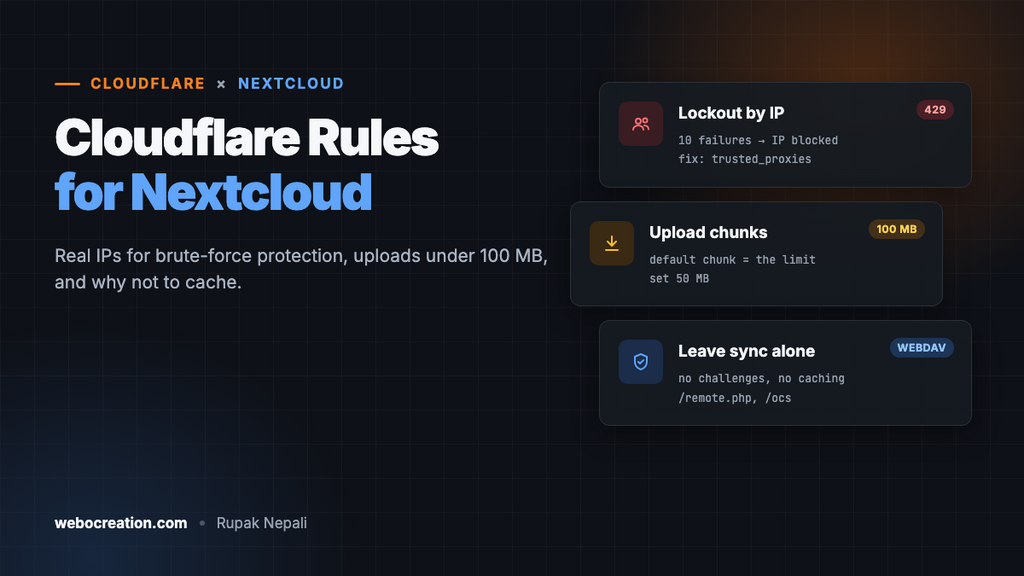
Nextcloud is a different kind of site to put behind Cloudflare. Most of its traffic isn’t people browsing pages: it’s desktop and phone apps syncing files over WebDAV, calendar and contact apps polling CalDAV and CardDAV, and uploads of whole folders. Rules written for a blog or a shop break all of that. Cloudflare’s free plan still has a lot to offer, though, as long as you know which parts of Nextcloud to leave alone and which two settings to change first.
We tested every path and behaviour in this guide on a fresh Nextcloud 35.0.3 (official Docker image, Apache, PHP) before putting anything in front of it. The settings apply to Nextcloud 28 and later too.
What a fresh Nextcloud exposes
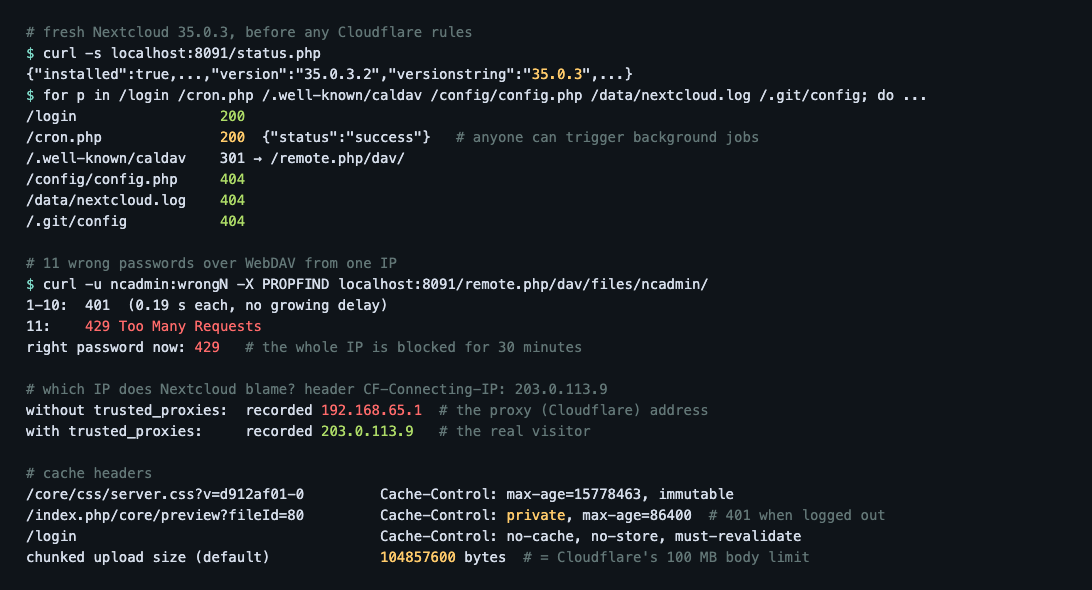
The good news first: Nextcloud’s sensitive files are not reachable. config/config.php, the data folder and its log, .htaccess, occ, lib/ and 3rdparty/ all returned 404. A few things are public on purpose:
| Path | What we saw | Why it’s there |
|---|---|---|
/status.php | 200, with the exact version (35.0.3) | Every desktop and mobile client checks it before connecting. Don’t block it. |
/ocs/v2.php/cloud/capabilities | The version again, with the OCS-APIRequest header | Clients read it to see what the server supports. |
/.well-known/caldav, carddav | 301 to /remote.php/dav/ | Lets calendar and contact apps find the server. Must keep working. |
/cron.php | 200 {"status":"success"} for anyone | Background jobs in “AJAX” mode, the default. Not needed with system cron. |
Nextcloud’s brute-force protection, and how Cloudflare can break it
Nextcloud has brute-force protection built in, and it works. We sent wrong passwords for the admin account over WebDAV, the way a password-guessing script would. The first ten got a normal 401. From the eleventh, Nextcloud answered 429 Too Many Requests to that IP address, even for the right password, until there were no longer more than ten failures from it in the last 30 minutes.
That last part is the problem. Nextcloud blocks the IP address. Behind Cloudflare, unless you tell Nextcloud otherwise, every request seems to come from a Cloudflare server, and thousands of your users share a handful of those. One person with a wrong password saved in an old phone, or one attacker, then locks out everyone who happens to reach you through the same Cloudflare address. We tested this: with a CF-Connecting-IP: 203.0.113.9 header, a default Nextcloud recorded the failed logins against the proxy’s address, not the visitor’s.
So the first job is not a Cloudflare rule at all. It’s telling Nextcloud to trust Cloudflare’s header.
Make Nextcloud work behind Cloudflare
1. Real visitor IPs
Add Cloudflare’s IP ranges as trusted proxies and read the visitor’s address from CF-Connecting-IP. In config/config.php:
'trusted_proxies' => [
    // Full list: https://www.cloudflare.com/ips-v4 and https://www.cloudflare.com/ips-v6
    '173.245.48.0/20',
    '103.21.244.0/22',
    // ...one line per range...
],
'forwarded_for_headers' => ['HTTP_CF_CONNECTING_IP'],
With the official Docker image, set the environment variables instead: TRUSTED_PROXIES (space-separated ranges) and FORWARDED_FOR_HEADERS=HTTP_CF_CONNECTING_IP. If a reverse proxy such as Nginx or Traefik sits between Cloudflare and Nextcloud, list that proxy’s address too.
We repeated the test with this in place. Failed logins were recorded against 203.0.113.9 and 198.51.100.7, the visitors’ own addresses, so a lockout now hits only the person who caused it. A request with a made-up CF-Connecting-IP from an address that isn’t a trusted proxy was recorded against its real address: the header is only believed from the proxies you list. That’s why you list Cloudflare’s ranges rather than trusting the header from anywhere.
Your logs, the “new login” notifications and Settings → Security → Devices & sessions show the real addresses too.
2. Uploads: keep chunks under Cloudflare’s limit
Cloudflare refuses request bodies over 100 MB on the Free and Pro plans (200 MB on Business, 500 MB on Enterprise). Nextcloud uploads big files in chunks, and the chunk size is set by files.chunked_upload.max_size, which defaults to 100 MiB (104,857,600 bytes). That’s right at the limit, so large uploads through the browser can fail with a 413 error. Lower it to 50 MB:
php occ config:system:set files.chunked_upload.max_size --value 52428800 --type integerWe checked that the change reaches the clients: the capabilities endpoint then reported max_size: 52428800. On older Nextcloud versions, the setting was an app value instead (occ config:app:set files max_chunk_size --value 52428800), and upgrading moves it automatically.
3. HTTPS: Full (strict)
Set Cloudflare’s SSL/TLS mode to Full (strict), with a certificate on your server (a free Cloudflare Origin Certificate is fine). Avoid Flexible: Nextcloud would see plain HTTP, build http:// links and redirects, and the apps would complain. If HTTPS ends before Nextcloud, at a proxy that forwards plain HTTP, also set 'overwriteprotocol' => 'https' (OVERWRITEPROTOCOL=https in Docker).
4. Cloudflare features to switch off
- Bot Fight Mode (Security → Bots). It challenges traffic that doesn’t look like a browser, and sync clients, WebDAV and calendar apps don’t. On the free plan it can’t be skipped for particular paths, so leave it off for a Nextcloud hostname.
- Rocket Loader (Speed → Optimization). It rewrites script tags, and Nextcloud’s Content Security Policy, which only allows scripts carrying its own nonce, then blocks them. The web interface stops working.
- “I’m Under Attack” mode and challenges on
/remote.php,/public.php,/ocs/,/status.php,/index.php/login/v2and/.well-known/. Apps can’t solve a challenge, so every sync would fail.
Security rules
In the Cloudflare dashboard, go to Security → Security rules and create custom rules. The free plan includes five. Nextcloud needs fewer than most sites, because it already returns 404 for its own files.
Rule 1: Block probes, and cron.php if you use system cron
Action: Block.
(http.request.uri.path contains "/.git")
or (http.request.uri.path contains "/.env")
or (starts_with(http.request.uri.path, "/wp-"))
or (ends_with(http.request.uri.path, ".sql"))
or (http.request.uri.path eq "/cron.php")
The first four lines block scanners looking for leaked files and WordPress logins. They aren’t Nextcloud paths, so nothing legitimate matches. The last line is for servers that run background jobs with system cron (Administration settings → Basic settings → Background jobs → Cron, the recommended mode). The web URL is then never needed, and blocking it stops anyone else from triggering it. Leave that line out if you use AJAX or Webcron mode.
Rule 2: Challenge admin settings
Action: Managed Challenge.
(starts_with(http.request.uri.path, "/settings/admin"))
or (starts_with(http.request.uri.path, "/index.php/settings/admin"))
Administration settings are only ever opened in a browser, so a challenge there doesn’t affect any app. It’s a cheap extra check in front of the pages that control your whole server. Add and not ip.src in {your office IPs} to skip it for your own network.
Admins log in on the same page as everyone else, so this doesn’t stop password guessing. Nextcloud’s own protection does, once it sees real IPs. For stronger protection of admin accounts, require two-factor authentication for the admin group (Administration settings → Security).
Rate limiting: the login page
In Security → Security rules → Rate limiting rules:
- If incoming requests match: URI Path is in
/loginand/index.php/login - Characteristics: IP
- Requests: 10 per 10 seconds
- Action: Block for 10 seconds
This slows down scripts hammering the web login before they reach Nextcloud at all. Each real login is two requests (the page, then the form), so people are never affected.
Don’t rate-limit WebDAV (/remote.php/) or the OCS API. A desktop client syncing a folder of photos easily makes hundreds of requests a minute, and a free-plan rule can’t tell a sync from an attack. Nextcloud’s brute-force protection covers password guessing there, as our test showed, as long as it sees the real IP.
Cache rules: none needed, and don’t add “cache everything”
Nextcloud’s CSS, JavaScript, fonts and images are already cacheable. Their URLs carry a version (/core/css/server.css?v=d912af01-0) and the server sends Cache-Control: max-age=15778463, immutable, six months. Cloudflare caches .css, .js, .svg, .png and fonts by default and follows that header, so these files are served from the edge with no rule at all. After an upgrade, the version in the URLs changes and visitors get the new files straight away.
Everything else in Nextcloud is private, and a “cache everything” rule would be a data leak:
- File previews (
/index.php/core/preview?fileId=…) are thumbnails of people’s files. We checked:Cache-Control: privatewhen logged in, 401 when logged out. A cached copy would go to anyone who requested the same URL. - WebDAV (
/remote.php/dav/) is the files themselves. - Share links (
/s/…,/public.php/dav/) set session cookies, and a share can be password-protected, expired or deleted at any moment. - The login page sends
no-store.
Cloudflare already leaves all of these alone by default. Keep it that way: no Cache Everything, no Edge Cache TTL overrides, and no APO-style page caching on a Nextcloud hostname.
Test everything
After the rules are live, check from outside your network (replace the domain):
# Clients must still find the server: expect 200 and JSON
curl -s https://cloud.example/status.php

# Rule 1: should be 403 from Cloudflare
curl -s -o /dev/null -w "%{http_code}\n" https://cloud.example/.env

# Calendar discovery: expect 301 to /remote.php/dav/
curl -sI https://cloud.example/.well-known/caldav | grep -i location

# Static files from the edge: run twice, the second should say HIT
curl -sI "https://cloud.example/core/css/server.css?v=REV" | grep -i cf-cache-status

# Previews must never be cached: expect no HIT
curl -sI "https://cloud.example/index.php/core/preview?fileId=1&x=64&y=64" | grep -i cf-cache-status
Copy the real server.css?v= URL from your login page’s source. Then sync a folder with the desktop client, upload a file over 100 MB in the browser, open a share link in a private window, and connect a phone’s calendar. Finally, sign in with a wrong password a couple of times and ask Nextcloud which address it blamed:
php occ security:bruteforce:attempts YOUR.PUBLIC.IP
  - bypass-listed: false
  - attempts: 2
If it shows 0 for your IP, Nextcloud is still recording a Cloudflare address: check trusted_proxies. If you lock yourself out while testing, php occ security:bruteforce:reset YOUR.PUBLIC.IP clears it.
Summary
| Where | What |
|---|---|
| Nextcloud | trusted_proxies = Cloudflare’s ranges, forwarded_for_headers = HTTP_CF_CONNECTING_IP |
| Nextcloud | files.chunked_upload.max_size = 52428800 (50 MB) |
| Cloudflare SSL | Full (strict); overwriteprotocol only if HTTPS ends before Nextcloud |
| Cloudflare settings | Bot Fight Mode off, Rocket Loader off, never “I’m Under Attack” |
| Rule 1 | Block probes; block /cron.php with system cron |
| Rule 2 | Managed Challenge on admin settings |
| Rate limit | Web login: 10 per 10 seconds per IP. Never WebDAV or OCS |
| Cache | No rules: static files are cached by default; never cache previews, DAV, shares or pages |
| Never block or challenge | /status.php, /remote.php/, /public.php/, /ocs/, /index.php/login/v2, /.well-known/ |
The same approach for other platforms: Moodle, WordPress, Drupal, Django and Ghost. For what each managed rule does, see the Cloudflare OWASP Core Ruleset explained.

Rupak Nepali is a web developer, manage Webocreation website and the author of six books:
Getting Started with OpenCart Module Development (Packt, 2013),
OpenCart Theme and Module Development (Packt, 2015),
OpenCart 4: Dev Guide for Themes & Extensions (2024),
OpenCart 4: User Manual (2025),
Cloudflare for the Enterprise Website (2026) and
The Technical Web Guide for Marketers (2026).
Rupak has built OpenCart stores and extensions since 2010, has published more than 600 tutorials on Webocreation, and shares free OpenCart extensions on GitHub.
Find Rupak on
GitHub | Amazon | LinkedIn | X | YouTube.