2 Free Brevo Email Templates: Newsletter and Order Confirmation (Coded, With Brevo Template Language)
Two free, responsive, coded Brevo email templates: a newsletter for campaigns using contact attributes and Brevo's required links, and a transactional order confirmation that loops over items sent through the API, with an OpenCart example and tested renders.
 Rupak NepaliPublished Nov 17, 2026
Brevo (formerly Sendinblue) does two jobs for many stores: newsletters and campaigns to subscribers, and transactional email such as order confirmations sent through its API. Both can use coded templates with Brevo’s template language, which fills in a contact’s name or the items of an order.
Here are two free coded templates, one for each job: a newsletter for campaigns and an order confirmation for transactional sending, with an example of sending it from OpenCart.
Download the 2 Brevo templates (zip): two .html files and a README.
Template 1: Newsletter
| Tag | What it does |
|---|---|
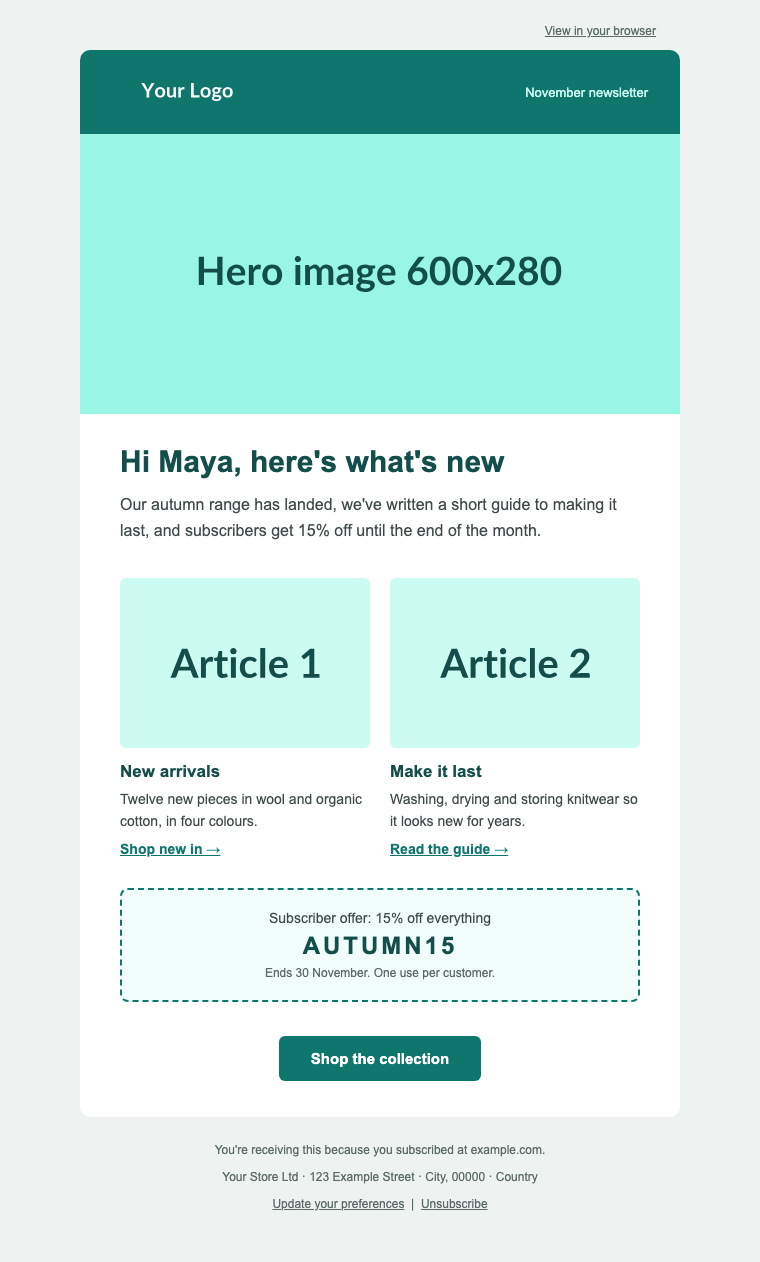
{% if contact.FIRSTNAME %}Hi {{ contact.FIRSTNAME }},{% else %}Hi there,{% endif %} | Personal greeting, with a fallback for contacts without a first name |
{{ mirror }} | The “View in your browser” link |
{{ update_profile }} | The “Update your preferences” link (needs a profile form set up in Brevo) |
{{ unsubscribe }} | The unsubscribe link, required in marketing email |
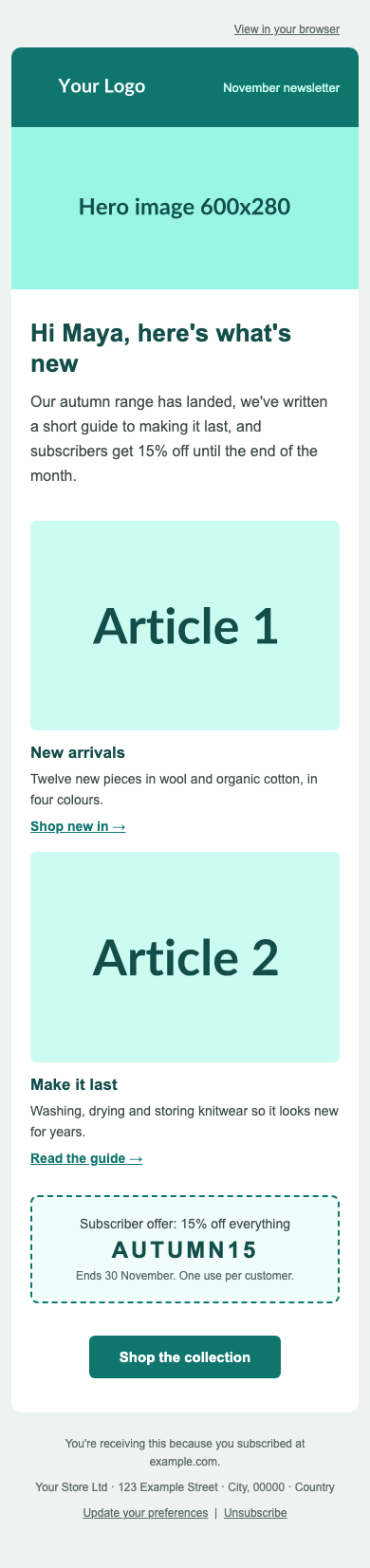
Sections: a view-in-browser link, a coloured header, a hero image, the greeting and intro, two articles side by side (stacked on phones), a dashed discount code box, a button and a footer with your address and the two required links.
Template 2: Order confirmation (transactional)
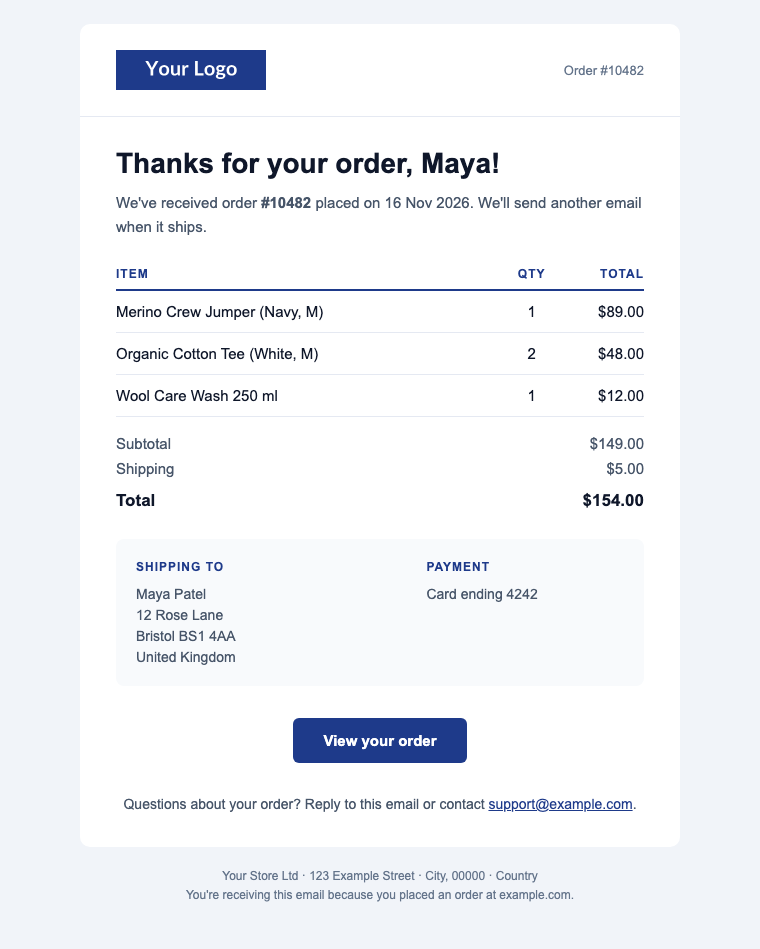
params.This one is filled entirely from the params your store sends with each email:
| Param | Required | Example |
|---|---|---|
ORDER_ID | Yes | 10482 |
items | Yes | A list, each with name, quantity, total |
TOTAL | Yes | $154.00 |
FIRSTNAME, ORDER_DATE | No | Maya, 16 Nov 2026 |
SUBTOTAL, SHIPPING | No | $149.00, $5.00 |
SHIPPING_ADDRESS, PAYMENT_METHOD | No | The address block, “Card ending 4242” |
ORDER_URL | No | Link to the order in the customer’s account |
Every optional part is wrapped in {% if %}, so a minimal email with just an order number, one item and a total still looks complete. The heart of it is the item loop:
{% for item in params.items %}
<tr>
  <td>{{ item.name }}</td>
  <td style="text-align:center;">{{ item.quantity }}</td>
  <td style="text-align:right;">{{ item.total }}</td>
</tr>
{% endfor %}
Send money values as formatted strings (“$49.00”, “€49,00”), not numbers. Your store already formats prices in the customer’s currency, and the template then needs no number filters.
There’s no unsubscribe link: an order confirmation is a transactional email the customer needs, whatever their marketing preferences. Keep it strictly about the order. Adding promotions turns it into marketing email in the eyes of mailbox providers and the law.
Import into Brevo
- For the newsletter: Campaigns → Email → Create an email campaign. For the order confirmation: Transactional → Templates → New template (in newer accounts, the templates list may sit under the Templates menu).
- When asked how to design it, choose Start from scratch (or Add content), then HTML custom code, and paste the file’s contents.
- Replace the logo, images, links and the postal address in the footer.
- For the newsletter, set up an update-profile form in Brevo so
{{ update_profile }}has somewhere to go, or remove that link. - Send a test to yourself. For the transactional template, note its template ID: you’ll need it in the API call.
Brevo’s labels change from time to time; if yours differ, look for the option to paste or upload your own HTML. Brevo’s help centre calls it the HTML custom code editor.
Sending the order confirmation from OpenCart
Brevo’s send endpoint takes the template ID, the recipient and the params. A minimal PHP example you can call from an OpenCart event after an order is placed:
$this->load->model('checkout/order');

$order = $this->model_checkout_order->getOrder($order_id);

$items = [];

foreach ($this->model_checkout_order->getProducts($order_id) as $product) {
	$items[] = [
		'name'     => html_entity_decode($product['name'], ENT_QUOTES, 'UTF-8'),
		'quantity' => (int)$product['quantity'],
		'total'    => $this->currency->format($product['total'] + ($this->config->get('config_tax') ? $product['tax'] * $product['quantity'] : 0), $order['currency_code'], $order['currency_value'])
	];
}

$payload = [
	'templateId' => 12,   // your transactional template's ID
	'to'         => [['email' => $order['email'], 'name' => $order['firstname'] . ' ' . $order['lastname']]],
	'params'     => [
		'FIRSTNAME'  => $order['firstname'],
		'ORDER_ID'   => (string)$order_id,
		'ORDER_DATE' => date('j M Y', strtotime($order['date_added'])),
		'items'      => $items,
		'TOTAL'      => $this->currency->format($order['total'], $order['currency_code'], $order['currency_value']),
		'ORDER_URL'  => $this->url->link('account/order.info', 'order_id=' . $order_id)
	]
];

$curl = curl_init('https://api.brevo.com/v3/smtp/email');
curl_setopt_array($curl, [
	CURLOPT_POST           => true,
	CURLOPT_RETURNTRANSFER => true,
	CURLOPT_TIMEOUT        => 10,
	CURLOPT_HTTPHEADER     => ['accept: application/json', 'content-type: application/json', 'api-key: ' . BREVO_API_KEY],
	CURLOPT_POSTFIELDS     => json_encode($payload)
]);
$response = curl_exec($curl);

if (curl_getinfo($curl, CURLINFO_HTTP_CODE) >= 300) {
	$this->log->write('Brevo: order ' . $order_id . ' email failed: ' . $response);
}

curl_close($curl);
Keep the API key out of the code (a config constant or setting), log failures instead of breaking checkout, and send from a domain authenticated in Brevo. If you’d rather keep OpenCart’s own order emails and just deliver them through Brevo, use Brevo’s SMTP relay instead: see transactional email for OpenCart 4.
Brevo template language in 60 seconds
| Need | Syntax |
|---|---|
| A contact attribute | {{ contact.FIRSTNAME }} |
| A value sent through the API | {{ params.ORDER_ID }} |
| Show something only if it exists | {% if params.SHIPPING %} … {% endif %}, with {% else %} for a fallback |
| Repeat a block for each item | {% for item in params.items %} … {% endfor %} |
| Required links | {{ mirror }}, {{ update_profile }}, {{ unsubscribe }} |
Brevo says params only work in templates using its New Template Language. Check the template’s settings if a param shows up empty. Attribute names are case sensitive and match the names in Contacts → Settings → Contact attributes, usually in capitals.
How we tested them
Brevo’s template language uses the same tag syntax as Django templates, so we rendered both files with Django’s template engine, using sample contacts and orders: the newsletter with and without a first name, and the order confirmation with full data and with only an order number, one item and a total. All four renders had no tags left over; the screenshots are that output at 760 px and 390 px wide. Final testing belongs in Brevo itself: send a test to yourself, and for the transactional template, send one real API call with your store’s data.
Customising
- Colours: teal
#0f766ein the newsletter, navy#1e3a8ain the order confirmation. Search and replace. - Product images in the order email: add an
imageURL to each item inparams.itemsand an<img src="{{ item.image }}">cell in the loop. - More articles in the newsletter: copy the two-column table row; each row holds two articles.
- Coupon in the newsletter: the button already links to
/?coupon=AUTUMN15, which applies the code automatically with our free coupon links extension.
More free templates: Klaviyo, Mailchimp, HubSpot and Marketo. Before your first campaign, check SPF, DKIM and DMARC.

Rupak Nepali is a web developer, manage Webocreation website and the author of six books:
Getting Started with OpenCart Module Development (Packt, 2013),
OpenCart Theme and Module Development (Packt, 2015),
OpenCart 4: Dev Guide for Themes & Extensions (2024),
OpenCart 4: User Manual (2025),
Cloudflare for the Enterprise Website (2026) and
The Technical Web Guide for Marketers (2026).
Rupak has built OpenCart stores and extensions since 2010, has published more than 600 tutorials on Webocreation, and shares free OpenCart extensions on GitHub.
Find Rupak on
GitHub | Amazon | LinkedIn | X | YouTube.