2 Free Marketo Email Templates: Modular Newsletter and Event Invitation (Email 2.0, Import-Ready)
Two free, responsive Marketo Email 2.0 templates, a modular newsletter and an event invitation driven by program tokens, with variables for colors and buttons.
 Rupak NepaliPublished Nov 12, 2026
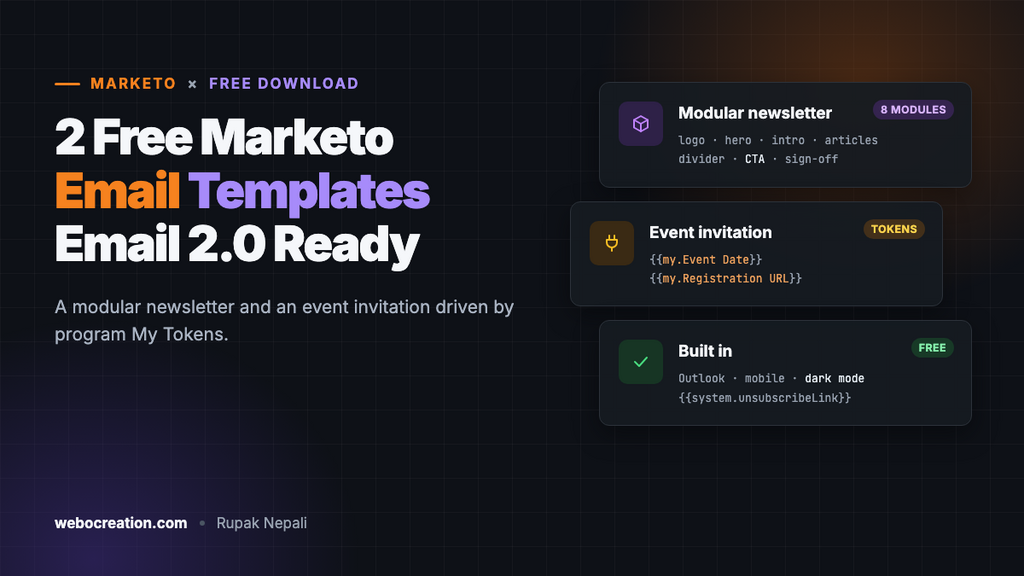
Here are two free Email 2.0 templates for Adobe Marketo Engage: a modular newsletter and an event invitation. Both are responsive, work in Outlook, support dark mode, and are built the way Marketo templates should be: editable elements, modules editors can add and reorder, and variables for colors and buttons.
Download both templates (ZIP, 7 KB). Free to use and change, with no attribution needed.
Template 1: Modular newsletter
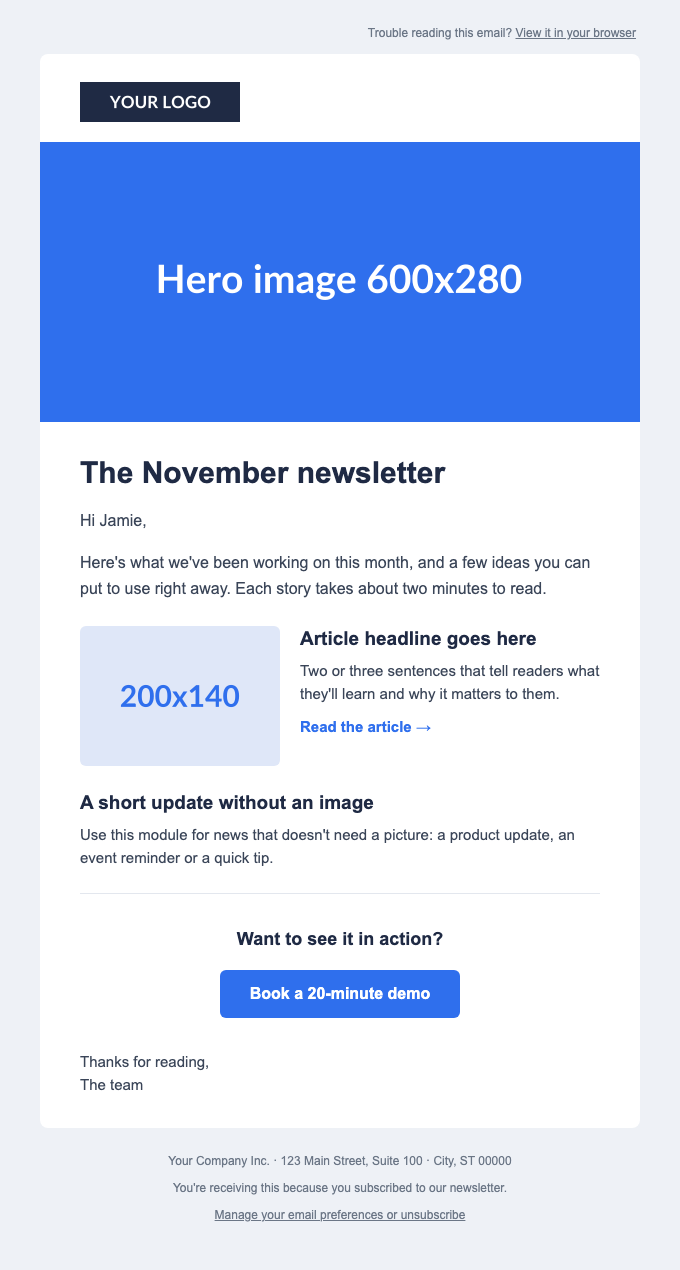
The newsletter is a set of eight modules in one container. Editors add the ones they need, in any order:
| Module | Contains |
|---|---|
| Logo | Editable logo image |
| Hero image | Full-width image |
| Headline and intro | Headline and a personal greeting with a fallback (“Hi there”) |
| Article: image left | Image, headline, text and a link. Stacks on phones. |
| Article: text only | Headline and text, for updates without a picture |
| Divider | A thin line between sections |
| Call to action | Heading and a button whose text and link come from variables |
| Sign-off | Closing text |
Variables in the right-hand panel set the accent, heading and background colors, and the button’s text and link.
Template 2: Event invitation
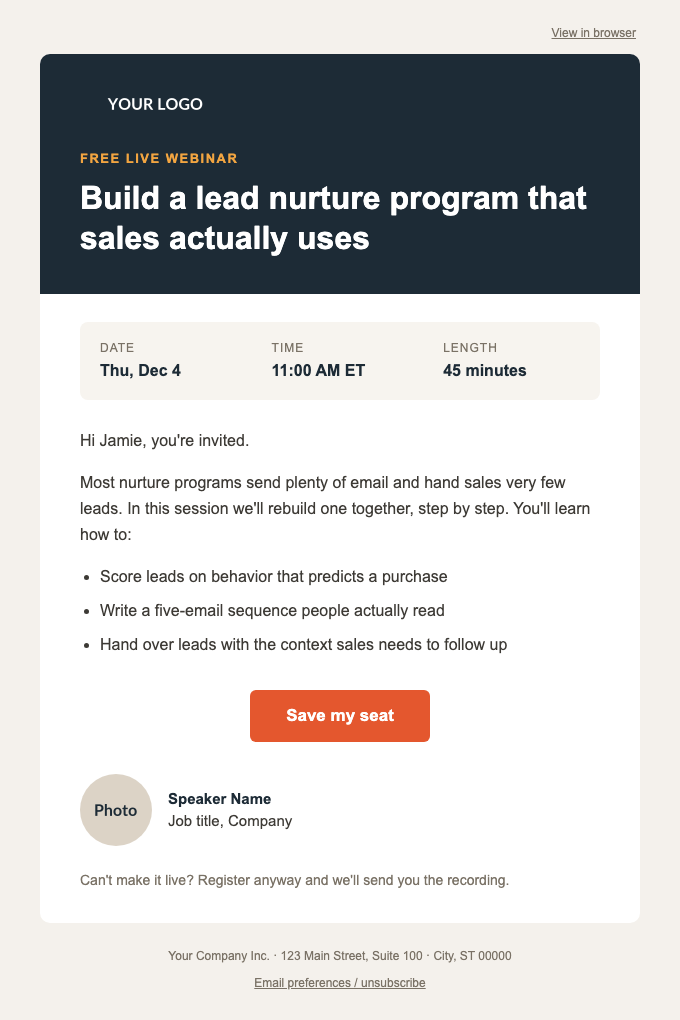
Built for webinars, events and launches, and designed around program My Tokens. The date, time, length and registration link aren’t typed into the email. They come from tokens on the event program:
| Token | Example value |
|---|---|
{{my.Event Date}} | Thu, Dec 4 |
{{my.Event Time}} | 11:00 AM ET |
{{my.Event Length}} | 45 minutes |
{{my.Registration URL}} | https://www.example.com/webinar/register |
This is how experienced Marketo teams run events. The invitation, reminders and follow-up emails all read the same tokens, so when the date moves you change it once, on the program, and every email updates. To run the next webinar, clone the program and change four tokens.
The template also has a header module with the logo, label and title, an intro and agenda, a register button (its color and text are variables), a speaker module to duplicate for each speaker, and a recording note.
How to import the templates
1. Upload your images
Go to Design Studio → Images and Files and upload your logo and images. Upload at twice the size shown in the template for sharp display on high-resolution screens:
| Image | Shown at | Upload at |
|---|---|---|
| Newsletter logo | 160 × 40 | 320 × 80 |
| Hero image | 600 × 280 | 1200 × 560 |
| Article image | 200 × 140 | 400 × 280 |
| Invitation logo (light, for the dark header) | 150 × 36 | 300 × 72 |
| Speaker photo | 72 × 72 | 144 × 144 |
2. Create the email template
- Go to Design Studio → Email Templates and create a new email template. Start from scratch rather than from one of Marketo’s starter templates.
- Open the code editor, select everything, and paste in the whole template file. Save.
- Replace the placeholder image URLs and the
example.comlinks. You can also leave the placeholders and swap images per email in the editor. - Edit the footer address.
- Approve the template, so it can be used for new emails.
3. Create the tokens (event invitation only)
Open the event program (or the folder above it, so all programs inside inherit them), go to My Tokens, and add four Text tokens with exactly these names: Event Date, Event Time, Event Length and Registration URL. The names must match, including spaces and capitals.
4. Send samples
Create an email in the program from the template, then send samples to Gmail, Outlook on Windows and an iPhone. Check the tokens filled in, and check the greeting for a lead with and without a first name.
What’s built in
| Feature | How |
|---|---|
| Editable content | mktoText and mktoImg, each with a unique id and an mktoName |
| Flexible layout | One mktoContainer with mktoModule rows |
| Brand settings | mktoColor and mktoString variables in the right-hand panel |
| Personalization | {{lead.First Name:default=there}} |
| Required links | {{system.viewAsWebpageLink}} and {{system.unsubscribeLink}} in a footer that can’t be deleted |
| Outlook | Table layout, image sizes as attributes, table-cell buttons, MSO font fallback |
| Mobile and dark mode | Stacking below 620 pixels; dark colors for clients that support them |
For a full explanation of each part, see How to Build a Marketo Email Template.
Frequently asked questions
Where’s the preheader? Marketo’s email editor has a preheader setting on each email, so the template doesn’t include a hidden preheader block. Fill it in on every email; otherwise inboxes show “View in browser” as the preview text.
Can I add my own modules? Yes. Copy an existing module row, give it and every element inside it new unique IDs, change the mktoName, and save. Keep it inside the container.
Do these work with Pardot or HubSpot? The design does, but the Marketo classes and tokens don’t. We have the Pardot equivalents: 2 Free Pardot Email Templates.
Need landing pages to match? Get two free Marketo guided landing page templates: a webinar registration page that pairs with the invitation, and a content download page.

Author of four Opencart book.
The recent are Opencart 4 developer book and Opencart 4 user manual