2 Free Pardot Email Templates: Responsive Newsletter and Webinar Invitation (Import-Ready HTML)
Two free, import-ready Pardot email templates, a newsletter and a webinar invitation, with editable regions, repeatable sections, HML personalization, dark mode and a compliant footer.
 Rupak NepaliPublished Nov 12, 2026
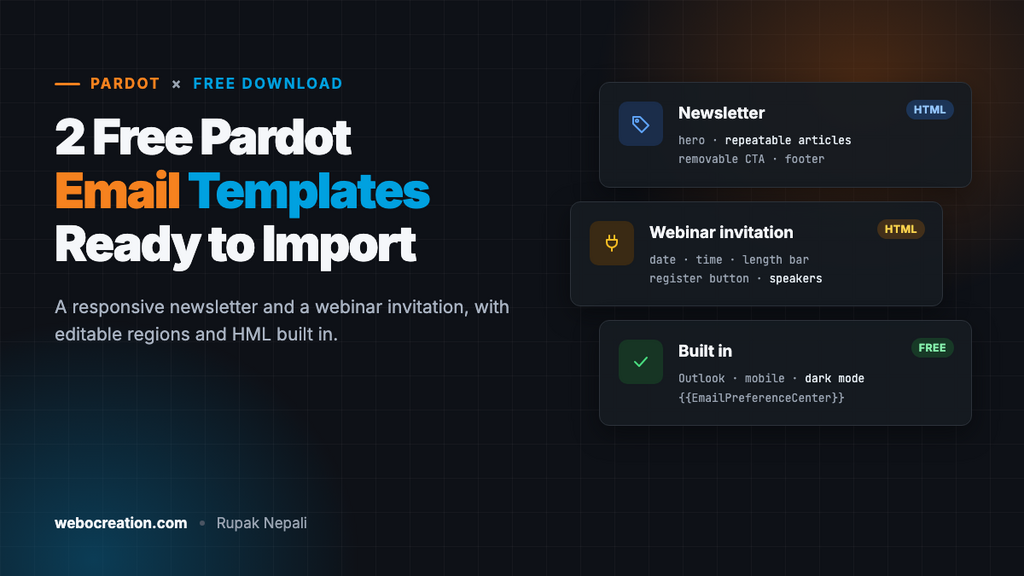
Here are two free email templates for Pardot (Marketing Cloud Account Engagement): a monthly newsletter and a webinar invitation. Both are responsive, work in Outlook, support dark mode, and come with editable regions already marked, so your team can create emails from them without touching the code.
Download both templates (ZIP, 7 KB). They’re free to use and change for your own or your clients’ emails, with no attribution needed.
Template 1: Newsletter
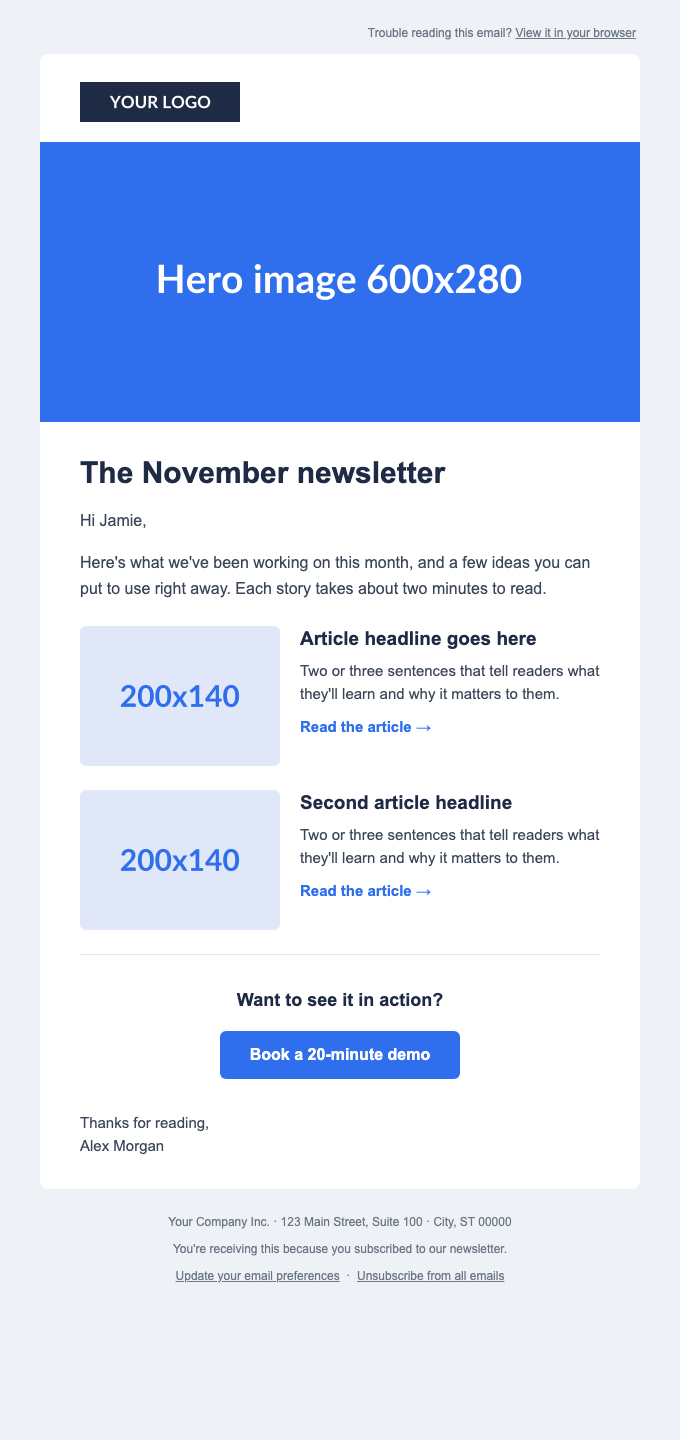
Built for a regular newsletter or a content digest:
- Logo and hero image, both swappable.
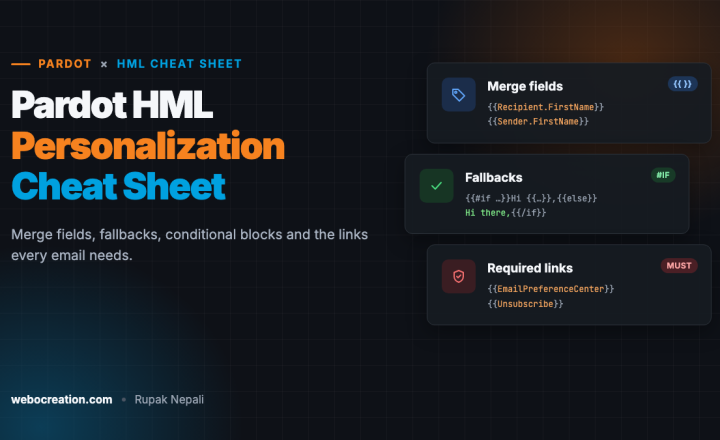
- Personal greeting that falls back to “Hi there” when the prospect has no first name.
- Repeatable article blocks: image, title, text and a link. Duplicate one for each story, reorder them, or delete them. On phones, the image stacks above the text.
- Removable call to action with a button that renders in Outlook.
- Sign-off from the prospect’s assigned user, falling back to “The team”.
- Footer with your address, the email preference center link and the unsubscribe link.
Template 2: Webinar invitation
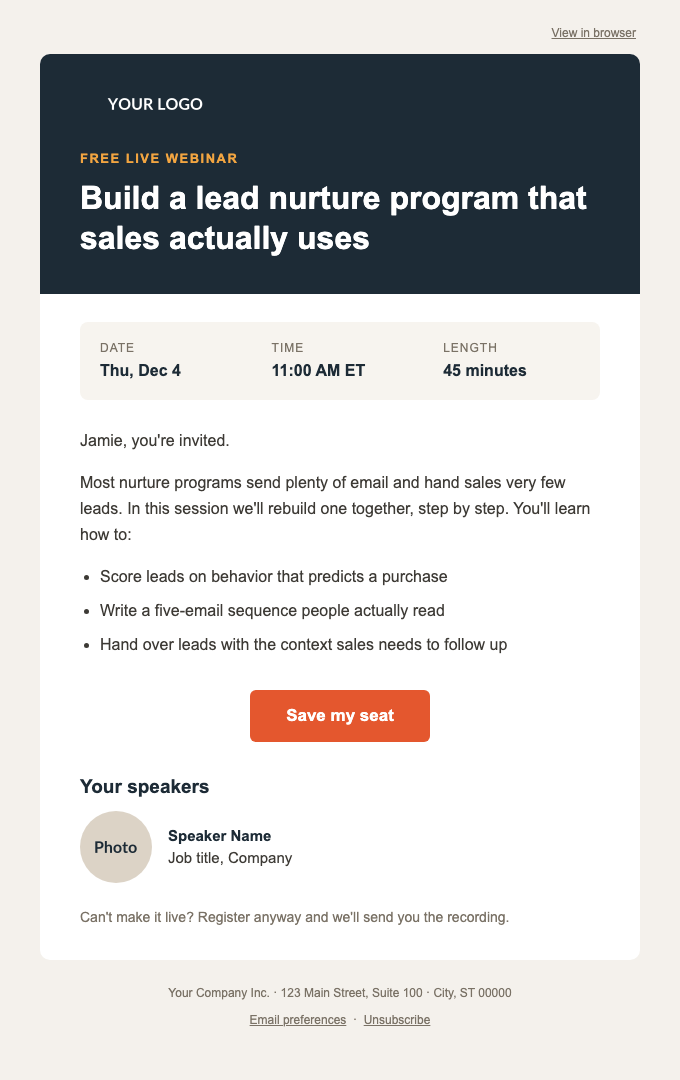
Built for webinars, events and product launches:
- Dark header with logo, a label (“Free live webinar”) and the title.
- Date, time and length in a highlighted bar, each a separate plain-text region so the layout can’t break.
- Intro and agenda in one rich-text region, with a personal first line.
- Register button.
- Repeatable speaker blocks with a round photo, name and title.
- Removable recording note (“Can’t make it live?”).
What’s built in
| Feature | How |
|---|---|
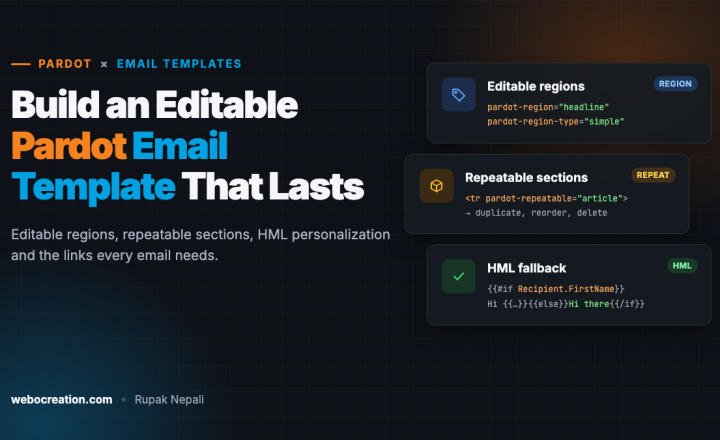
| Editable regions | pardot-region, with simple regions for headings and labels so editors can’t change fonts or colors |
| Flexible sections | pardot-repeatable for articles and speakers, pardot-removable for the CTA and recording note |
| Personalization | HML: {{#if Recipient.FirstName}}...{{else}}...{{/if}} and sender fields |
| Required links | {{View_Online}}, {{EmailPreferenceCenter}} and {{Unsubscribe}}, outside the editable regions so they can’t be deleted |
| Outlook | Table layout, image sizes as attributes, table-cell buttons, MSO font fallback |
| Mobile | A media query below 620 pixels: full-width content, stacked columns, smaller headings |
| Dark mode | Dark backgrounds and light text for clients that support prefers-color-scheme |
| Preheader | A hidden, editable preview line shown after the subject in the inbox |
For a line-by-line explanation of how these work, see How to Build an Editable Pardot Email Template.
How to import the templates
1. Upload your images
The templates use placeholder images from placehold.co. Replace them with your own before sending. In Account Engagement, go to Content → Files and upload your logo and images. Each file gets a URL on your Account Engagement tracking domain. Recommended sizes:
| Image | Size in the template | Upload at |
|---|---|---|
| Newsletter logo | 160 × 40 | 320 × 80, for sharp display on high-resolution screens |
| Newsletter hero | 600 × 280 | 1200 × 560 |
| Article images | 200 × 140 | 400 × 280 |
| Invitation logo | 150 × 36 | 300 × 72 (light-colored, for the dark header) |
| Speaker photos | 72 × 72 | 144 × 144, square |
2. Create the email template
- Go to Content → Email Templates and create a new template. Give it a name, such as “Newsletter (2026)”, and pick a campaign.
- When asked for a layout, choose to start from scratch or to code your own HTML. Don’t pick one of the built-in layouts.
- Open the HTML editor, select everything in it, and paste in the whole template file.
- Replace the image
srcURLs with your Files URLs, and theexample.comlinks with your own. You can also do this in the visual editor by clicking each image region. - Edit the footer address to your company’s postal address.
- Save.
These are HTML templates for the template editor. Account Engagement’s newer drag-and-drop Lightning email builder works differently: it builds emails from its own components and doesn’t use pardot-region attributes. If your team uses that builder, you can still paste the HTML into an HTML component, but the editable regions won’t apply.
3. Check the text version
Every email needs a plain-text version, and it must also contain {{Unsubscribe}} or {{EmailPreferenceCenter}}. Open the Text tab and generate it from the HTML (or write it), then check that the links survived and it reads well. Some people read email in text-only clients, and spam filters look at it too.
4. Send tests
Send a test to Gmail, Outlook on Windows and an iPhone at least. Check a version for a prospect with a first name and one without, to see both versions of the greeting.
Customize the colors
Email doesn’t support CSS variables reliably, so each color appears inline in several places. Use find-and-replace on the hex values:
| Color | Newsletter | Invitation |
|---|---|---|
| Accent (buttons, links) | #2f6fed | #e4572e |
| Headings | #1f2a44 | #1d2b36 |
| Body text | #3a4558 | #3d3a35 |
| Page background | #eef1f6 | #f4f1ec |
| Header band | none | #1d2b36 |
| Label color | none | #f2a541 |
Keep enough contrast between text and background. White text on the accent button should still be easy to read, which rules out light accent colors such as yellow.
Frequently asked questions
Do these work in Pardot Classic and in the Lightning app? They’re HTML templates using the standard pardot-region attributes, which the email template editor supports in both. As noted above, the drag-and-drop Lightning email builder is a different tool.
Can I use these with HubSpot, Marketo or Mailchimp? The HTML and design work anywhere, but you’d need to swap the Pardot attributes and HML tags for that platform’s syntax.
Why are the fonts Arial? Web fonts don’t load in Outlook on Windows or in Gmail, so a web font would fall back to a default anyway. Arial looks the same everywhere. If your brand uses a web font, add it to the font-family lists before Arial, and clients that support it will use it.
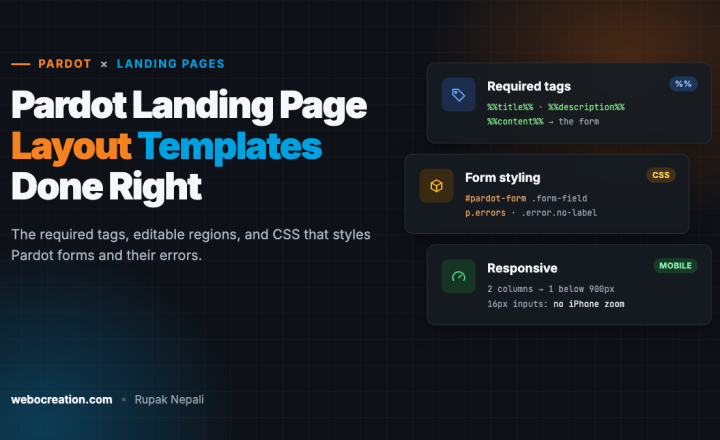
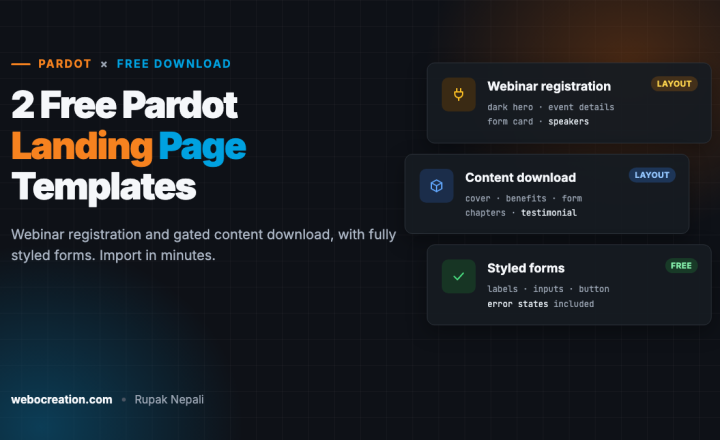
Need landing pages to go with these emails? Get two free Pardot landing page templates: a webinar registration page to pair with the invitation, and a content download page.

Author of four Opencart book.
The recent are Opencart 4 developer book and Opencart 4 user manual