Export OpenCart 4 Orders to CSV and Excel: Filter by Date and Status, One Row per Order or per Product (Free Extension)
Download orders as a CSV file that opens cleanly in Excel or Google Sheets, with every order total as a column, or one row per product. Plus a CSV button on Sales > Orders.
 Rupak NepaliPublished Nov 21, 2026
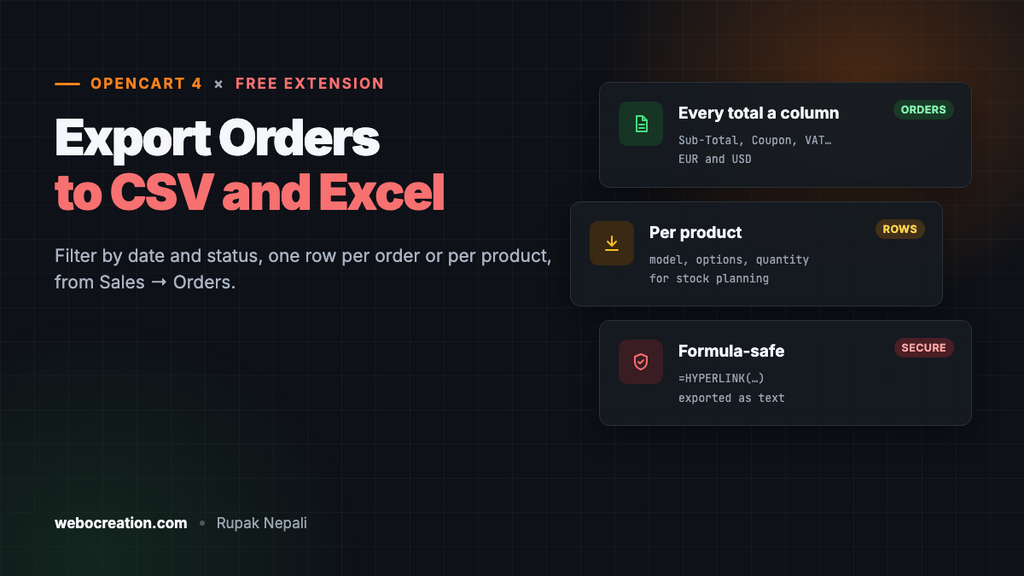
Sooner or later every store owner needs their orders in a spreadsheet: for the accountant at the end of the month, a VAT return, a sales analysis in Google Sheets, or a list of what to pack. OpenCart 4’s admin shows orders on screen and prints invoices, but it has no way to download them.
This free extension adds that. Pick a date range and the order statuses you want, choose one row per order or one row per product, and download a CSV file that opens in Excel, Google Sheets, Numbers or LibreOffice. There’s also a CSV button on Sales → Orders that downloads exactly the orders you’ve filtered there.
Download Order Export for OpenCart 4 (free, tested on OpenCart 4.1.0.4)

What it does
- Filter by date and status. Quick links fill in this month, last month, this year or last year. Statuses start with the ones your store counts as sales (processing and complete), so cancelled and failed orders stay out unless you tick them.
- One row per order: customer, email, phone, customer group, payment and shipping method, billing and shipping addresses, number of items, every order total line in its own column, and the total in both your main currency and the customer’s currency.
- One row per product: what sold, with model, options, quantity, unit price, tax and line totals. This is the one for stock planning and best-seller analysis.
- Export from Sales → Orders. A green CSV button downloads the orders matching the list’s current filters (customer, status, total, dates).
- Opens cleanly in Excel: UTF-8 with a byte order mark so names like Zoë Müller and Ana García keep their accents, a semicolon option for European Excel, and correct quoting of commas, quotes and line breaks.
- Safe to open. Text that a spreadsheet would run as a formula is neutralised (more on that below).
Install it
- Download
orderexport.ocmod.zip. - Go to Extensions → Installer, upload it, and click the green +.
- Go to Extensions → Extensions → Modules and install Order Export.
That’s it: no settings to fill in first. The export page is at Sales → Export Orders, and the CSV button is already on the orders list.
Export orders
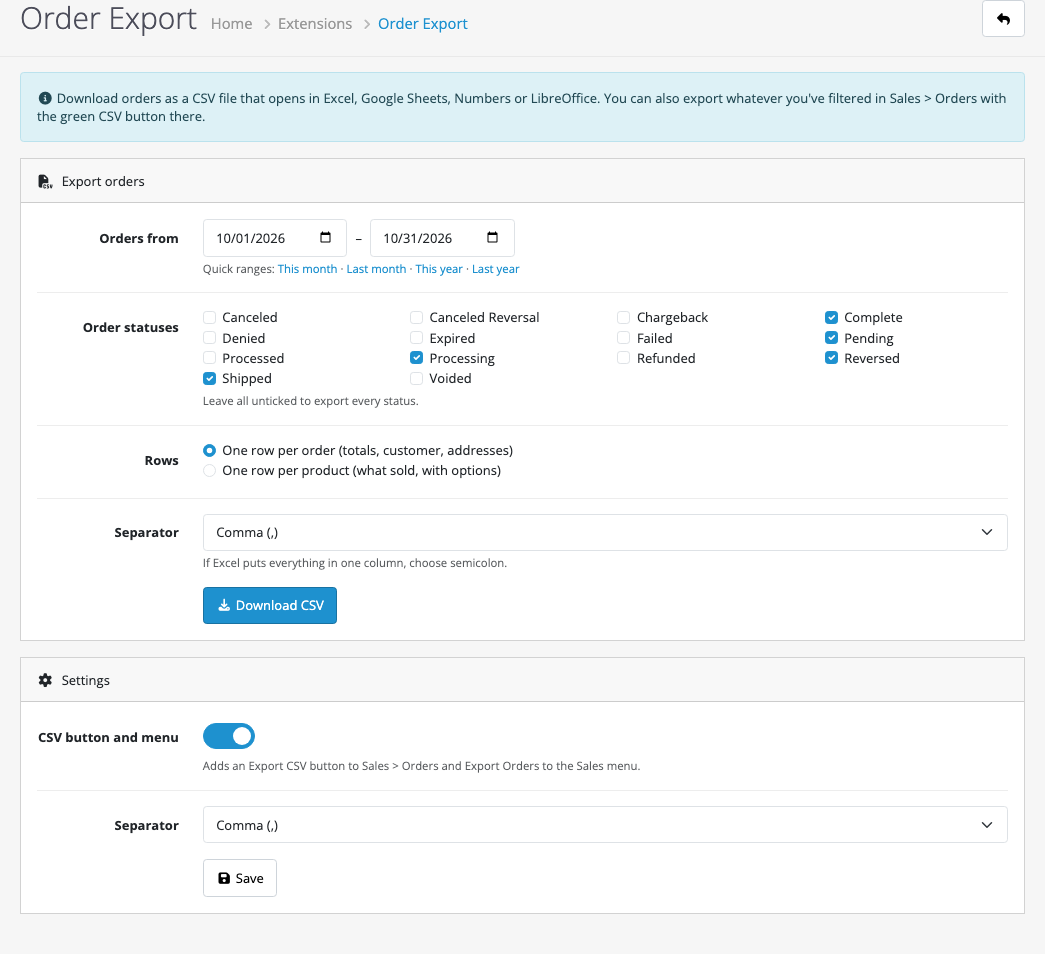
- Set the dates. They’re the dates orders were placed, and both days are included.
- Tick the statuses to include. Leave them all unticked to export every status.
- Choose the rows: one per order or one per product.
- If Excel puts everything in column A when you open the file, choose Semicolon. Excel in most of Europe expects it, because the comma is the decimal separator there.
- Click Download CSV. The file is named after the dates, for example
orders-2026-10-01-to-2026-10-31.csv.
The columns
| Export | Columns |
|---|---|
| One row per order | Order ID, Invoice, Date added, Status, Store, Customer ID, First name, Last name, Email, Telephone, Customer group, Payment method, Shipping method, Items, billing company, address, city, postcode, region and country, shipping name, address, city, postcode, region and country, one column per order total, Total, Currency, Total in order currency, Comment |
| One row per product | Order ID, Date added, Status, Customer, Email, Product ID, Product, Model, Options, Quantity, Unit price, Unit tax, Line total, Line total incl. tax, Currency |
The order total columns depend on your store: Sub-Total, Shipping, Coupon, Store Credit, Reward Points, each tax rate (VAT 20% and Eco Tax are separate columns, so a VAT return can sum one of them), and totals from extensions such as bundle discounts. Orders without a line get 0.00 in that column, so the columns add up: Sub-Total + every other total column = Total.
Currencies
OpenCart saves order amounts in your store’s main currency, and the export uses those amounts in every money column, so they can be summed. Currency and Total in order currency show what the customer actually paid: in the example above, Zoë paid in euros, 568.84 EUR for a 725.00 USD order.
Export from the orders list
On Sales → Orders, filter the list the usual way (by customer, status, total or date) and click the green CSV button at the top. You get the same “one row per order” file, for exactly the orders matching the filter:
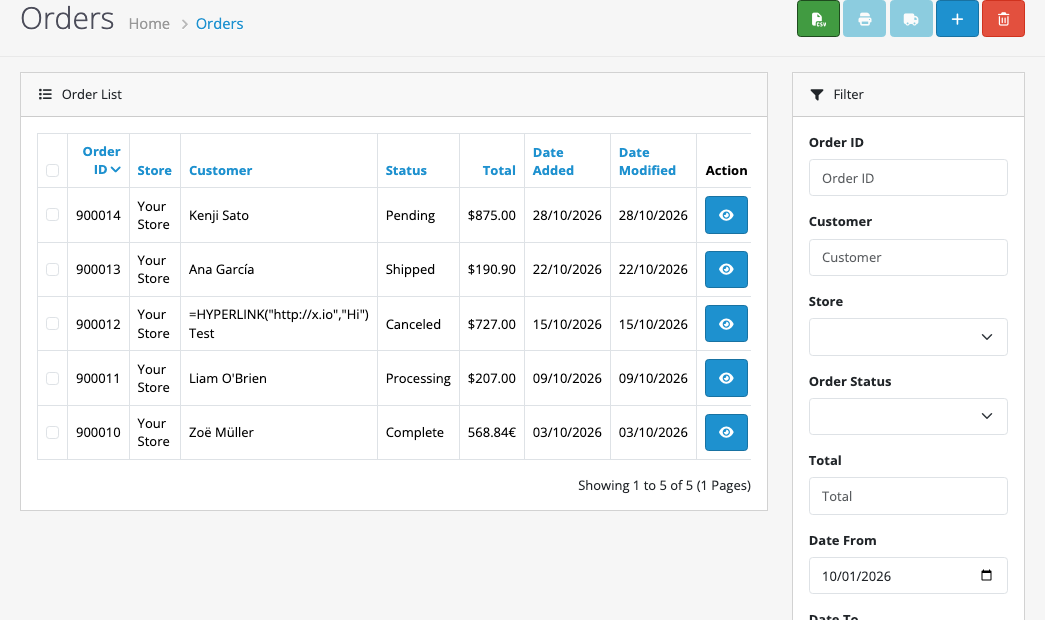
The list’s filter reloads without refreshing the page, so the button updates its link each time you click Filter. Unlike the export page, the list includes every status by default, cancelled ones too, so pick an Order Status in the filter if you only want some.
Why formulas are neutralised
A CSV file is just text, but spreadsheets treat any cell that starts with =, +, - or @ as a formula. Customers type their own names, addresses and comments, so someone can sign up as =HYPERLINK("http://…","Hi") and wait for a store owner to open an export. That’s called CSV or formula injection.
The export puts an apostrophe in front of any text cell that starts with one of those characters, which tells the spreadsheet to show it as text. We tested it with an order placed under that exact name: the cell comes out as '=HYPERLINK("http://x.io","Hi"). Numbers such as -80.00 aren’t touched. The side effect is that a phone number typed as +44… shows the apostrophe too.
How it’s built
Order Export reads orders through OpenCart’s own admin order model, model_sale_order->getOrders(), so the date, status, store and customer filters work exactly like the orders list. It reads 200 orders at a time, so a big export doesn’t load every order into memory at once. Each line goes through PHP’s fputcsv() after the formula check:
foreach ($row as &$cell) {
    $cell = html_entity_decode((string)$cell, ENT_QUOTES, 'UTF-8');

    if ($cell !== '' && !is_numeric($cell) && in_array($cell[0], ['=', '+', '-', '@', "\t", "\r"], true)) {
        $cell = "'" . $cell;
    }
}

fputcsv($handle, $row, $delimiter, '"', '');
The CSV button and the Sales menu item come from two admin events, admin/view/sale/order/after and admin/view/common/column_left/before. You can switch both off in the module’s settings. Only admin users with permission to view orders can download.
Testing
| Test | Result |
|---|---|
| October, default statuses (6 test orders: Complete, Processing, Canceled, Shipped and Pending in October, Complete in November) | 4 orders. Canceled and November left out |
| Comment with a comma, quotes and a line break | Kept in one cell: "Please ring the bell, the ""front"" door ↵ is around the side." |
| Company “Acme, Inc.”, names Zoë Müller, Liam O’Brien, Ana García | Quoted and readable in the file, accents intact |
| Order placed in EUR | Total 725.00, Currency EUR, Total in order currency 568.84 |
| Order with a coupon, and one with Eco Tax + VAT | Coupon −10.10 in its own column; Eco Tax 6.00 and VAT 144.00 in separate columns |
Canceled ticked, customer named =HYPERLINK(…) | Cell exported as '=HYPERLINK(…) |
| One row per product, semicolon | 10 lines with model, quantity, prices, and “Select: Red” in Options |
| Sales → Orders filtered to Complete, CSV button | The 4 Complete orders |
| Filter changed to October dates, Filter, CSV button | The 5 October orders, all statuses, as in the list |
Troubleshooting
| Problem | Cause and fix |
|---|---|
| Everything is in column A in Excel | Your Excel expects semicolons. Choose Semicolon on the export page, or set it as the default in Settings. Google Sheets can detect the separator for you: use File → Import. |
| Accents look like ë | The file was opened as ANSI. Open it by double-clicking rather than pasting, or use Data → From Text/CSV and choose UTF-8. |
| Fewer orders than expected | Check the ticked statuses. Orders that were never completed (no status, often abandoned checkouts) are never exported. |
| Excel shows long numbers like postcodes or phone numbers wrongly | Excel guesses column types. Import with Data → From Text/CSV and set those columns to Text. |
| No CSV button on Sales → Orders | Turn “CSV button and menu” on in the module settings, and check your user group can view orders and the extension. |
Related: bulk product CSV import and export for prices and stock, reports in the OpenCart 4 admin, 25 popular eCommerce reports to build from your export, and tax and VAT setup in OpenCart 4.

Rupak Nepali is a web developer, manage Webocreation website and the author of six books:
Getting Started with OpenCart Module Development (Packt, 2013),
OpenCart Theme and Module Development (Packt, 2015),
OpenCart 4: Dev Guide for Themes & Extensions (2024),
OpenCart 4: User Manual (2025),
Cloudflare for the Enterprise Website (2026) and
The Technical Web Guide for Marketers (2026).
Rupak has built OpenCart stores and extensions since 2010, has published more than 600 tutorials on Webocreation, and shares free OpenCart extensions on GitHub.
Find Rupak on
GitHub | Amazon | LinkedIn | X | YouTube.