Buy It Again for OpenCart 4: Reorder a Whole Order in One Click, Plus a “Buy It Again” Block (Free Extension)
Add all items of a past order to the cart in one click, and show customers a "Buy it again" block of their previous purchases. Free, tested on OpenCart 4.1.0.4.
 Rupak NepaliPublished Nov 21, 2026
For stores that sell things people run out of (coffee, printer ink, pet food, supplements, spare parts), the easiest sale is the next one. The customer already knows the product and trusts you. All they need is a quick way to order it again.
OpenCart 4 gets halfway there. Each line of a past order has a Buy Again button, so a customer reordering a five-item order clicks five times and has to know where to look. This free extension adds the other half: an Add all to cart button on every past order, and a Buy it again block of everything the customer has bought before.
Download Buy It Again for OpenCart 4 (free, tested on OpenCart 4.1.0.4)
What it does
- “Add all N items to cart” on every order in My Account → Order History: the whole order back in the cart in one click, with the same options (size, colour, delivery date).
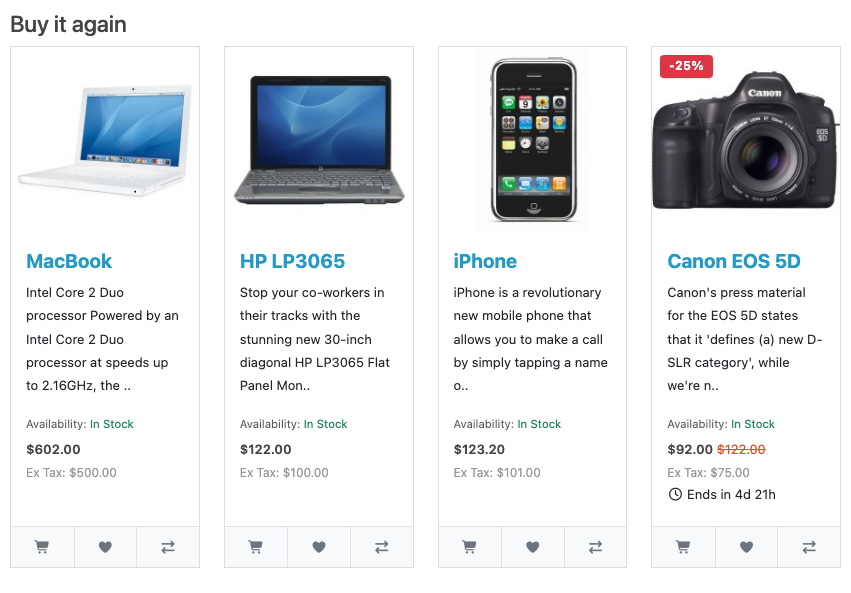
- A “Buy it again” block of products the logged-in customer has bought, most recent first, as standard product cards with prices, specials and add to cart.
- On My Account automatically, and on any layout you like (Design → Layouts). Guests never see it, and customers who haven’t ordered yet don’t either.
- Safe to click. Every item goes through OpenCart’s own add-to-cart checks, so disabled products, out-of-stock items and changed options are refused exactly as they would be one by one, and the customer is told how many items didn’t make it.
Install it
- Download
buyagain.ocmod.zip. - Go to Extensions → Installer, upload it, and click the green +.
- Go to Extensions → Extensions → Modules and install Buy It Again.
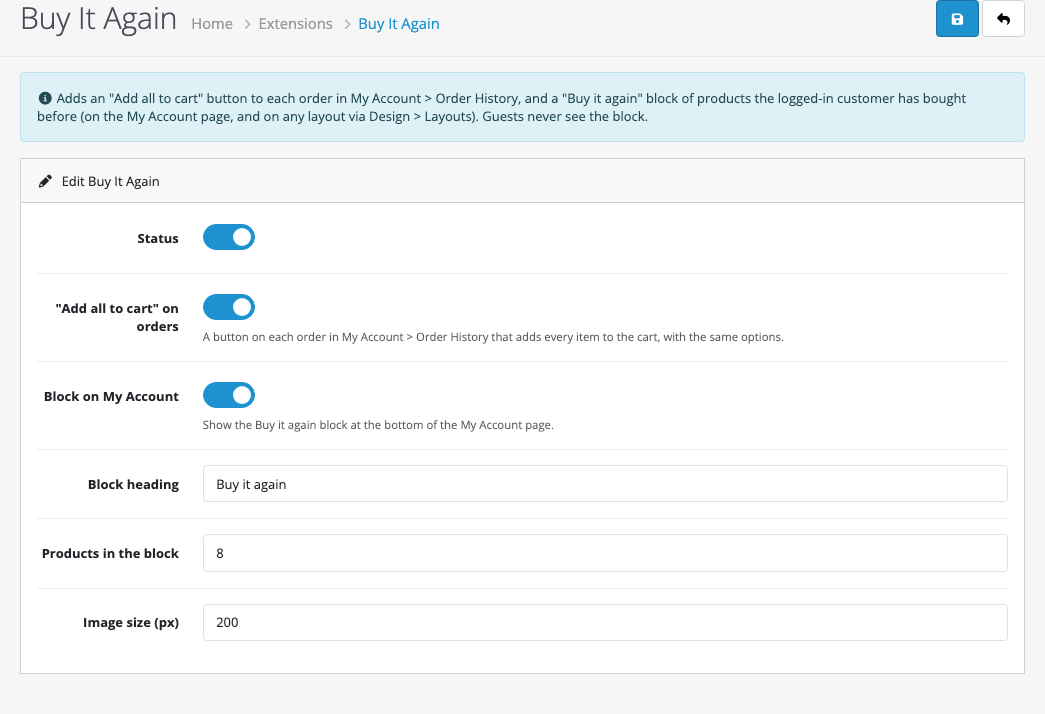
- Click Edit, turn Status on and save.
| Setting | What it does |
|---|---|
| “Add all to cart” on orders | The one-click reorder button on each past order. |
| Block on My Account | Shows the Buy it again block at the bottom of the My Account page. |
| Block heading | “Buy it again”, “Order again”, “Your favourites”… |
| Products in the block | Up to 24. Products bought most recently come first. |
| Image size | The size of the product images in the block. |
To show the block somewhere else, for example on the home page for returning customers, go to Design → Layouts, edit the layout, and add Buy It Again to Content Top or Content Bottom. Logged-in customers with past orders see their products; everyone else sees nothing, so the page looks normal for new visitors.
Reorder a whole order
Each order in My Account → Order History → View gets a button above its products:
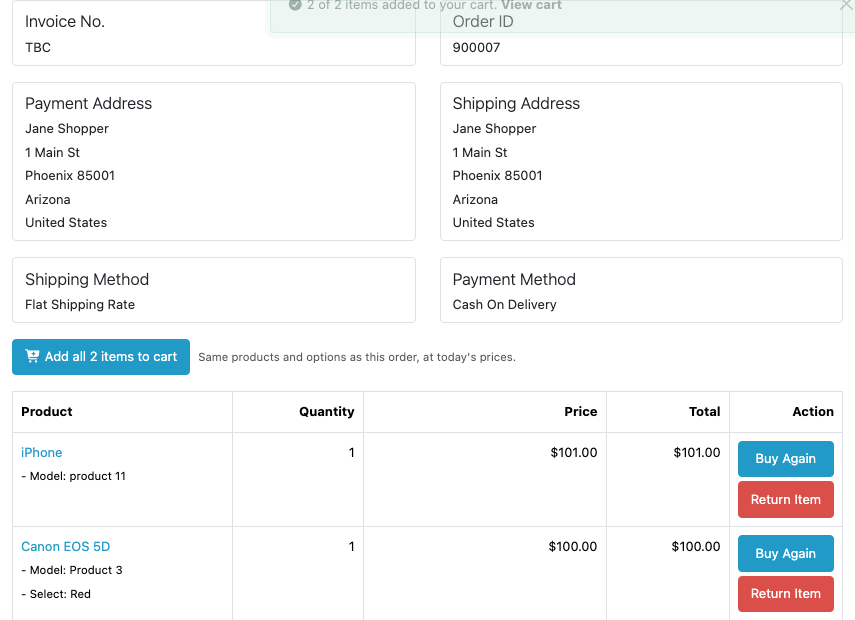
Prices are today’s prices, not the ones from the original order, and specials and customer group prices apply as usual. The note next to the button says so, to avoid surprises.
If something can’t be added, the rest still go in, and the customer is told:

The per-line Buy Again button still works as before and shows OpenCart’s exact reason for a product it can’t add, for example a required option that no longer exists.
Which products appear in the block
- Products from the customer’s orders in this store.
- Only orders in a processing or complete status (System → Settings → Option → Checkout), so cancelled, refunded and abandoned orders don’t count.
- Each product once, ordered by when it was last bought.
- Only products that are still enabled and available in the store. A product you disable drops out of the block on the next page load.
How it’s built
The reorder button doesn’t add products itself. OpenCart 4’s order page already contains a small form for each line, with the product, quantity and options, which its own Buy Again buttons send to checkout/cart.add. The extension’s button sends those same forms, one at a time, and counts the answers:
$.ajax({
    url: 'index.php?route=checkout/cart.add&language=en-gb',
    type: 'post',
    data: $(forms.shift()).serialize(),
    dataType: 'json',
    success: function(json) {
        if (json['success']) { added++; } else { failed++; }
    },
    complete: next
});
That’s why options, minimum quantities, stock checks and disabled products all behave exactly as they do in the rest of the store: it’s the same code path.
The block is a normal OpenCart module that builds its cards with OpenCart’s own product/thumb template, like the Latest and Featured modules, so it matches your theme and other card extensions (badges, availability, quick view) work on it too. Its query groups the customer’s order lines by product and sorts by the most recent order date:
SELECT op.`product_id`, MAX(o.`date_added`) AS last_bought
FROM `oc_order_product` op
LEFT JOIN `oc_order` o ON (o.`order_id` = op.`order_id`)
WHERE o.`customer_id` = '902' AND o.`store_id` = '0'
  AND o.`order_status_id` IN (5, 1, 2, 12, 3)
GROUP BY op.`product_id`
ORDER BY last_bought DESC
Testing
| Test | Result |
|---|---|
| Customer with two completed orders (iPhone + Canon in Red; MacBook + HP monitor with a delivery date) | Block on My Account: MacBook, HP LP3065, iPhone, Canon EOS 5D (newest order first) |
| Add all on the first order | “2 of 2 items added”; cart has the iPhone and the Canon with Select: Red |
| HP monitor disabled, Add all on the second order | “1 of 2 items added. 1 could not be added…”; the HP also gone from the block |
| Block on the Home layout, guest visitor | Nothing shown |
| Same layout, logged-in customer | Four product cards |
Ideas for using it
- Link to My Account → Order History from your order confirmation and shipping emails (“Need more? Reorder in one click”).
- Put the block on the home page for logged-in customers: returning buyers see their usual products first.
- Pair it with review request emails and reward points to bring customers back.

Rupak Nepali is a web developer, manage Webocreation website and the author of six books:
Getting Started with OpenCart Module Development (Packt, 2013),
OpenCart Theme and Module Development (Packt, 2015),
OpenCart 4: Dev Guide for Themes & Extensions (2024),
OpenCart 4: User Manual (2025),
Cloudflare for the Enterprise Website (2026) and
The Technical Web Guide for Marketers (2026).
Rupak has built OpenCart stores and extensions since 2010, has published more than 600 tutorials on Webocreation, and shares free OpenCart extensions on GitHub.
Find Rupak on
GitHub | Amazon | LinkedIn | X | YouTube.