Google Postmaster Tools in 2026: Setup, the Compliance Dashboard, Spam Rate Thresholds and What to Do When You Fail
A practical guide to Google Postmaster Tools: verifying your domain, what the Compliance status checks mean, the 0.1% and 0.3% spam rate thresholds, what changed with the new version, and how to fix each failing item, with a DNS check script you can run yourself.
 Rupak NepaliPublished Nov 15, 2026
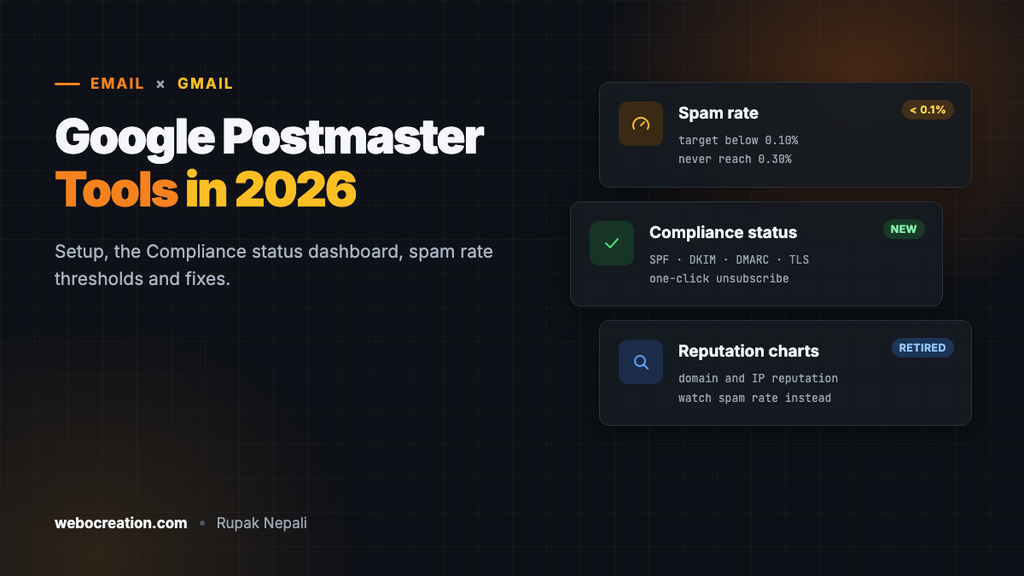
Gmail is the largest mailbox provider most stores send to, and Google Postmaster Tools is the only place Google tells you, in its own numbers, how your mail is doing there: how often recipients mark it as spam, whether it’s authenticated, and whether you meet Gmail’s sender requirements. It’s free, and it takes ten minutes to set up.
This guide covers setup, the dashboards that matter, the spam rate thresholds, and what to do about each failing check. It also covers the change most older guides miss: the reputation dashboards many people relied on are being retired.
Set it up
- Go to
postmaster.google.comand sign in with any Google account. - Add your sending domain: the domain in your From address (
example.com). If you send from subdomains such asmail.example.com, the main domain covers them. - Google gives you a TXT record like
google-site-verification=abc123.... Add it to your domain’s DNS and click Verify. - Add anyone else who needs access from the domain’s menu, rather than sharing a login.
If your domain is already verified in Google Search Console with the same account, it may verify automatically.
Why your dashboards are empty
Postmaster Tools only shows data for domains that send meaningful volume to Gmail users, and only for mail that passes DKIM with your domain. On low-volume days, Google’s help says the dashboards “might not include all data” to protect user privacy. A small store sending a few hundred order emails a day may see gaps or nothing; a newsletter going to thousands of Gmail addresses usually shows up within a few days.
Two common causes of no data even with volume: your email platform signs DKIM with its domain rather than yours (set up a branded sending domain), or your mail goes out from a different domain than the one you verified.
Compliance status
The Compliance status dashboard checks your domain against Gmail’s sender requirements, with one of three results for each: Compliant, Needs work or No data found. Changes can take up to seven days to show.
| Check | Applies to | What passes |
|---|---|---|
| SPF and DKIM | All senders | Mail authenticated with SPF or DKIM (bulk senders: both) |
| DNS records | All senders | Sending IPs have valid forward and reverse DNS (PTR) |
| Encryption | All senders | Mail sent over TLS |
| Message formatting | All senders | Valid RFC 5322 messages |
| User-reported spam rate | All senders | Below 0.3% |
| DMARC | Bulk senders | A DMARC record (p=none is enough) and alignment with SPF or DKIM |
| One-click unsubscribe | Bulk senders, marketing mail | The List-Unsubscribe and List-Unsubscribe-Post headers |
| Honor unsubscribe | Bulk senders | Unsubscribes processed within 48 hours |
Google defines a bulk sender as one sending close to 5,000 messages to Gmail accounts within 24 hours. Once you’ve crossed that line, Google treats you as a bulk sender from then on.
Spam rate: the number that matters most
The Spam rate dashboard shows the share of your mail, delivered to the inbox of engaged users, that recipients marked as spam. Gmail’s thresholds:
| Spam rate | Meaning |
|---|---|
| Below 0.10% | Google’s recommended target |
| 0.10% to 0.29% | Warning zone: expect more mail to go to spam |
| 0.30% or higher | Fails the sender requirement. Google says to never reach it; sustained, it means mail is filtered or rejected |
Put another way: at 0.3%, three people in every thousand who saw your email in their inbox clicked “Report spam”. For a 20,000-recipient newsletter with 8,000 Gmail inbox deliveries, that’s just 24 complaints.
One trap: the rate is measured against mail that reached the inbox. If Gmail starts sending most of your mail to spam, fewer people see it to complain about it, and the rate can fall while delivery gets worse. Read the spam rate alongside your opens and clicks from Gmail addresses.
Lowering a high spam rate
- Make unsubscribing easier than complaining. One-click unsubscribe in the headers, a visible link in the body. See our one-click unsubscribe guide.
- Stop mailing people who never engage. Suppress subscribers who haven’t opened or clicked in 6 to 12 months; they’re the ones who complain.
- Only mail people who asked. No bought lists, no adding every customer to the newsletter by default. Use a clear opt-in at checkout.
- Send what they signed up for, at the frequency they expect. A sudden jump from monthly to daily is a classic spike.
- Separate streams. Send marketing from a subdomain (
news.example.com) so complaints about promotions don’t affect order emails from the main domain.
The other dashboards
| Dashboard | What it tells you |
|---|---|
| Authentication | The share of your mail passing SPF, DKIM and DMARC. Anything below 100% means a sender you haven’t set up |
| Encryption | The share of mail received over TLS. Should be 100% |
| Delivery errors | Rejected or temporarily refused mail, with reasons such as rate limits, bad reputation or authentication failure |
| Feedback loop | Spam complaints by campaign ID, for senders who add a Feedback-ID header (mostly email platforms) |
What happened to Domain and IP Reputation
The old Postmaster Tools showed Domain Reputation and IP Reputation as High, Medium, Low or Bad. Google has been moving everyone to a new version of Postmaster Tools, built around the Compliance status dashboard, and the reputation charts aren’t part of it. The Postmaster Tools API changed in step: version 2 replaces the old traffic statistics with new domain statistics and adds a compliance status call. Rollout dates have shifted more than once, so what you see depends on when your domain moved over.
Gmail still uses reputation internally; it just doesn’t show you a label any more. In practice, watch the spam rate, the authentication rates and the delivery errors. If those are healthy, your reputation is too. If you still have old reputation charts, export them while you can.
Check your DNS yourself
Several compliance checks come down to DNS. This short script shows the records for any domain (pass your DKIM selector as the second argument; Google Workspace uses google):
#!/usr/bin/env bash
# Quick DNS check of the Gmail sender requirements a domain controls.
# Usage: ./sender-check.sh example.com [dkim-selector]
d=$1; sel=${2:-google}
spf=$(dig +short TXT "$d" | tr -d '"' | grep '^v=spf1')
dmarc=$(dig +short TXT "_dmarc.$d" | tr -d '"' | grep '^v=DMARC1')
dkim=$(dig +short TXT "$sel._domainkey.$d" | tr -d '"' | grep -c 'p=')
mx=$(dig +short MX "$d" | sort -n | head -1 | awk '{print $2}')
policy=$(echo "$dmarc" | grep -o 'p=[a-z]*' | head -1)
printf '%-10s %s\n' "SPF" "${spf:-MISSING}"
printf '%-10s %s\n' "DMARC" "${dmarc:-MISSING}"
printf '%-10s %s\n' "Policy" "${policy:-none set}"
printf '%-10s %s\n' "DKIM" "$( [ "$dkim" -gt 0 ] && echo "selector '$sel' found" || echo "selector '$sel' not found (try your provider's selector)")"
printf '%-10s %s\n' "MX" "${mx:-none}"
printf '%-10s %s\n' "MTA-STS" "$(dig +short TXT "_mta-sts.$d" | grep -q STSv1 && echo yes || echo no)"
printf '%-10s %s\n' "BIMI" "$(dig +short TXT "default._bimi.$d" | grep -q BIMI1 && echo yes || echo no)"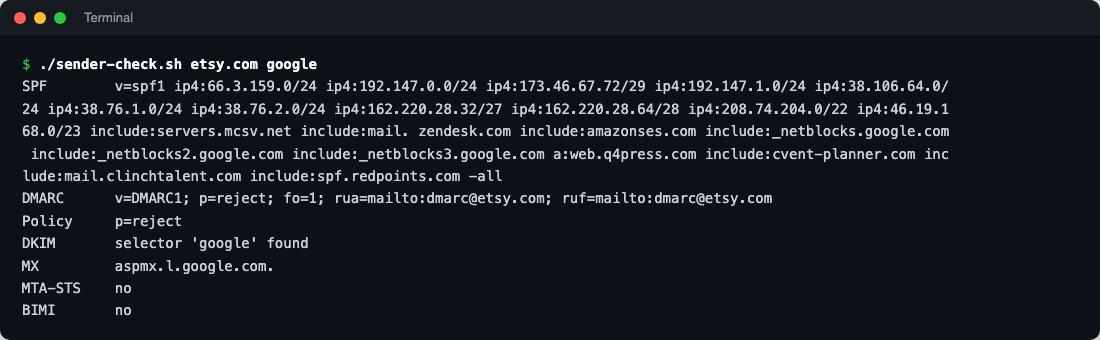
Etsy’s result shows how common the gaps are even at large companies: strict DMARC and DKIM in place, but no MTA-STS and no BIMI record. When we checked 40 large retailers, none had MTA-STS and 18 had no BIMI record.
Fixing each “Needs work”
| Check | Usual cause | Fix |
|---|---|---|
| SPF/DKIM | A tool sending as your domain without DKIM | Set up DKIM in every sending service; see SPF, DKIM and DMARC and SPF lookup limits |
| DMARC | No record, or no aligned SPF/DKIM | Publish p=none with reporting, then work towards p=reject |
| DNS records | Sending from a server without reverse DNS (often a store sending with PHP mail) | Send through an SMTP service instead of the web server |
| Encryption | An old server or plugin sending without TLS | Use port 587 with STARTTLS or 465 with TLS |
| One-click unsubscribe | Custom or store-sent newsletters without the headers | Use an email platform, or add the headers yourself |
| Spam rate | Unwanted or unexpected mail | The steps in “Lowering a high spam rate” above |
A monthly routine
- Compliance status: everything Compliant.
- Spam rate: below 0.1% on most days; look into any spike (which campaign went out that day?).
- Authentication: 100% for DKIM and DMARC. A drop means a new tool is sending as you.
- Delivery errors: near zero.
- Your DMARC reports, for senders Postmaster doesn’t show.
The full deliverability series: BIMI, MTA-STS and TLS-RPT, one-click unsubscribe and Gmail, Yahoo and Microsoft sender requirements.

Rupak Nepali is a web developer, manage Webocreation website and the author of six books:
Getting Started with OpenCart Module Development (Packt, 2013),
OpenCart Theme and Module Development (Packt, 2015),
OpenCart 4: Dev Guide for Themes & Extensions (2024),
OpenCart 4: User Manual (2025),
Cloudflare for the Enterprise Website (2026) and
The Technical Web Guide for Marketers (2026).
Rupak has built OpenCart stores and extensions since 2010, has published more than 600 tutorials on Webocreation, and shares free OpenCart extensions on GitHub.
Find Rupak on
GitHub | Amazon | LinkedIn | X | YouTube.