Size Chart Popup for OpenCart 4: Reduce Returns With a Size Guide on Every Clothing Product (Free Extension)
A free OpenCart 4 extension for size guides: create charts by pasting from a spreadsheet, assign them to categories, and a Size guide link with a responsive popup appears on every product in those categories.
 Rupak NepaliPublished Nov 15, 2026
For clothing and shoe stores, wrong size is the most common reason for a return, and every return costs shipping both ways plus the time to restock. A clear size guide on the product page, right next to the size option, is the simplest fix there is.
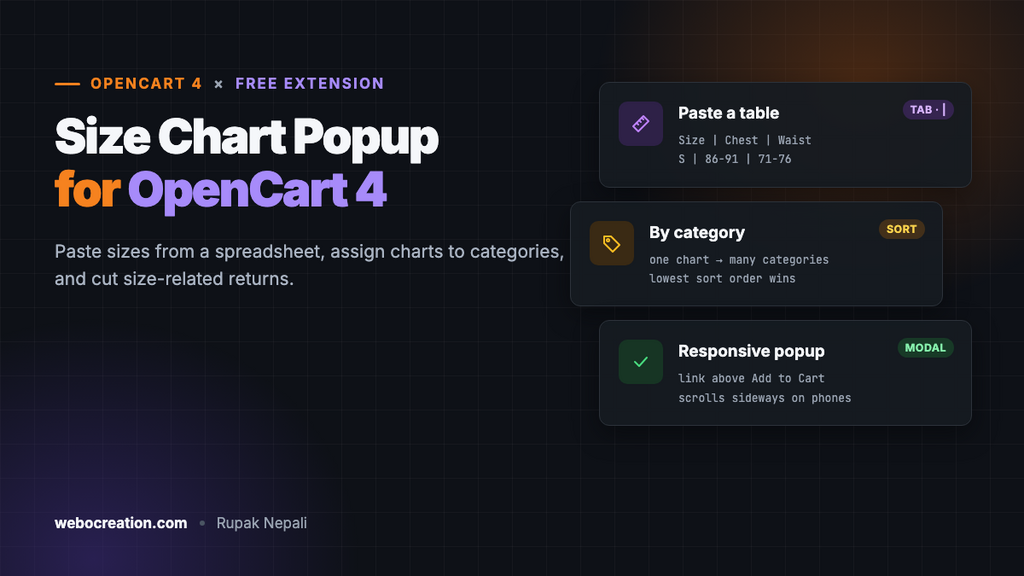
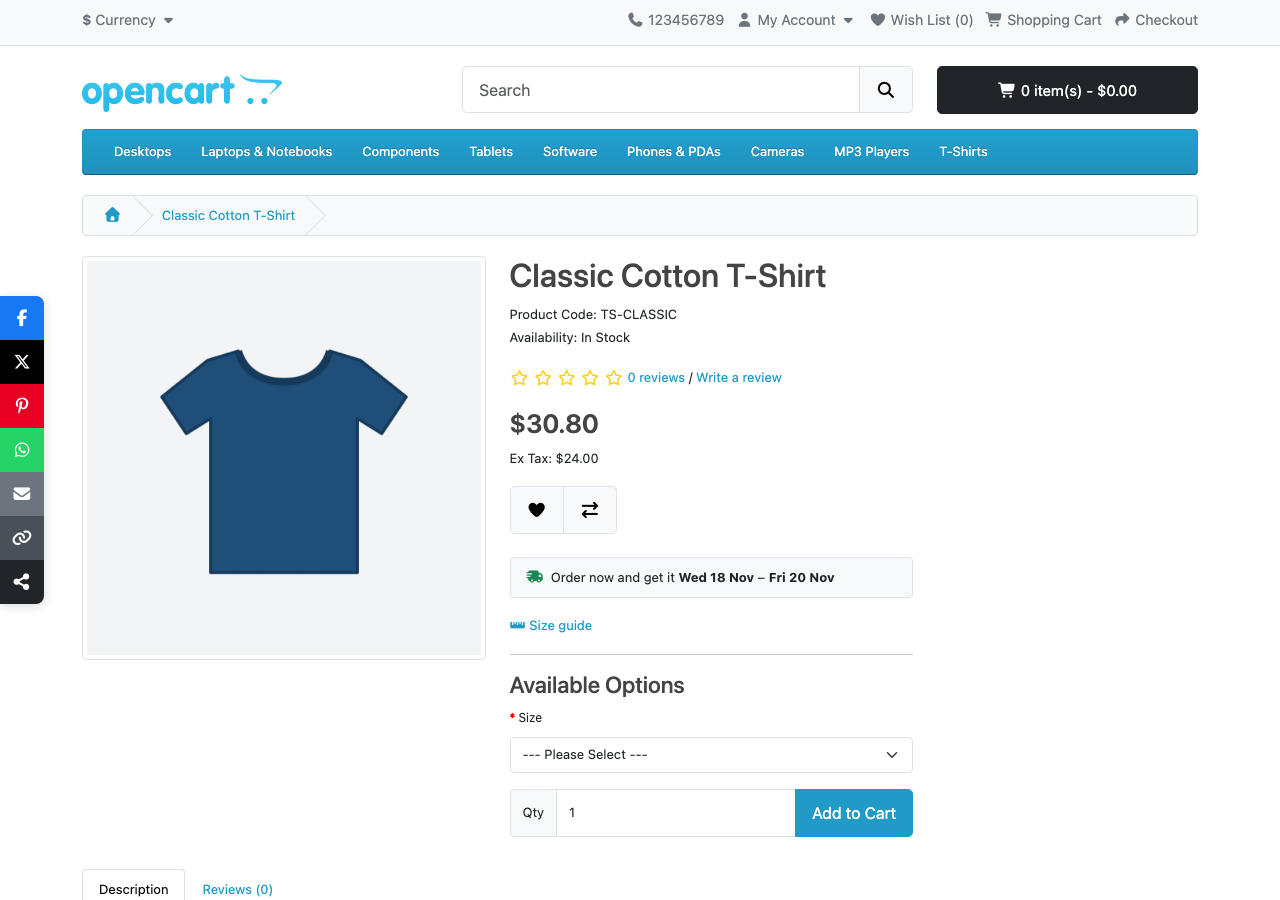
OpenCart 4 has no size chart feature, so stores paste tables into product descriptions, where shoppers don’t look and every product has to be updated by hand. This free extension does it properly: you create a chart once, assign it to categories, and every product in them gets a Size guide link that opens the chart in a popup.
Download Size Chart for OpenCart 4 (free, tested on OpenCart 4.1.0.4)
What it does
- Charts by category. Make one chart for “Men’s T-shirts” and tick the categories it applies to. New products in those categories get it automatically.
- Paste from a spreadsheet. Copy the cells from Excel or Google Sheets and paste. Or type one row per line with
|between cells. - A link where shoppers decide. The Size guide link sits just above the options and Add to Cart button.
- A responsive popup. The table scrolls sideways on phones instead of breaking the layout.
- A note under the chart, for how to measure or fit advice.
- No theme edits. One event adds the link and popup to product pages.
Install it
- Download
sizechart.ocmod.zip. - Go to Extensions → Installer, upload it, and click the green +.
- Go to Extensions → Extensions → Modules and install Size Chart. This creates two tables and registers the event.
- Click Edit, open Settings, check the link text, turn Status on and save.
- Back on the Size charts tab, click + to add your first chart.
There’s nothing to add to layouts: the link appears on product pages that have a chart.
Creating a chart
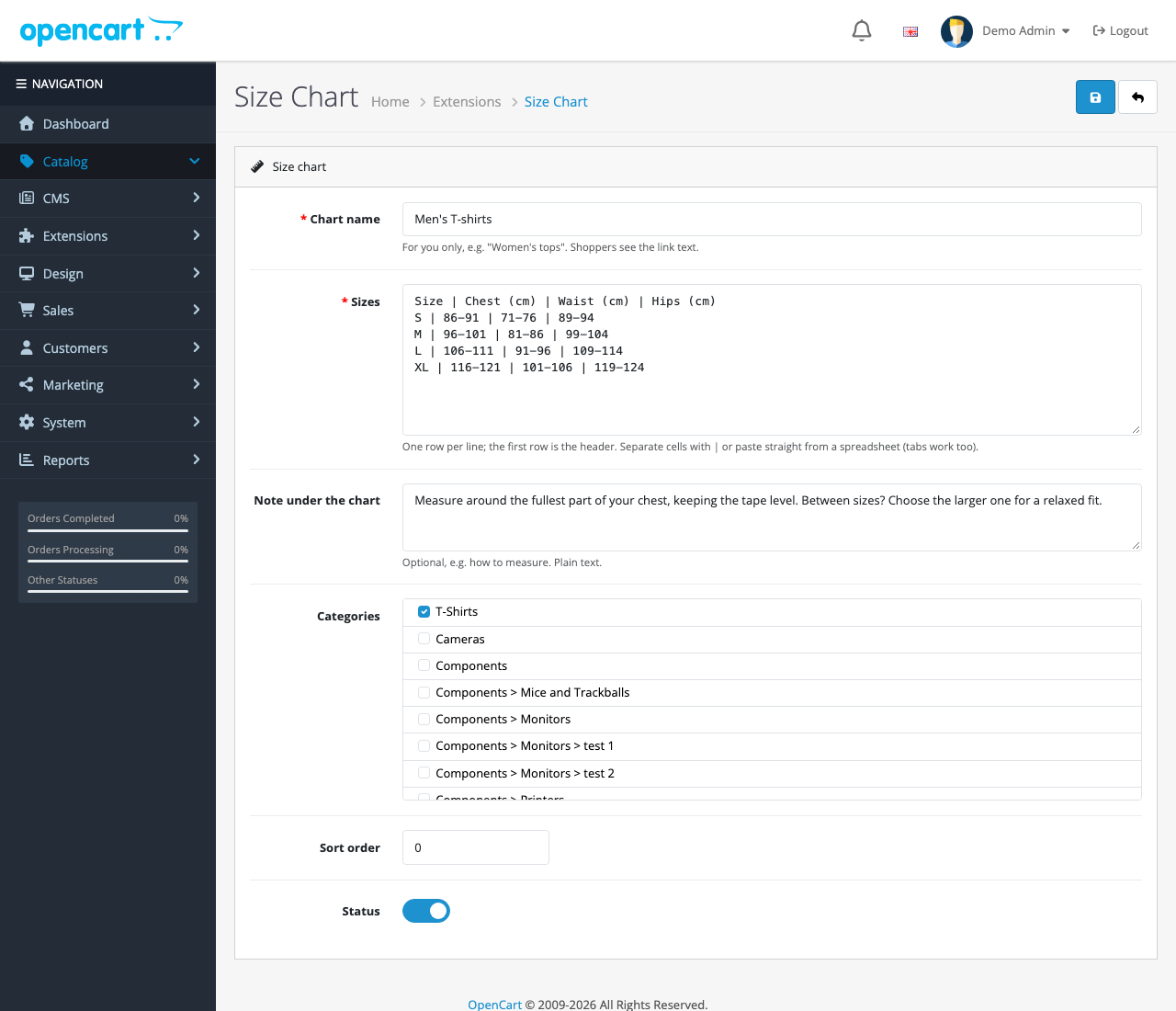
| Field | What to enter |
|---|---|
| Chart name | For you only, such as “Men’s T-shirts”. Shoppers see the link text from Settings |
| Sizes | One row per line, header first. Cells separated by tabs (pasted from a spreadsheet) or | |
| Note under the chart | Optional: how to measure, or “Between sizes? Choose the larger one” |
| Categories | Every category the chart applies to. Ticked ones are listed first when you edit |
| Sort order | Decides which chart wins when a product is in categories with different charts: the lowest number |
| Status | Turn a chart off without deleting it |
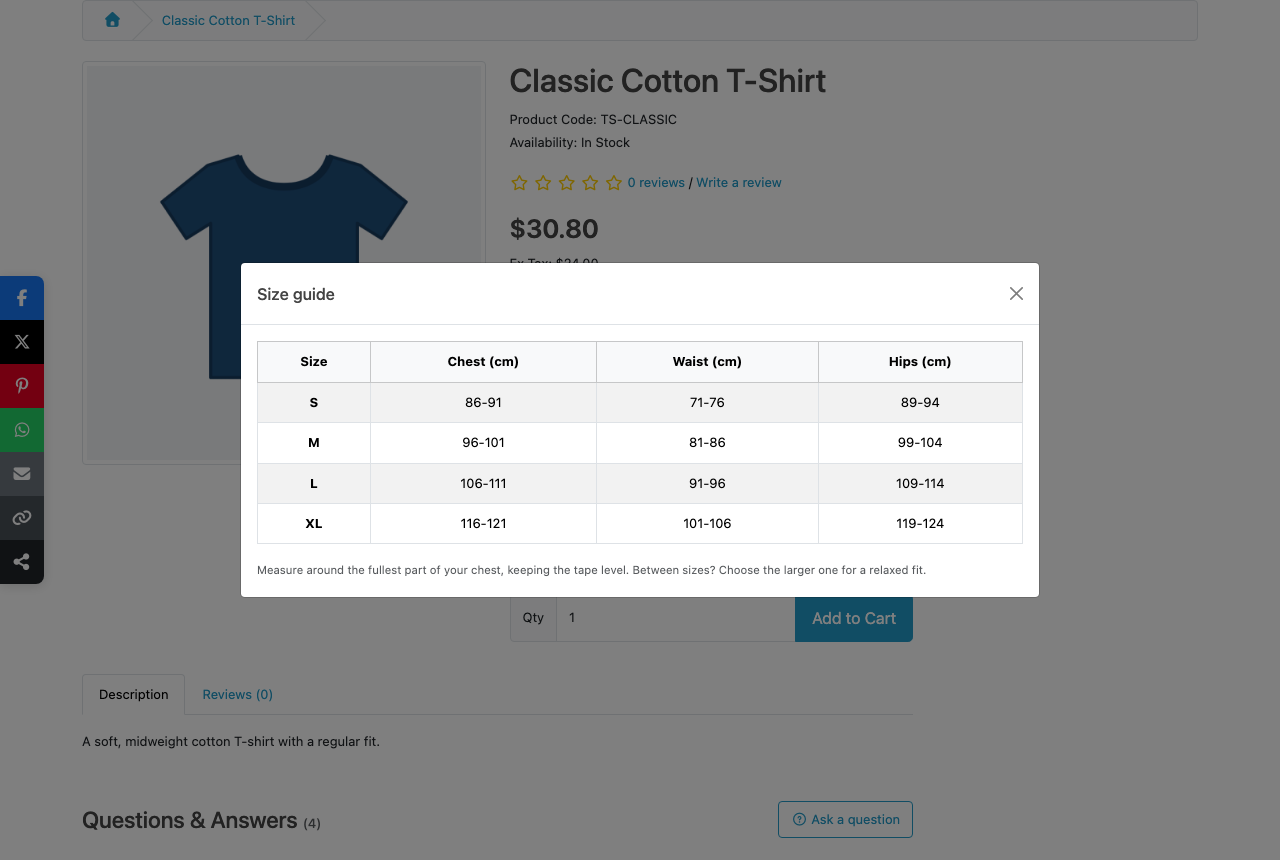
Typed with pipes, the chart in the screenshots is:
Size | Chest (cm) | Waist (cm) | Hips (cm)
S | 86-91 | 71-76 | 89-94
M | 96-101 | 81-86 | 99-104
L | 106-111 | 91-96 | 109-114
XL | 116-121 | 101-106 | 119-124
The first row becomes the table header and the first column the row labels, so screen readers announce “M, Chest 96-101” instead of a list of numbers.
On the product page
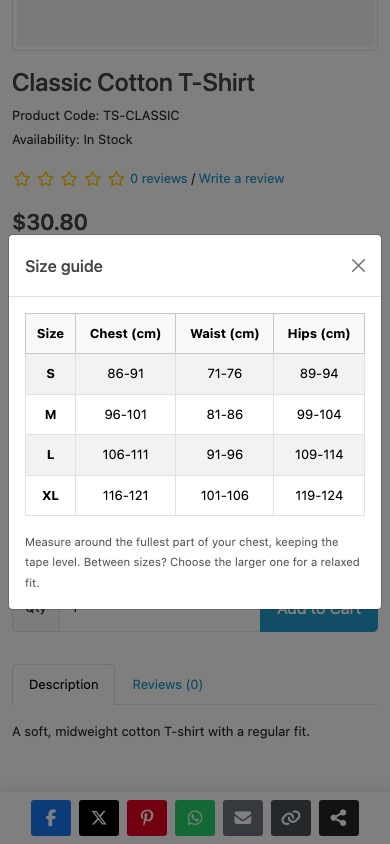
On phones the popup fills most of the screen, and wide tables scroll sideways inside it:
How it’s built
| Part | Where | What it does |
|---|---|---|
| Tables | oc_size_chart, oc_size_chart_to_category | The charts, and which categories use them |
| Event | catalog/view/product/product/after | Finds the product’s chart and inserts the link and popup |
| Admin | Extension page with Size charts and Settings tabs | Chart list, chart form, settings |
Finding the chart for a product
One query joins the product’s categories to the charts and takes the enabled chart with the lowest sort order:
SELECT `sc`.* FROM `oc_size_chart` `sc`
INNER JOIN `oc_size_chart_to_category` `s2c` ON (`s2c`.`size_chart_id` = `sc`.`size_chart_id`)
INNER JOIN `oc_product_to_category` `p2c` ON (`p2c`.`category_id` = `s2c`.`category_id`)
WHERE `p2c`.`product_id` = 9001 AND `sc`.`status` = '1'
ORDER BY `sc`.`sort_order`, `sc`.`size_chart_id` LIMIT 1
Products without a chart get nothing added at all, not even an empty link.
Turning pasted text into a table
Each line is split on tabs if it has any (a spreadsheet paste), otherwise on |. Stray pipes at the start and end of a line are ignored, so Markdown-style tables work too:
private function parse(string $content): array {
	$rows = [];

	foreach (preg_split('/\R/', trim($content)) as $line) {
		if (trim($line) === '') {
			continue;
		}

		$separator = str_contains($line, "\t") ? "\t" : '|';

		$rows[] = array_map('trim', explode($separator, trim($line, " |")));
	}

	return $rows;
}
Commas aren’t used as separators on purpose: European sizes such as “36,5” contain them.
Moving the popup to the page body
The link and popup are inserted into the product column. A Bootstrap modal inside a column can end up underneath its own dark backdrop if a theme gives that column a transform or overflow style, which looks like a frozen grey page. So the popup moves itself to <body> as soon as the page loads:
// Move the popup to <body>, so a theme's column styles (overflow, transforms) can't trap it under the backdrop.
document.body.appendChild(document.getElementById('modal-size-chart'));
The default theme doesn’t need this, but third-party themes often do, and it costs one line.
Keeping a new chart from saving twice
The chart form saves without reloading the page, like OpenCart’s own forms. For a new chart, that has a trap: after the first save the form still has no chart ID, so a second click on Save would add a duplicate. The save response returns the new ID, and the form picks it up:
// After the first save of a new chart, keep its ID so the next save updates it instead of adding another.
$(document).ajaxComplete(function (event, xhr) {
  if (xhr.responseJSON && xhr.responseJSON.size_chart_id) {
    $('#input-size-chart-id').val(xhr.responseJSON.size_chart_id);
  }
});
We tested it by saving a new chart twice: one row in the table, not two.
Tips for size charts that reduce returns
- Use body measurements, not garment measurements, unless you say which. Shoppers measure themselves.
- Give both cm and inches if you sell internationally: add columns such as “Chest (cm)” and “Chest (in)”.
- Say how to measure in the note. “Around the fullest part of the chest” removes most of the guessing.
- Make separate charts per brand or fit if they differ. A slim-fit chart in the same category as regular-fit leads straight to returns.
- Answer fit questions publicly. Our free product Q&A extension puts “Is it true to size?” answers right under the product.
Troubleshooting
| Problem | Cause and fix |
|---|---|
| No Size guide link | Check Status in Settings, that the chart is enabled, and that the product is in one of the chart’s categories (Catalog → Products → Links) |
| The wrong chart shows | The product is in several categories with charts. The lowest sort order wins; adjust it |
| All cells in one column | The separator wasn’t recognised. Use tabs or | between cells |
| The popup opens behind a grey overlay | Another script moved or restyled the modal. Check the browser console for errors |
Uninstalling keeps your charts, so a reinstall doesn’t lose them. To remove the data, run DROP TABLE oc_size_chart, oc_size_chart_to_category; afterwards.
More free OpenCart 4 extensions: estimated delivery date, product quick view, recently viewed products and the low-stock message.

Rupak Nepali is a web developer, manage Webocreation website and the author of six books:
Getting Started with OpenCart Module Development (Packt, 2013),
OpenCart Theme and Module Development (Packt, 2015),
OpenCart 4: Dev Guide for Themes & Extensions (2024),
OpenCart 4: User Manual (2025),
Cloudflare for the Enterprise Website (2026) and
The Technical Web Guide for Marketers (2026).
Rupak has built OpenCart stores and extensions since 2010, has published more than 600 tutorials on Webocreation, and shares free OpenCart extensions on GitHub.
Find Rupak on
GitHub | Amazon | LinkedIn | X | YouTube.