Mega Menu for OpenCart 4: Category Panels With Columns, a Third Level and a Featured Product (Free Extension)
Replace the top menu with wide panels from your existing categories: columns, third-level links, a featured product per category, extra links, and proper phone and keyboard support.
 Rupak NepaliPublished Nov 22, 2026
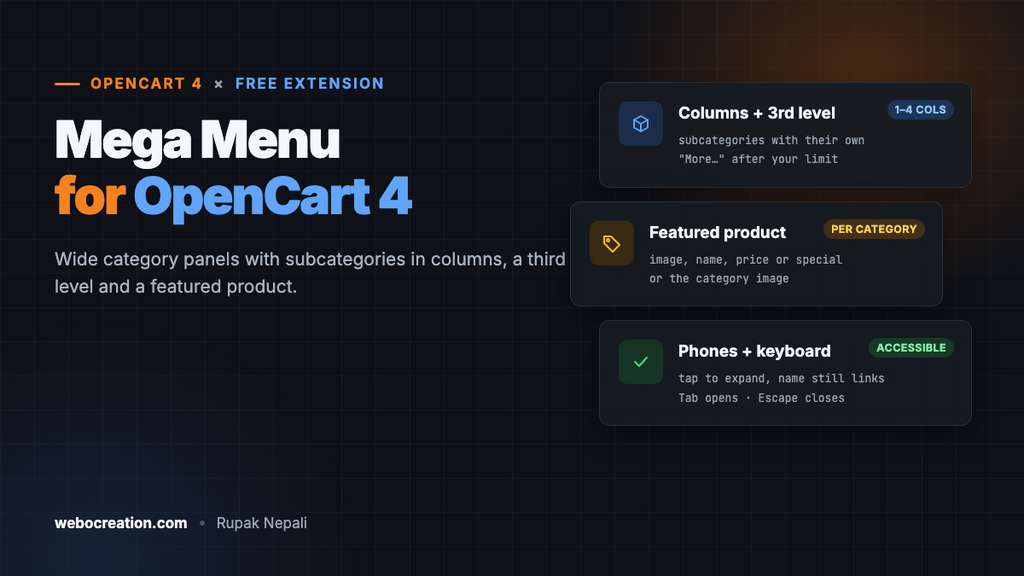
OpenCart’s default menu shows one level of subcategories in a plain dropdown. That’s fine for twenty products. With a few hundred, shoppers have to click into a category and then a subcategory before they see what you sell. A mega menu shows the whole structure at once: subcategories in columns, their own subcategories underneath, and a featured product to tempt them.
This free extension replaces the top menu with a mega menu, using your existing categories. There’s nothing to rebuild.
Download Mega Menu for OpenCart 4 (free, tested on OpenCart 4.1.0.4)
What it does
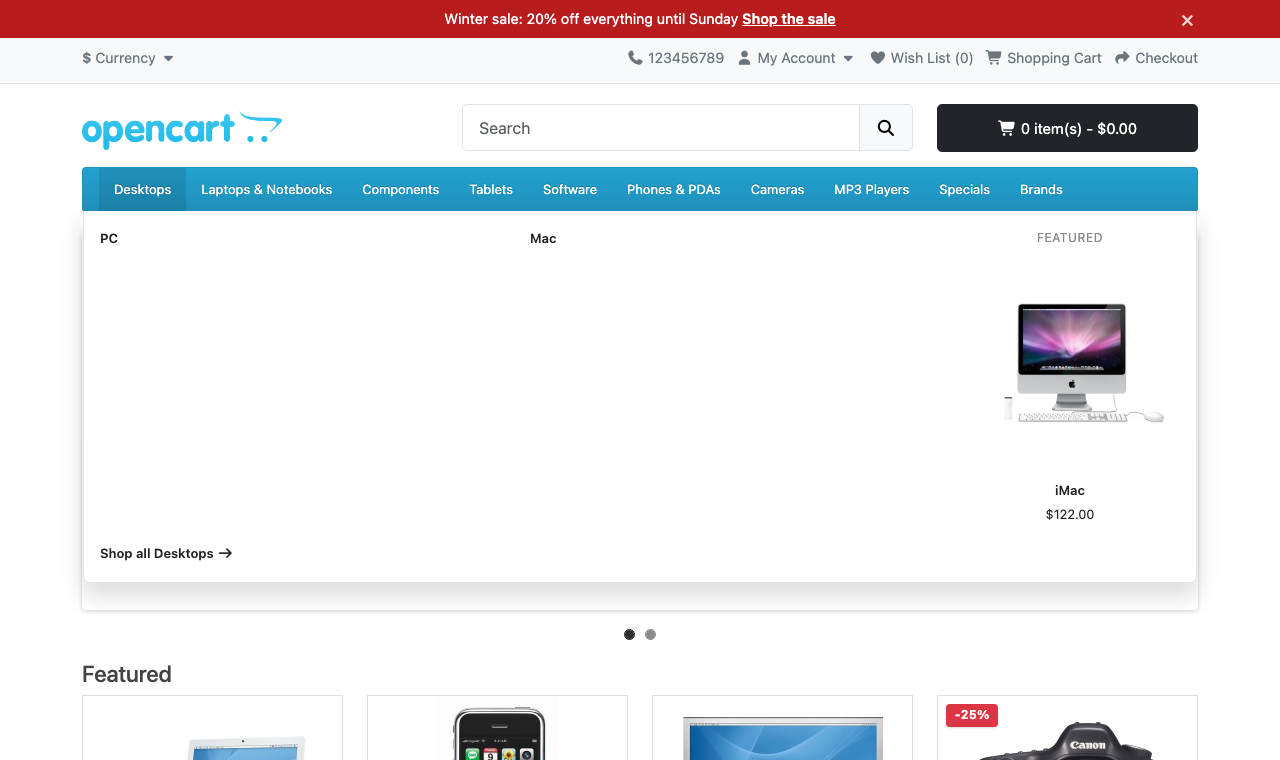
- Full-width panels for every top-level category that has subcategories. Categories without subcategories stay plain links.
- Up to 4 columns per category, chosen per category.
- Third level: each subcategory lists its own subcategories underneath, with “More…” after a limit you choose.
- A featured product per category, with image, name and price (or special price). If you don’t pick one, the category image is shown.
- Extra links after the categories, such as Specials, Brands or a blog, in every language.
- Phones: each category gets its own expand button, so the category name still opens the category page.
- Keyboard: Tab opens a panel, Escape closes it.
- Cached: the menu is built once and reused, and rebuilt when categories or products change.
Install
- Go to Extensions > Installer, upload
megamenu.ocmod.zipand click the green + button. - Go to Extensions > Extensions, choose Modules, and install Mega Menu.
- Click Edit, turn Status on, choose featured products if you like, and save.
There’s no layout to assign: the mega menu takes the place of the menu in your header everywhere.
Settings
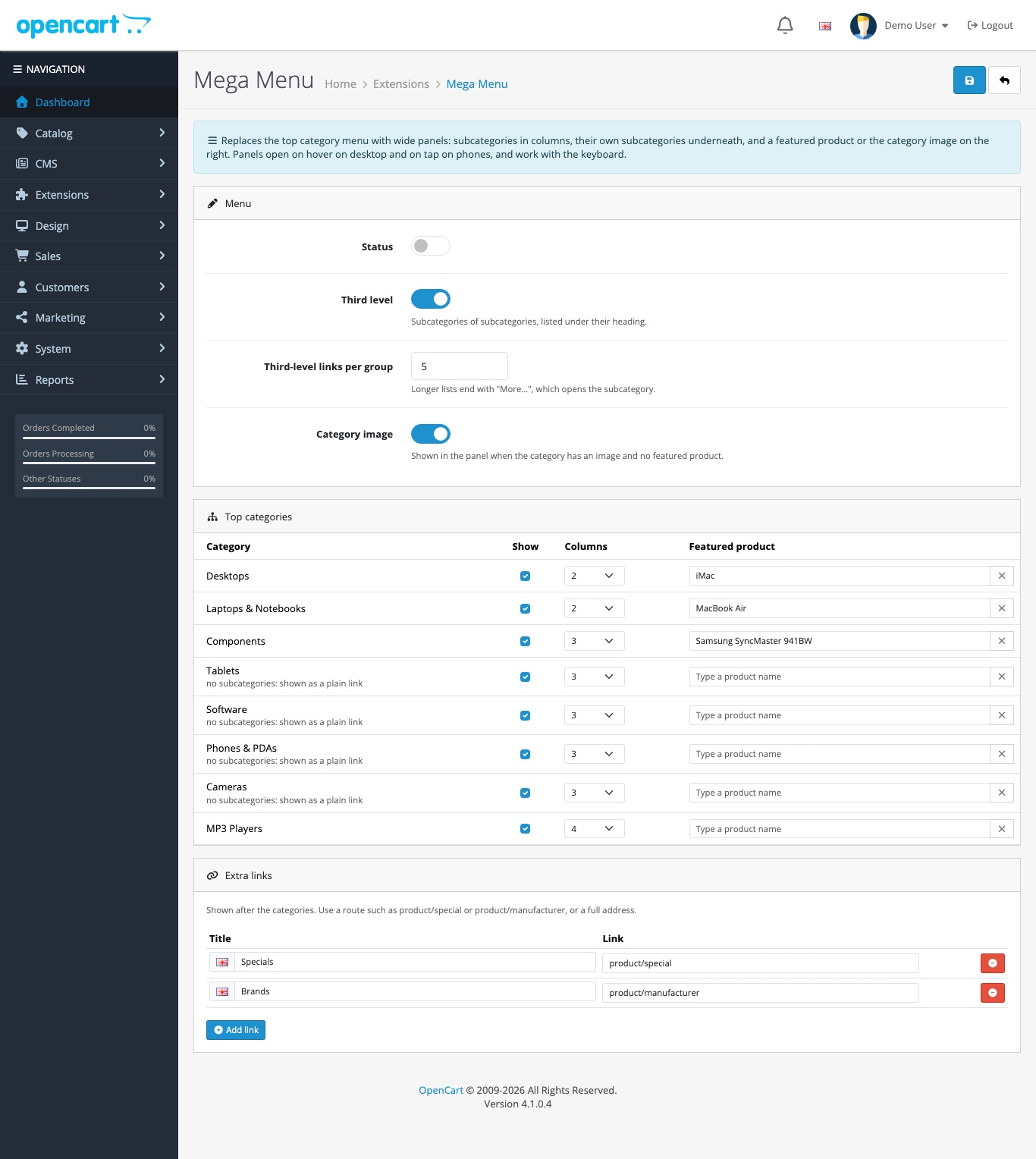
- Third level on or off, and how many third-level links to show per group (5 by default).
- Category image in panels without a featured product.
- Top categories: show or hide each one, its number of columns, and a featured product chosen by typing its name.
- Extra links: a title per language and a link. Use a route such as
product/specialorproduct/manufacturerand the extension builds the store’s own URL, SEO URL included. Full addresses work too. Anything else, such as ajavascript:link, is refused when you save.
Featured products sell the panel
A panel is the most visible spot on every page. Use it for something worth clicking: a bestseller, a new arrival, or a product on special. Specials show the new price in red with the old price struck through. Prices follow the visitor’s currency and your tax display setting, and are hidden from guests if Login Display Prices is on in your settings.
On phones
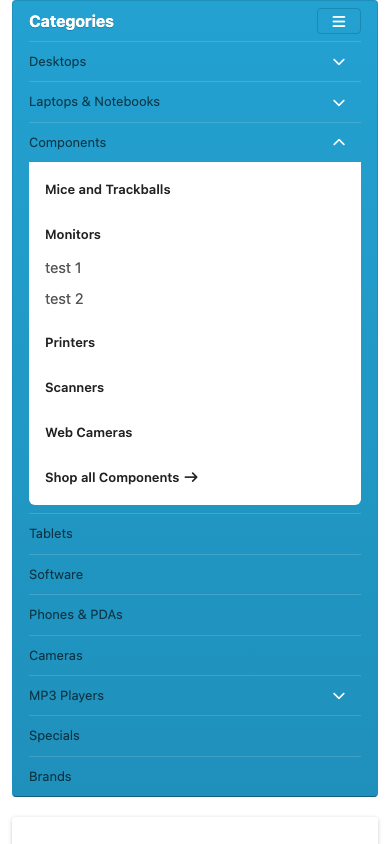
Hover menus don’t work on touch screens, and many menus make you choose between opening a category and expanding it. Here the category name always opens the category page, and the chevron button next to it expands the panel. Panels stack in the normal page flow, so long lists scroll with the page.
Accessibility
- Panels open on keyboard focus as well as hover, so Tab works through the menu.
- Escape closes the open panel and returns focus to its category.
- The phone buttons have
aria-expandedandaria-controls, and a label such as “Show Components” for screen readers.
Speed
A three-level menu means a database query for each category, on every page. The extension stores the finished menu in OpenCart’s cache for an hour, per store, language, currency and customer group, and clears it when you add, edit or delete a category, or edit or delete a product. Product images in panels use loading="lazy", so they only load when a panel opens.
Category Product Count, which adds “(12)” after each category name, is not used by the mega menu. If it’s on in your settings for the default menu, turning it off saves a query per category on every page.
How it works
The extension uses one storefront event, catalog/controller/common/menu/after, and replaces the menu’s output with its own template. No core or theme files are changed. The markup keeps OpenCart’s #menu and .navbar classes, so your theme’s menu colours still apply. The extra CSS is scoped to #menu.megamenu. It was tested with the default theme; a theme that builds its own menu without common/menu won’t show it.
Uninstall
Switch Status off to get the default menu back, or uninstall to remove the events and cached menus. Your categories aren’t touched either way.

Rupak Nepali is a web developer, manage Webocreation website and the author of six books:
Getting Started with OpenCart Module Development (Packt, 2013),
OpenCart Theme and Module Development (Packt, 2015),
OpenCart 4: Dev Guide for Themes & Extensions (2024),
OpenCart 4: User Manual (2025),
Cloudflare for the Enterprise Website (2026) and
The Technical Web Guide for Marketers (2026).
Rupak has built OpenCart stores and extensions since 2010, has published more than 600 tutorials on Webocreation, and shares free OpenCart extensions on GitHub.
Find Rupak on
GitHub | Amazon | LinkedIn | X | YouTube.