Drupal 11 Without the Command Line: Project Browser and Automatic Updates, Tested on Drupal 11.4
Install modules and keep Drupal updated from the browser: what Drupal 11.4 core includes, the settings.php line and server needs, and Project Browser and Automatic Updates in practice.
 Rupak NepaliPublished Nov 21, 2026
For years, running Drupal meant using a terminal. Adding a module meant composer require, and updating core meant Composer and Drush. That shut out many site owners, and it’s a big reason people chose WordPress. Drupal’s answer is two tools: Project Browser, to find and install modules from the admin, and Automatic Updates, to update Drupal from the admin or on its own.
Both are often described as “in core” now. We checked on a fresh Drupal 11.4.13, the current release, and tried to install a module and set up updates using only the browser. Here’s what’s really in core, the one-time setup that still needs file access, and what worked.
What’s actually in Drupal 11.4 core
| Piece | Where it is in 11.4 |
|---|---|
| Package Manager | In core, but experimental and hidden. It’s the engine that runs Composer for you safely: it copies the site to a staging area, makes the change there, checks it, and only then applies it. |
| Project Browser | A contributed module (we used 2.1.6). |
| Automatic Updates | A contributed module (we used 4.1.0). |
| Core’s Update Status module | Only checks for and reports updates. Its old pages for uploading and installing modules from the browser are gone. |
So on plain Drupal core you can’t install a module from the browser at all. You need the two contributed modules, which run on core’s Package Manager.
The easy way to get all of it is Drupal CMS, the ready-made version of Drupal for site builders, which ships with Project Browser and Automatic Updates set up. If you’re on plain Drupal 11 instead, read on.
Before you start: what your server needs
Package Manager does on your server what a developer would do in a terminal, so the server has to allow it. Our test hit each of these requirements:
- A Composer-based site. Your site must have been built with Composer (the
drupal/recommended-projecttemplate, which the official Docker image and most hosts use). Package Manager editscomposer.jsonand runs Composer for you. - Composer on the server. Package Manager found it at
/usr/local/bin/composerand showed the version on the status report. - rsync on the server. Package Manager uses it to copy files to and from the staging area. Our container didn’t have it, and the status report said: “Your site does not pass some readiness checks for automatic updates… rsync is not available.” Ask your host if it’s missing. If rsync is installed somewhere unusual, set
$settings['package_manager_rsync_path']insettings.php. - A codebase the web server can write to. The whole Drupal folder, not just
sites/default/files, must be writable by the user PHP runs as. On many shared hosts it already is. On a hardened server it deliberately isn’t, and on those, Composer from the command line is still the right tool.
Step 1: Get the two modules onto the site (once)
This is the one step that needs Composer, because Project Browser can’t install itself:
composer require drupal/project_browser drupal/automatic_updatesIf you don’t have a terminal, ask your host or developer to run it once, or start from Drupal CMS, which already includes both. After this, everything else happens in the browser.
Step 2: Allow Package Manager in settings.php
When we ticked Project Browser and Automatic Updates on the Extend page and clicked Install, Drupal refused:
“Package Manager is available for early testing. To install the module set the value of ‘testing_package_manager’ to TRUE in your settings.php file.”
Because Package Manager is experimental in core, Drupal asks you to opt in. Add this line at the end of sites/default/settings.php, using your host’s file manager or an SFTP app if you have no terminal:
$settings['testing_package_manager'] = TRUE;One thing to know: if the change doesn’t seem to take effect, wait a minute. PHP caches compiled files, and on our server it kept using the old settings.php until we restarted it.
Step 3: Install the modules from Extend
With that line in place, Extend accepted the two modules. Drupal then asked to confirm Package Manager, listed as “Are you sure you wish to install an experimental module?”. After that, the site said both were installed, and immediately ran its readiness checks.
Open Reports → Status report and look for Update readiness checks. Ours first failed on rsync. Once rsync was available, we clicked “Rerun readiness checks” and it said: “Your site is ready for automatic updates.” Fix anything listed there before going further; the same checks protect both modules.
Step 4: Install modules with Project Browser
Go to Extend → Browse. You get a searchable catalogue of Drupal.org projects (6,637 in our test with the default filters: covered by Drupal’s security policy and actively maintained), with categories, install counts and logos.
At first, every project only offered View Commands, the Composer command to copy. Installing from the browser is switched off by default. Turn it on in Configuration → Development → Project Browser: tick Allow installing via UI (experimental) and save. The option is greyed out until Package Manager is installed.
Now each project has a Select button. You can select several and install them together:
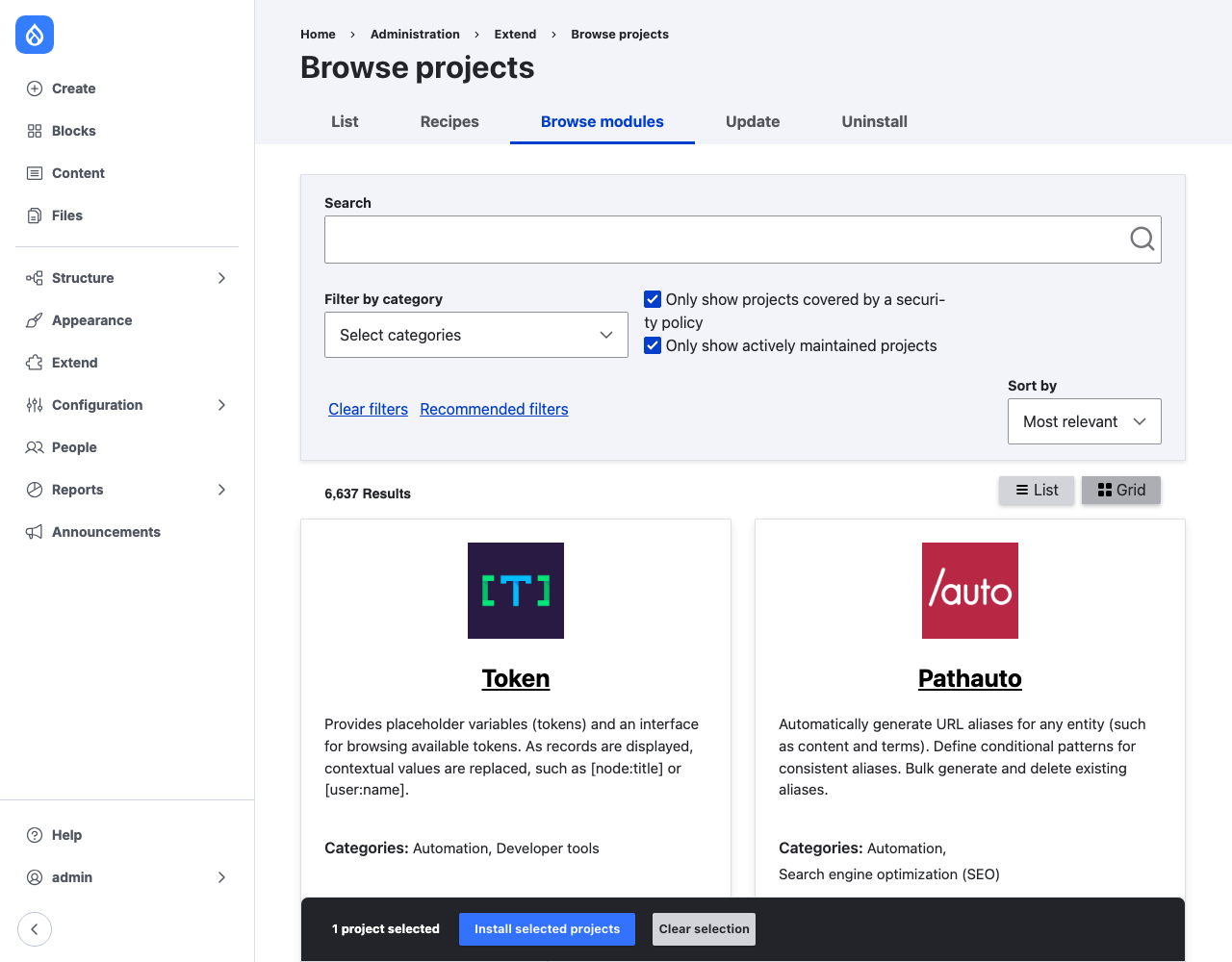
We selected Pathauto and clicked Install selected projects. Project Browser downloaded Pathauto 1.16.0 and the modules it needs (Token and Chaos Tool Suite), then installed Pathauto and Token. Both cards then said Installed, with a Configure link:
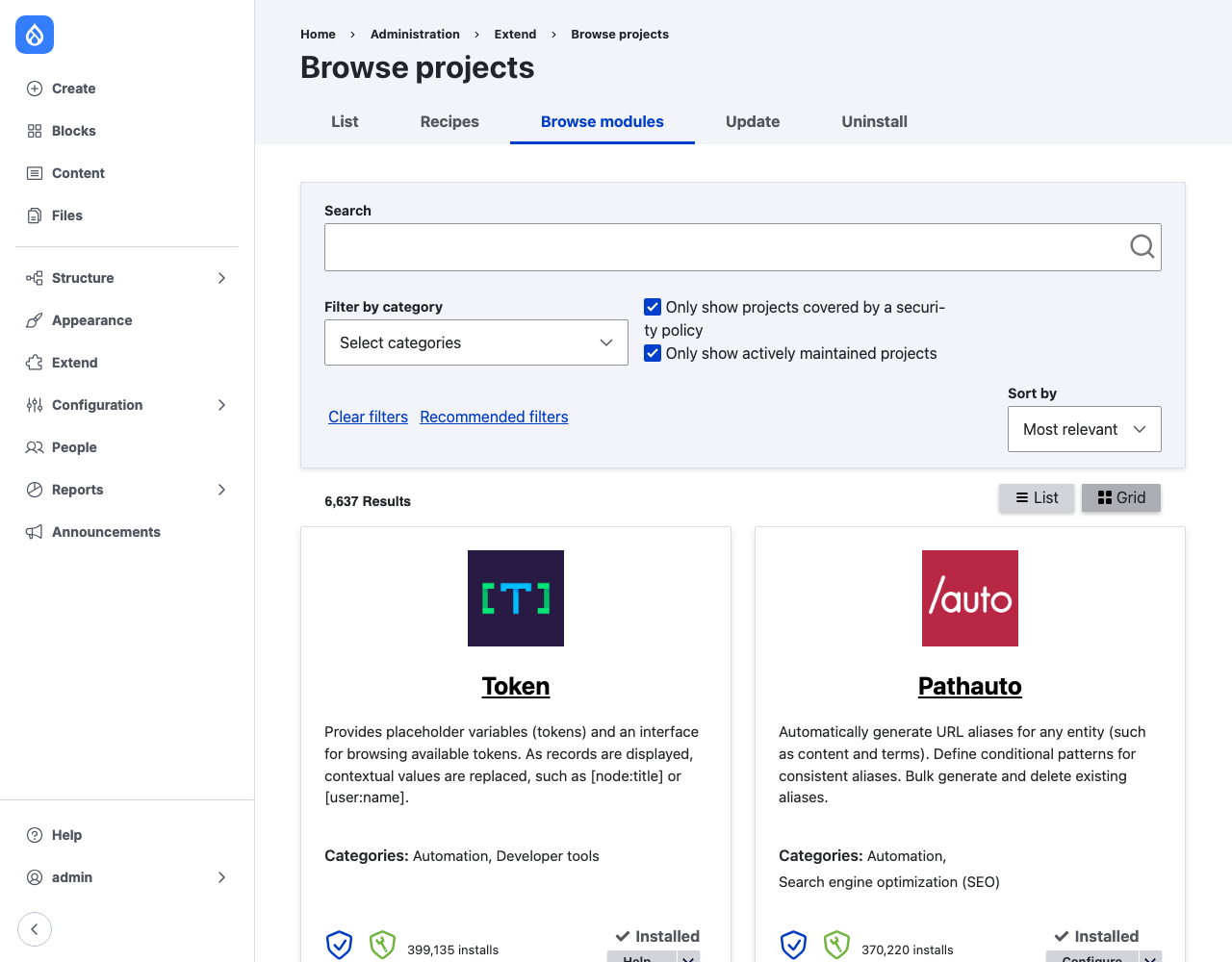
Behind the scenes, Package Manager added "drupal/pathauto": "^1.16" to composer.json, exactly as composer require would have. That matters: the site stays a normal Composer project, so a developer can take over later with the usual tools.
Step 5: Set up updates
Automatic Updates adds an Update tab to Reports → Available updates. When a new Drupal core release is available, it’s listed there with an Update button, and the update goes through the same stage-check-apply process. Our site was already on the latest release, so the page said “No update available”.
We couldn’t stage a core update in our test, and the reason is worth knowing. We tried to start from the previous release, 11.4.12, and Composer refused to install it, because it’s affected by two security advisories (SA-CORE-2026-017 and SA-CORE-2026-018). Recent Composer versions block packages with known security problems by default. We didn’t override that, so we haven’t tested a core update end to end.
Unattended updates are set in Reports → Available updates → Settings:
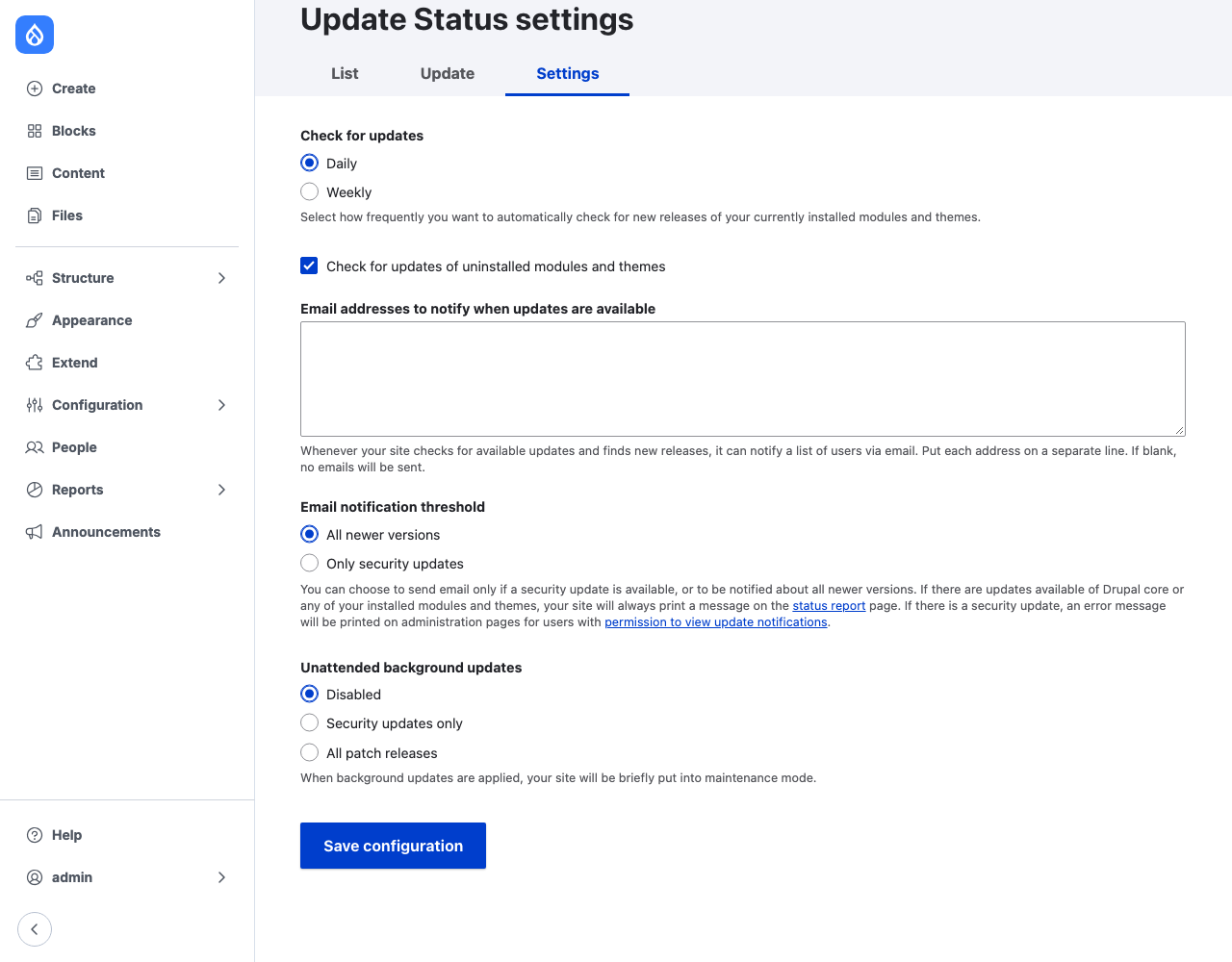
- Unattended background updates: Disabled (the default), Security updates only, or All patch releases. Automatic Updates only applies patch releases on its own, for example 11.4.13 to 11.4.14. New minor versions such as 11.5 stay a manual decision.
- How unattended updates run: through cron (the Automated Cron module or a request to
/system/cron), or with theauto-updatecommand-line tool from a server cron job. The settings page warns that the site is briefly put into maintenance mode while an update is applied.
“Security updates only” is the sensible choice for most small sites: security releases arrive without anyone logging in, and everything else waits for you to test.
Should you use it?
Yes, if you run a small or medium site, you don’t have a developer on call, and your host gives you Composer, rsync and a writable codebase. Drupal CMS is the smoothest start. The safety net is real: changes are made in a copy and checked before they touch the live site.
Not yet, if your site is deployed from Git through a build pipeline, runs on several servers, or has a read-only codebase on purpose. Changes made on the live server would be overwritten by the next deployment, or wouldn’t reach the other servers. Keep using Composer in your workflow there; our Drupal 10 to 11 upgrade guide covers that route.
Either way, keep backups. Package Manager stages changes carefully, but a module update can still change your site’s behaviour, and a database backup is the real undo button.
Summary
| Step | Needs |
|---|---|
| Add Project Browser and Automatic Updates | One Composer command (or Drupal CMS, which has them) |
| Allow Package Manager | $settings['testing_package_manager'] = TRUE; in settings.php |
| Install the modules | Extend page, then confirm the experimental module |
| Pass the readiness checks | Composer, rsync, writable codebase (Status report) |
| Install modules from the browser | Configuration → Development → Project Browser → Allow installing via UI |
| Updates | Reports → Available updates → Update; unattended: Security updates only |
How we tested
We used the official drupal:11 Docker image (Drupal 11.4.13, Apache, PHP, Composer 2.11.2) with an SQLite database, installed with core’s quick-start installer. We added Project Browser 2.1.6 and Automatic Updates 4.1.0 with Composer, gave the web server user ownership of the codebase, installed rsync when the readiness check asked for it, and did everything else through the admin in a real browser.
Related: Drupal recipes in Drupal 10.3+ and 11 (Project Browser also has a Recipes tab), upgrading Drupal 10 to Drupal 11 and Cloudflare rules for Drupal.

Rupak Nepali is a web developer, manage Webocreation website and the author of six books:
Getting Started with OpenCart Module Development (Packt, 2013),
OpenCart Theme and Module Development (Packt, 2015),
OpenCart 4: Dev Guide for Themes & Extensions (2024),
OpenCart 4: User Manual (2025),
Cloudflare for the Enterprise Website (2026) and
The Technical Web Guide for Marketers (2026).
Rupak has built OpenCart stores and extensions since 2010, has published more than 600 tutorials on Webocreation, and shares free OpenCart extensions on GitHub.
Find Rupak on
GitHub | Amazon | LinkedIn | X | YouTube.