Speed Up WooCommerce in 2026: HPOS, Action Scheduler Cleanup, Cart Fragments and Object Cache, Benchmarked
What actually makes WooCommerce faster in 2026, measured on a store with 12,000 orders: HPOS, turning off compatibility mode, cleanup, cart fragments and object caching.
 Rupak NepaliPublished Nov 21, 2026
Most “speed up WooCommerce” advice was written years ago: disable cart fragments, install an object cache, clean up the database. WooCommerce has changed a lot since then. Orders have their own tables, the cart script loads less often, and background jobs run through Action Scheduler. Some old advice now matters more than ever, and some barely matters at all.
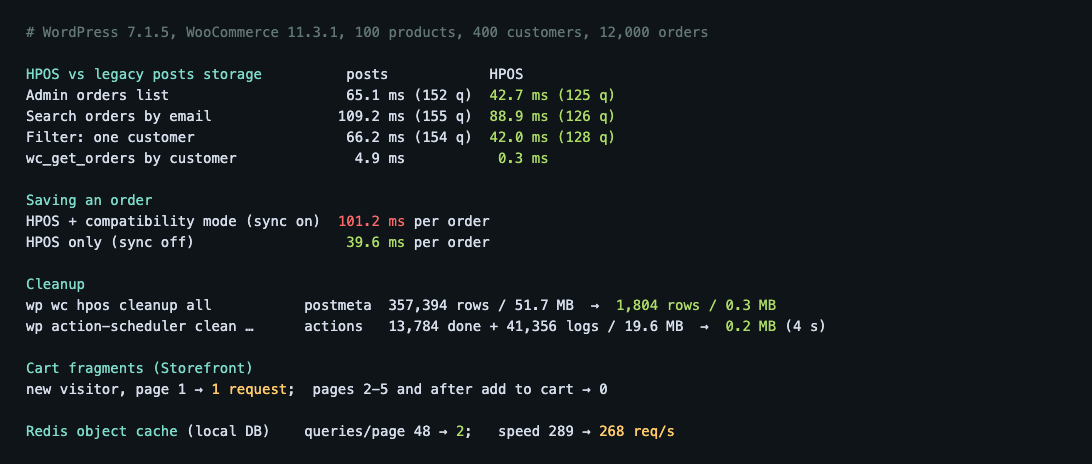
So we measured. We built a test store on WordPress 7.1.5 and WooCommerce 11.3.1 with 100 products, 400 customers and 12,000 orders spread over two years, and timed each change with a small plugin that reports how long PHP took and how many database queries it ran. Every number below comes from that store.
1. Check you’re really on HPOS
High-Performance Order Storage (HPOS) keeps orders in their own tables (wp_wc_orders and friends) instead of squeezing them into wp_posts and wp_postmeta with every blog post and page. It has been the default for new stores since WooCommerce 8.2.
But don’t assume you have it. Stores that started before then stay on the old storage until someone switches them over, and our fresh install made with WP-CLI started on the old storage too. Check:
wp wc hpos statusOr look in WooCommerce → Settings → Advanced → Features: “Order data storage” should say High-performance order storage.
What HPOS changed in our test
| Admin page or query | Posts storage | HPOS |
|---|---|---|
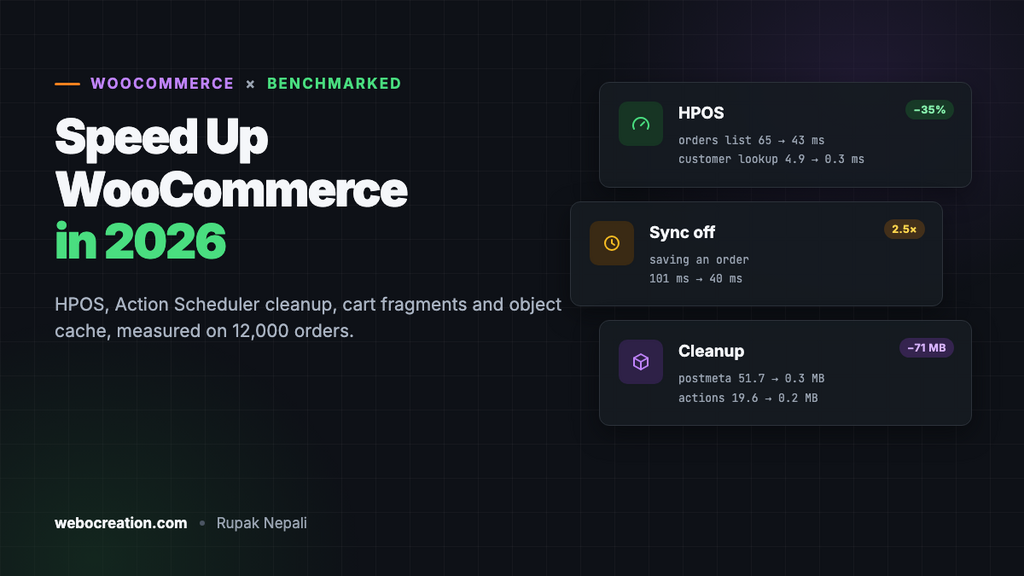
| Orders list, page 1 | 65.1 ms, 152 queries | 42.7 ms, 125 queries |
| Search orders by customer email | 109.2 ms | 88.9 ms |
| Orders filtered by status | 60.8 ms | 55.0 ms |
| Orders of one customer | 66.2 ms | 42.0 ms |
wc_get_orders() for one customer | 4.9 ms | 0.3 ms |
wc_get_orders() by billing email | 13.4 ms | 7.7 ms |
That’s a third faster on the pages your staff use all day, with 12,000 orders. The gap grows with the number of orders, because on the old storage every order lookup goes through wp_postmeta, a table shared with everything else on the site.
How to switch
- Check your plugins first:
wp wc hpos compatibility-infolists the ones that declare HPOS support and the ones that don’t. Update or replace the incompatible ones. - Turn on compatibility mode, which copies every order into the new tables and keeps both in sync:
wp wc hpos compatibility-mode enable. - Let the copy finish (
wp wc hpos statusshows “Unsynced orders: 0”), or run it now withwp wc hpos sync. Check it withwp wc hpos verify_data. - Switch:
wp wc hpos enable. Test checkout, refunds and your order-related plugins. - When you’re happy, turn compatibility mode off (next section) and clean up.
2. Don’t leave compatibility mode on
Compatibility mode is the safety net for the switch: every order is written to both storages, so you can go back. It’s meant to be temporary, and it costs more than you might think. We timed saving orders:
| Setting | Time to save one order |
|---|---|
| HPOS with compatibility mode on | 101.2 ms |
| HPOS only | 39.6 ms |
Two and a half times slower for every new order, every status change and every refund, because each write happens twice. Once you’ve run on HPOS for a week or two without problems, turn it off:
wp wc hpos compatibility-mode disable3. Clean up the old order data
After switching, the old copies of your orders are still in wp_postmeta, which every page on your site queries. WooCommerce has a command to remove them once HPOS is the only storage:
wp wc hpos cleanup allIn our store, wp_postmeta went from 357,394 rows (51.7 MB) to 1,804 rows (0.3 MB). The wp_posts table keeps one small placeholder row per order, of type shop_order_placehold, so order numbers stay unique; that’s by design. Take a database backup first: after cleanup you can no longer switch back to the old storage without restoring it.
4. Keep Action Scheduler under control
WooCommerce runs its background work through Action Scheduler: emails, webhooks, analytics updates, subscription renewals and jobs from other plugins. In our store, creating 12,000 orders queued 13,679 analytics import jobs. Two things can go wrong.
The queue doesn’t run
By default, Action Scheduler runs on WP-Cron, which only fires when someone visits the site, and in short bursts on admin page loads. On a quiet site, or one with a page cache in front, jobs pile up; on a busy one, visitors’ requests pay for them. Run it from a real cron job instead. In wp-config.php:
define( 'DISABLE_WP_CRON', true );And on the server, every minute:
* * * * * cd /path/to/wordpress && wp cron event run --due-now --quiet && wp action-scheduler run --quietWP-CLI is fast at this: our 13,784 queued jobs ran in 55 seconds with wp action-scheduler run.
Finished jobs pile up
Completed jobs stay in the database for 30 days, each with about three log rows. After that run, our store had 13,784 completed actions and 41,356 log rows (19.6 MB), for a few minutes of order history. A store with subscriptions or busy webhooks can reach millions of rows, and the queue gets slower as the table grows.
Action Scheduler cleans up after 30 days by itself. To clean up now, or if a backlog never got cleaned:
# Completed, failed and canceled jobs older than 7 days
wp action-scheduler clean --status=complete,failed,canceled --before='7 days ago' --batch-size=1000 --batches=0
Run without --before, it only removes jobs past the 30-day retention period. With --before=now on our store, it deleted all 13,784 completed actions in 4 seconds, and the two tables went from 19.6 MB to 0.2 MB. To keep less history permanently, shorten the retention period in a small plugin:
add_filter( 'action_scheduler_retention_period', fn() => 7 * DAY_IN_SECONDS );Look at WooCommerce → Status → Scheduled Actions once in a while too. Thousands of failed or past-due jobs from one plugin are a sign that plugin has a problem.
5. Cart fragments: less of a problem than it used to be
“Disable cart fragments” is in every old WooCommerce speed guide. Cart fragments are the ?wc-ajax=get_refreshed_fragments request that updates the mini cart, and it can’t be cached, so it used to hit the server on every page view of every visitor, even on fully cached pages.
That changed in WooCommerce 7.8: the script is now only loaded when something on the page needs it. We checked both kinds of theme:
- Twenty Twenty-Five (the default block theme): no cart fragments script on the home, shop or product pages.
- Storefront (a classic theme with a header cart): the script on every page. But in a real browser, a new visitor made one fragments request, on their first page. Pages two to five made none, and neither did the next page after adding to cart. The result is kept in the browser’s session storage, and adding to cart updates it directly.
So for most stores, cart fragments now cost one uncached request per visit. Each one took about 13 ms of server time in our test. It’s worth removing only if your theme still loads it on every page and you don’t show a cart count in the header. If you use a page cache, check that it isn’t caching ?wc-ajax= requests or pages for visitors with items in the cart, which is a much bigger problem than the request itself.
6. Object cache: measure before you buy it
A persistent object cache (Redis or Memcached) keeps the results of database queries between page loads. We installed Redis with the Redis Object Cache plugin, and the effect on database queries was dramatic:
| Page | Queries without | Queries with Redis |
|---|---|---|
| Home, shop, category, product | 43–53 | 2 |
| Admin dashboard | 120 | 6 |
| Admin products list | 128 | 14 |
| Admin orders list (HPOS) | 145 | 72 |
But the pages were not faster. Single requests took about the same time, and under load (400 requests, 20 at a time) the shop page served 268 requests a second with Redis and 289 without. Our database ran on the same machine with all its data in memory, so each query took a fraction of a millisecond, and talking to Redis through the plugin’s pure-PHP client cost about as much as the queries it saved.
An object cache pays off when queries are expensive: a database on another server or a managed database service, where every query crosses the network; a big catalog with heavy filtering; many logged-in customers; or plugins that run slow queries on every page. It also takes load off a busy database. Before paying for one, install Query Monitor and look at the total query time on your slowest pages. If it’s a few milliseconds, look elsewhere first. If you do use Redis, ask your host for the PhpRedis PHP extension, which is faster than the Predis library the plugin falls back to.
The checklist
| Do this | Why |
|---|---|
wp wc hpos status: switch to HPOS if you aren’t on it | A third faster admin order pages in our test, more with more orders |
| Turn off compatibility mode after the switch | Saving an order: 101 ms → 40 ms |
wp wc hpos cleanup all (after a backup) | postmeta 51.7 MB → 0.3 MB |
DISABLE_WP_CRON + a real cron job running WP-Cron and Action Scheduler | Background jobs run on time and off visitors’ requests |
wp action-scheduler clean, shorter retention if needed | 19.6 MB of job history → 0.2 MB |
| Leave cart fragments alone unless your theme loads it on every page and you don’t need it | One request per visit on WooCommerce 7.8+ |
| Measure query time before adding an object cache | It cut queries 95% but didn’t speed up a store with a local database |
How we tested
The store ran in Docker on one machine: the official WordPress image (Apache, PHP), MariaDB 11 and Redis 7, with WooCommerce 11.3.1 and the Storefront theme for the cart fragments test. We generated the products, customers and orders with a short WP-CLI script using WooCommerce’s own functions (wc_create_order()), with random dates over two years and a mix of statuses. A must-use plugin recorded each request’s PHP time and query count. Every page was requested once to warm up, then seven times, and we report the median. Your absolute numbers will differ with your server, theme and plugins; the differences between the settings are what matter.
Related: Cloudflare rules for WooCommerce to cache and protect the store at the edge, and OpenCart vs Shopify vs WooCommerce in 2026.

Rupak Nepali is a web developer, manage Webocreation website and the author of six books:
Getting Started with OpenCart Module Development (Packt, 2013),
OpenCart Theme and Module Development (Packt, 2015),
OpenCart 4: Dev Guide for Themes & Extensions (2024),
OpenCart 4: User Manual (2025),
Cloudflare for the Enterprise Website (2026) and
The Technical Web Guide for Marketers (2026).
Rupak has built OpenCart stores and extensions since 2010, has published more than 600 tutorials on Webocreation, and shares free OpenCart extensions on GitHub.
Find Rupak on
GitHub | Amazon | LinkedIn | X | YouTube.