Swap Image on Hover for OpenCart 4: Show the Second Product Photo on Every Product Card (Free Extension)
A free OpenCart 4 extension that fades each product card to the product's first additional image on hover, on category, search, specials and module listings, with nothing to set up per product and no effect on touch screens.
 Rupak NepaliPublished Nov 19, 2026

Fashion and electronics stores almost always do it: point at a product in a category and its photo changes to a second view, the back of the jacket, the ports on the side of the laptop, the product in use. It’s a small touch that lets shoppers compare more without opening every product.
This free extension adds that swap to OpenCart 4, on every product card in the store. It’s the OpenCart 4 version of our OpenCart 3 hover image module, simpler to set up than the original.
Download Swap Image on Hover for OpenCart 4 (free, tested on OpenCart 4.1.0.4)

What it does
- Swaps to the product’s first additional image when the pointer is over the card.
- Everywhere products are listed: category, search, specials and manufacturer pages, and modules such as Featured, Latest and Bestsellers. In OpenCart 4 they all use the same
product/thumbtemplate, and the extension works on that. - Nothing to set up per product. It uses the images you already have in each product’s Image tab.
- Fade or instant swap.
- Phones behave normally. The swap only runs on devices with a mouse or trackpad, so a tap on a phone still opens the product.
- Light on the page. The second image is resized to the card’s size and loads lazily.
Install it
- Download
hoverimage.ocmod.zip. - Go to Extensions → Installer, upload it, and click the green +.
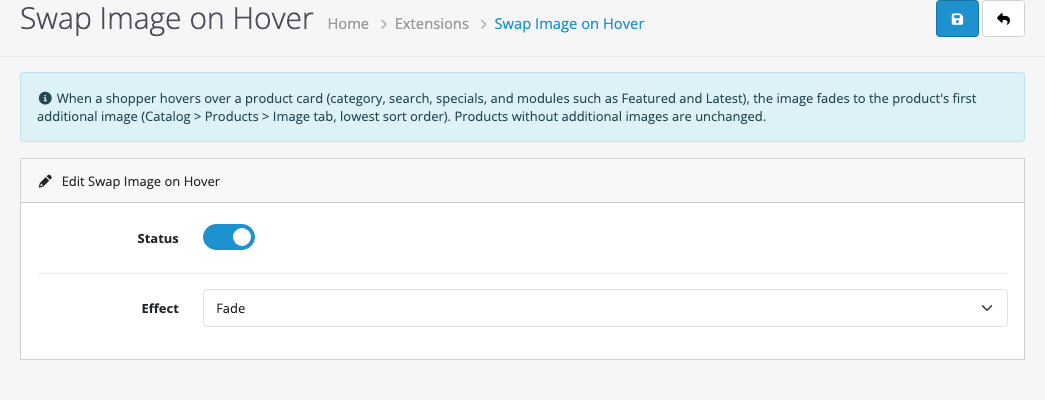
- Go to Extensions → Extensions → Modules and install Swap Image on Hover.
- Click Edit, turn Status on, choose Fade or Instant swap and save.
Choosing the hover image
The extension uses the first additional image in Catalog → Products → (product) → Image, the one with the lowest Sort order. To choose which photo appears on hover, give it sort order 0 and the others 1, 2, 3 and so on. Products without additional images keep their single photo.
For the best effect, use the same background and framing for the main and hover images, so the swap looks like the product turning rather than a different picture appearing. If your additional images all have the same sort order (OpenCart’s demo data does), the database decides the order, and it may not be the one you expect.
Changes from the OpenCart 3 version
The OpenCart 3 version added a “hover image” upload field to every product, stored in a separate table, and edited the category controller and template through OCMOD. You had to upload a second photo for every product before anything happened, and the swap only worked on category pages.
The OpenCart 4 version reuses the additional images you already have, so it works on an existing catalog the moment you switch it on, and on every product card. It also dropped a leftover “amazon_login” logout event the old version registered by mistake.
How it’s built
An event on catalog/view/product/thumb/after looks up the product’s first additional image, resizes it to the same size as the card’s main image (it reads the size from the thumbnail’s file name, since each module uses its own size), and adds it inside the card’s image link:
if (preg_match('/-(\d+)x(\d+)\.[a-z]+$/i', (string)($args['thumb'] ?? ''), $size)) {
    [$width, $height] = [(int)$size[1], (int)$size[2]];
}

$src = $this->model_tool_image->resize($images[0]['image'], $width, $height);
A few lines of CSS, added once per page, place the second image over the first and fade it in on hover, inside @media (hover: hover) so touch screens are left alone.
Testing
| Test | Result |
|---|---|
| Desktops category, 10 products | Hover image added to 9 cards; the product without additional images unchanged |
| Real mouse hover on the MacBook card (Laptops) | Fades to the side view with the ports |
| Image size | Same 250 × 250 as the category’s main images |

Rupak Nepali is a web developer, manage Webocreation website and the author of six books:
Getting Started with OpenCart Module Development (Packt, 2013),
OpenCart Theme and Module Development (Packt, 2015),
OpenCart 4: Dev Guide for Themes & Extensions (2024),
OpenCart 4: User Manual (2025),
Cloudflare for the Enterprise Website (2026) and
The Technical Web Guide for Marketers (2026).
Rupak has built OpenCart stores and extensions since 2010, has published more than 600 tutorials on Webocreation, and shares free OpenCart extensions on GitHub.
Find Rupak on
GitHub | Amazon | LinkedIn | X | YouTube.