Sticky Add to Cart for OpenCart 4: Keep the Buy Button on Screen on Mobile Product Pages (Free Extension)
A free OpenCart 4 extension that slides up a bar with the product name, price and Add to Cart button once shoppers scroll past the main button, using OpenCart's own add-to-cart so messages and the cart update as normal.
 Rupak NepaliPublished Nov 16, 2026
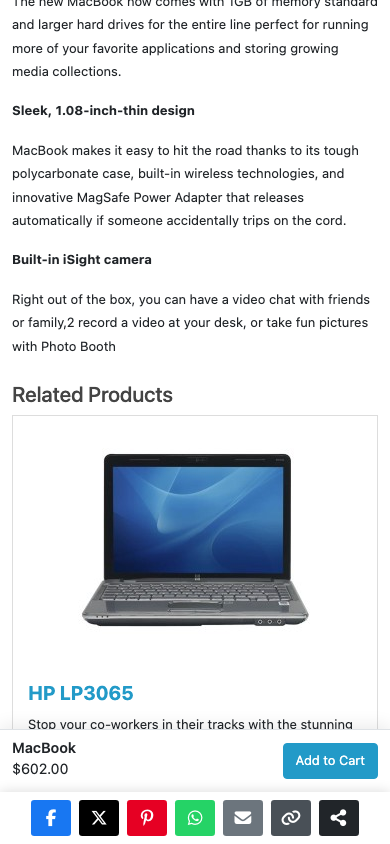
On a phone, an OpenCart product page is long: image, price, options, button, then description, specifications, reviews and related products. Shoppers who scroll down to read the description and decide to buy then have to scroll all the way back up to find the button. Some of them don’t.
A sticky Add to Cart bar fixes that. Once the main button scrolls out of view, a slim bar slides up from the bottom with the product name, price and an Add to Cart button. This free extension adds one without touching your theme.
Download Sticky Add to Cart for OpenCart 4 (free, tested on OpenCart 4.1.0.4)
What it does
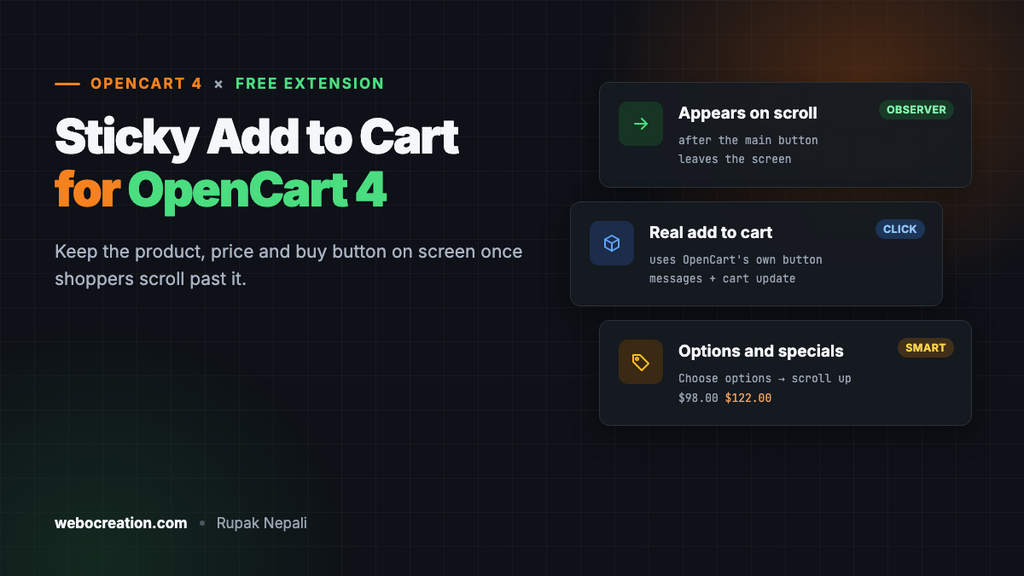
- Appears only when needed. The bar shows once the main Add to Cart button has scrolled up out of view, and hides again when you scroll back to it.
- Uses OpenCart’s own button. Tapping it clicks the real Add to Cart, so the quantity box, the success message, the cart total, and any extensions hooked to adding work exactly as before.
- Knows about options. For products with required options (size, colour), the button says Choose options and scrolls up to the form instead of failing.
- Shows specials. A product on special shows the new price with the old one struck through.
- Phones and tablets by default. On desktop, the main button is rarely far away; you can turn the bar on there too.
- Stays out of the way of other bottom bars, such as cookie notices or share buttons.
Install it
- Download
stickycart.ocmod.zip. - Go to Extensions → Installer, upload it, and click the green +.
- Go to Extensions → Extensions → Modules and install Sticky Add to Cart.
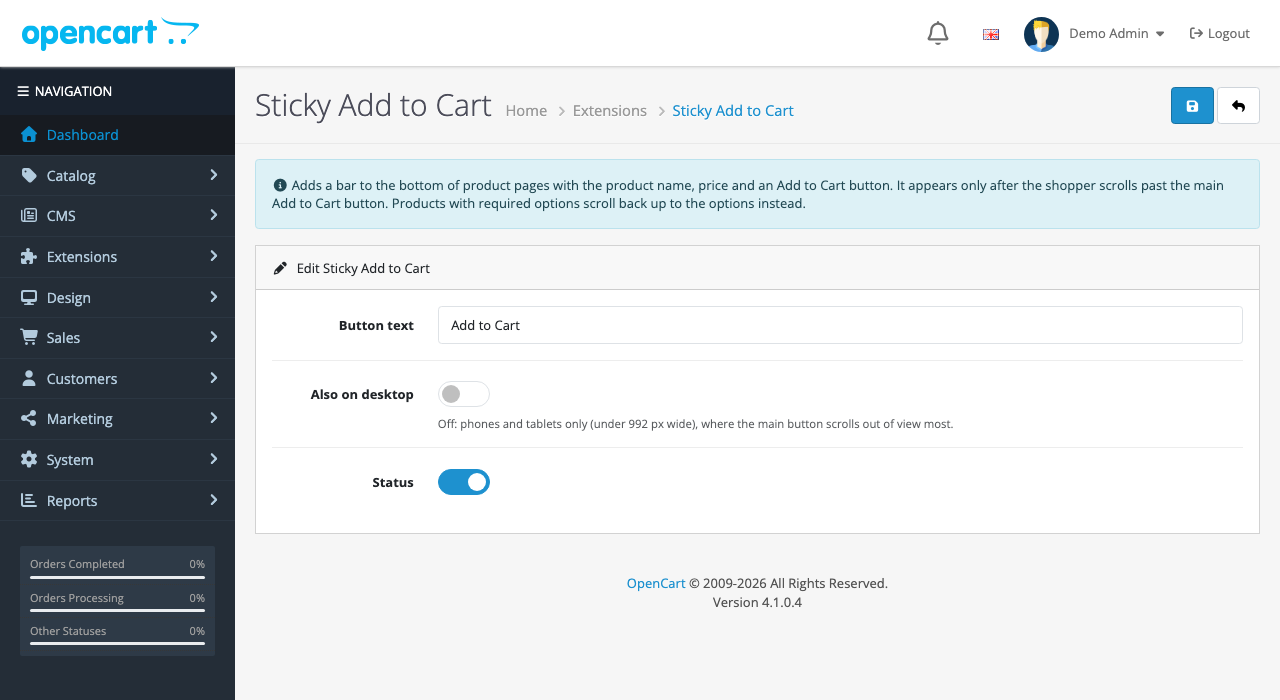
- Click Edit, turn Status on, and save.
| Setting | What it does |
|---|---|
| Button text | Defaults to “Add to Cart”. Try “Add to bag” or “Buy now” to match your store |
| Also on desktop | Off: the bar shows below 992 px wide (phones and tablets). On: every screen size |
| Status | On or off |
What shoppers see
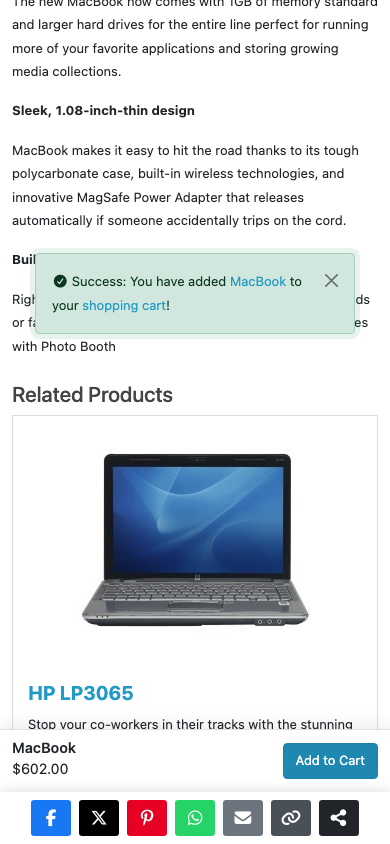
Tapping Add to Cart in the bar adds the product with OpenCart’s normal success message:
For a product with required options, the bar offers Choose options instead. Tapping it scrolls smoothly back to the options form:

How it’s built
| Part | Where | What it does |
|---|---|---|
| Event | catalog/view/product/product/after | Adds the bar before </body> on product pages |
| Template | extension/stickycart/catalog/view/template/module/stickycart.twig | The bar, its CSS and about 40 lines of JavaScript |
| Settings | module_stickycart_* | Button text, desktop, status |
Only on pages with a real Add to Cart button
The event reads the product data OpenCart already prepared for the page (name, thumbnail, price, special, options), so there are no extra database queries. If the page has no id="button-cart" (some themes, or products that can’t be bought), it adds nothing:
if (strpos($output, 'id="button-cart"') === false) {
	return;
}

$required = false;

foreach ((array)($args['options'] ?? []) as $option) {
	if (!empty($option['required'])) {
		$required = true;
		break;
	}
}
Showing the bar at the right moment
An IntersectionObserver watches the main button. The bar appears only when the button has left the screen upwards, so it doesn’t appear on page load for shoppers who haven’t reached the button yet:
new IntersectionObserver(function (entries) {
  var entry = entries[0];
  var past = !entry.isIntersecting && entry.boundingClientRect.top < 0;
  bar.classList.toggle('is-visible', past);
  bar.setAttribute('aria-hidden', past ? 'false' : 'true');
  bar.querySelector('button').tabIndex = past ? 0 : -1;
}).observe(main);
This is cheaper than a scroll listener, which runs dozens of times a second. While hidden, the bar is also removed from keyboard focus and screen readers.
Clicking the real button
bar.querySelector('button').addEventListener('click', function () {
  if (required) {
    (document.getElementById('product') || main).scrollIntoView({behavior: 'smooth', block: 'start'});
  } else {
    main.click();
  }
});
Re-implementing add-to-cart in the bar would skip the quantity field, the minimum quantity check, and anything other extensions do on add. Clicking OpenCart’s own button keeps all of it.
Sitting above other bottom bars
In testing, our bar first appeared underneath the store’s share buttons, which are also fixed to the bottom of the screen. Now, just before showing, it looks for other full-width bars fixed at the bottom and sits on top of the tallest one.
Testing
- MacBook (no options), at 390 px: scrolled to Related Products, tapped Add to Cart in the bar, got OpenCart’s success message and the MacBook in the cart.
- Apple Cinema 30″ (required options, special price): the bar showed $98.00 with $122.00 struck through and “Choose options”; tapping it scrolled back to the form.
- With a share bar fixed to the bottom of the screen: our bar sat on top of it, fully clickable.
Troubleshooting
| Problem | Cause and fix |
|---|---|
| No bar at all | Check Status, the screen width (desktop needs “Also on desktop”), and that your theme’s button still has id="button-cart" |
| Bar hides behind a chat widget | Chat bubbles are usually small and to one side, so the bar doesn’t move for them. Move the widget up in its own settings |
| Nothing happens on tap | Open the browser console. A JavaScript error elsewhere on the page can stop OpenCart’s own button too |
More free OpenCart 4 extensions: announcement bar, request a quote, product quick view, and size chart popup.

Rupak Nepali is a web developer, manage Webocreation website and the author of six books:
Getting Started with OpenCart Module Development (Packt, 2013),
OpenCart Theme and Module Development (Packt, 2015),
OpenCart 4: Dev Guide for Themes & Extensions (2024),
OpenCart 4: User Manual (2025),
Cloudflare for the Enterprise Website (2026) and
The Technical Web Guide for Marketers (2026).
Rupak has built OpenCart stores and extensions since 2010, has published more than 600 tutorials on Webocreation, and shares free OpenCart extensions on GitHub.
Find Rupak on
GitHub | Amazon | LinkedIn | X | YouTube.