OpenCart 4 Cron Jobs: How to Set Them Up, What They Do, and the cron.php Bug in 4.1.0.4
How OpenCart 4.1's cron system works: the three built-in tasks, how cycles are scheduled, setting up the cron URL or the CLI, why php cron.php fails on 4.1.0.4 and the one-line fix, and how to keep the public cron URL from being abused.
 Rupak NepaliPublished Nov 15, 2026
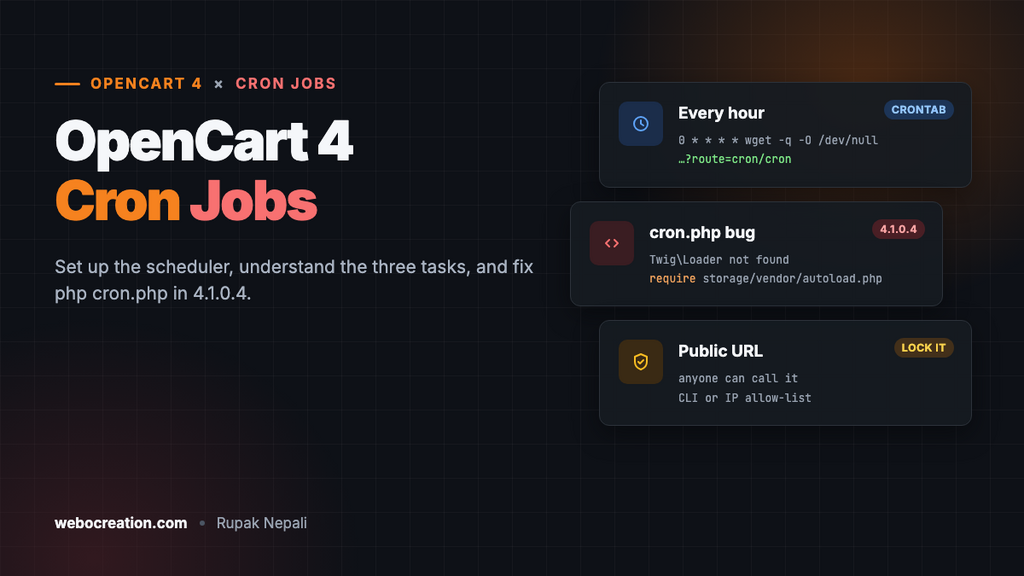
OpenCart 4 has a built-in scheduler for jobs that should run without anyone clicking a button: updating currency rates, processing GDPR deletion requests and charging subscriptions. None of it runs until you add a cron job on your server, and many stores never do. Their currency rates go stale and GDPR requests sit unprocessed.
This guide explains how OpenCart 4.1’s cron works, sets it up both ways (URL and command line), and covers a bug we found while testing: php cron.php fails on OpenCart 4.1.0.4 as shipped, with a one-line fix.
The CRON Jobs page
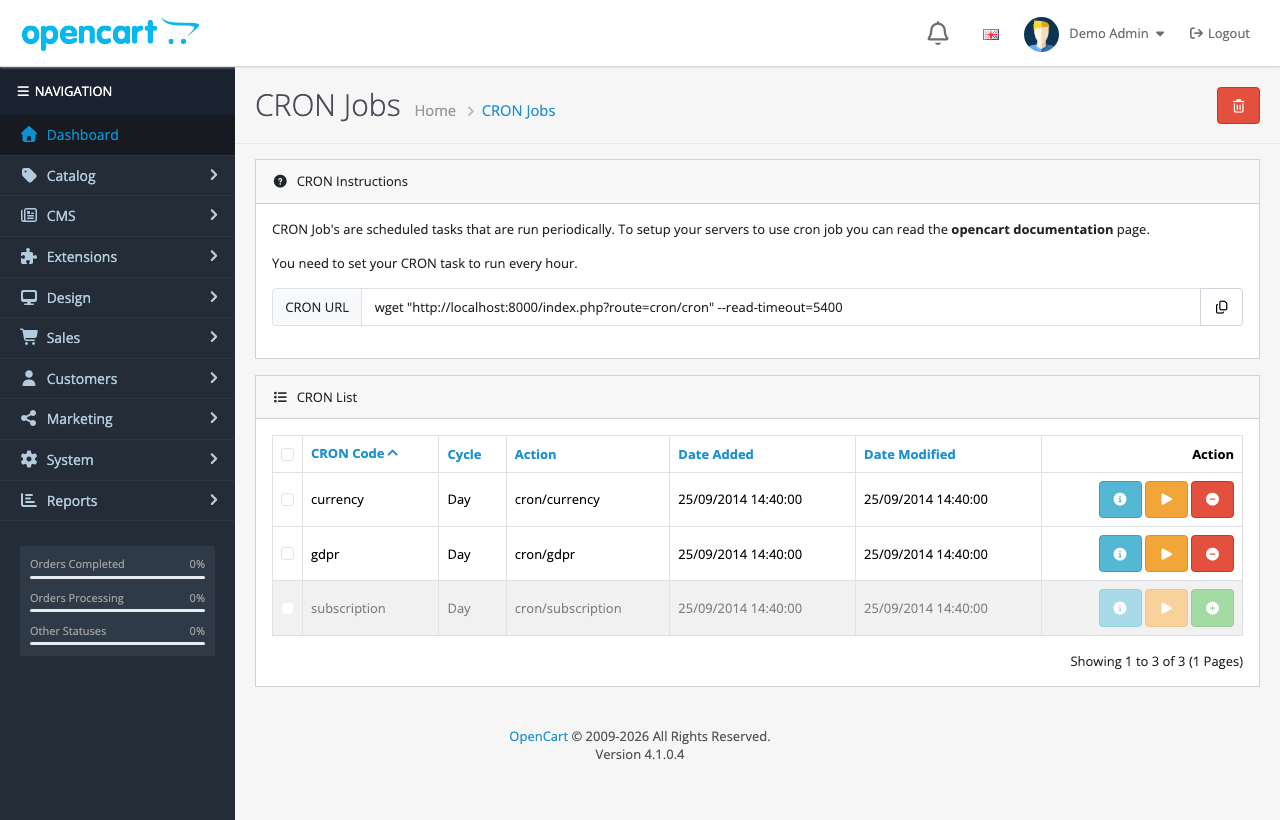
Go to Extensions → Cron Jobs in the admin:
| Task | Cycle | What it does | Default |
|---|---|---|---|
currency | Day | Updates exchange rates through the currency extension chosen in System → Settings (ECB by default), if auto-update is on | Enabled |
gdpr | Day | Processes GDPR requests whose waiting period has passed: deletes the customer’s data and emails them | Enabled |
subscription | Day | Creates and charges renewal orders for subscriptions that are due, and emails customers | Disabled |
Each row has buttons to see details, run the task now, and enable or disable it. Extensions can register their own tasks here too.
How scheduling works
OpenCart doesn’t run each task at a set time. You call one entry point, cron/cron, regularly, and it decides what’s due:
// catalog/controller/cron/cron.php (OpenCart 4.1.0.4)
foreach ($results as $result) {
	if ($result['status'] && (strtotime('+1 ' . $result['cycle'], strtotime($result['date_modified'])) < (time() + 10))) {
		$this->model_setting_cron->editCron($result['cron_id']);

		$this->load->controller($result['action'], $result['cron_id'], $result['code'], $result['cycle'], $result['date_added'], $result['date_modified']);
	}
}
A task runs when one full cycle (hour, day or month) has passed since it last ran, and its date_modified is updated before it runs, so a slow task isn’t started twice by overlapping cron calls. The admin page says to call it every hour; daily tasks then run within an hour of being due.
One thing the code shows that the admin page doesn’t: in 4.1.0.4, cron/cron also calls the subscription controller directly on every run, outside the task list. With no subscriptions on the store it has nothing to do, but if you sell subscriptions, know that renewals are attempted on every cron call, whatever the task’s switch says.
Option 1: The cron URL
The admin shows a ready-made command:
wget "https://www.example.com/index.php?route=cron/cron" --read-timeout=5400Add it to your server’s crontab to run every hour. In cPanel, go to Cron Jobs, choose “Once Per Hour”, and paste the command with its output discarded:
0 * * * * wget -q -O /dev/null "https://www.example.com/index.php?route=cron/cron" --read-timeout=5400Without -q -O /dev/null, wget saves a file in your home folder on every run, and you’ll have thousands of them within months. curl -s -o /dev/null "https://..." works just as well if wget isn’t installed.
We tested the URL on our 4.1.0.4 store: it returned HTTP 200 with an empty page in under a second, and both the currency and GDPR tasks ran.
Anyone can call the cron URL
The URL has no key or password. Anyone who knows it can trigger your cron, and the route is the same on every OpenCart store. The tasks are designed to be safe to run repeatedly (each one only acts when it’s due), so this isn’t a hole in itself. But it is a free way to make your server do work, and with subscriptions it’s a URL that charges cards. Limit it:
- Use the CLI instead (option 2) and block the route on the web entirely.
- Or allow only your server’s IP. With Cloudflare, a custom rule such as
(http.request.uri.query contains "route=cron/") and not ip.src in {203.0.113.10}with action Block. Our Cloudflare security guide for OpenCart covers custom rules.
Option 2: The command line (and the 4.1.0.4 bug)
OpenCart ships cron.php in the store’s root for running cron without a web request. It doesn’t go through the web server, can’t be called by strangers, and has no HTTP timeout. On 4.1.0.4, though, it fails immediately:
$ php cron.php

--- CRON EXCEPTION DETECTED ---
Error: Class "Twig\Loader\FilesystemLoader" not found
File: /var/www/html/system/library/template/twig.php
Line: 36
Worse, it exits with status 0, so cron monitoring sees success. The cause is one line. The web front end loads OpenCart’s Composer libraries (Twig among them) in system/framework.php:
// use additional 3rd-party vendor autoloaders
if (defined('DIR_STORAGE') && is_file(DIR_STORAGE . 'vendor/autoload.php')) {
	require_once(DIR_STORAGE . 'vendor/autoload.php');
}
cron.php has its own startup code instead, and its equivalent line is commented out and points at a file that doesn’t exist:
// require_once(DIR_SYSTEM . 'vendor.php');The fix
In cron.php, replace that commented line with the same autoloader the front end uses:
// Composer libraries (Twig and others), loaded the same way system/framework.php does it
if (is_file(DIR_STORAGE . 'vendor/autoload.php')) {
	require_once(DIR_STORAGE . 'vendor/autoload.php');
}
We tested the patched file on the same store: it exited cleanly, ran the overdue GDPR task, and correctly skipped the currency task that had already run that day. It also works after you’ve moved the storage folder, because DIR_STORAGE comes from config.php. Re-check the file after upgrading OpenCart, in case an update overwrites it (or fixes it).
Run it from the store’s folder
cron.php loads config.php by a relative path. Run from anywhere else, it stops with “CRON is unable to load configuration from file config.php”. So cd into the store first:
0 * * * * cd /home/you/public_html && /usr/bin/php cron.php > /dev/null 2>&1Use the PHP version your store runs on. On cPanel hosts that’s often a path like /usr/local/bin/php or /opt/cpanel/ea-php83/root/usr/bin/php; your host’s documentation or which php over SSH will tell you.
Checking that cron runs
- Date Modified on the CRON Jobs page changes each time a task runs. If it still says the install date a day after setting up cron, nothing is calling it.
- Currency values in System → Localisation → Currencies show their last update date.
- The error log (System → Maintenance → Error Logs) records failures from cron tasks.
- The run button (orange) runs one task immediately from the admin, which is handy for testing a task without waiting.
Turning on subscriptions
If you sell subscription products, enable the subscription task (green button) once your payment extension supports stored-card renewals. Test it with a subscription that’s due today on a staging copy first: the task creates real orders and charges real cards.
Troubleshooting
| Problem | Cause and fix |
|---|---|
| Date Modified never changes | The cron job isn’t running, or calls the wrong URL. Run the command by hand over SSH and look at the output |
| Class “Twig\Loader\FilesystemLoader” not found | The cron.php bug in 4.1.0.4. Apply the fix above, or use the URL |
| “CRON is unable to load configuration” | cron.php was run from another folder. cd into the store first |
| Thousands of files named index.php?route=cron… in your home folder | wget saves the page by default. Add -q -O /dev/null |
| Currency rates don’t change | Auto-update is off in System → Settings → Local, or the currency extension isn’t enabled |
Related: automated offsite backups for OpenCart, which also run from cron, and clearing old cache files automatically.

Rupak Nepali is a web developer, manage Webocreation website and the author of six books:
Getting Started with OpenCart Module Development (Packt, 2013),
OpenCart Theme and Module Development (Packt, 2015),
OpenCart 4: Dev Guide for Themes & Extensions (2024),
OpenCart 4: User Manual (2025),
Cloudflare for the Enterprise Website (2026) and
The Technical Web Guide for Marketers (2026).
Rupak has built OpenCart stores and extensions since 2010, has published more than 600 tutorials on Webocreation, and shares free OpenCart extensions on GitHub.
Find Rupak on
GitHub | Amazon | LinkedIn | X | YouTube.