OpenCart 4 Invoices and Packing Slips: Invoice Numbers, Prefixes, Printing and the Gaps to Know
How OpenCart 4.1 handles invoices and dispatch notes: why invoice numbers start as TBC, how the prefix and numbering work, printing one or many orders, what the printouts contain, and the gaps (PDF, automatic numbering, tax details) to plan for.
 Rupak NepaliPublished Nov 15, 2026
OpenCart 4 can print an invoice and a dispatch note (packing slip) for any order, and number invoices in sequence. But two things surprise most store owners: orders don’t get an invoice number on their own, and the customer sees “TBC” in their account until you create one.
This guide walks through invoices and dispatch notes on OpenCart 4.1.0.4 with a real test order: where the number comes from, how to print in bulk, what each document shows, and what you’ll need an extension for.
Invoice numbers start as TBC
Open an order in Sales → Orders. The first box says Invoice: TBC, with a cog button next to it:
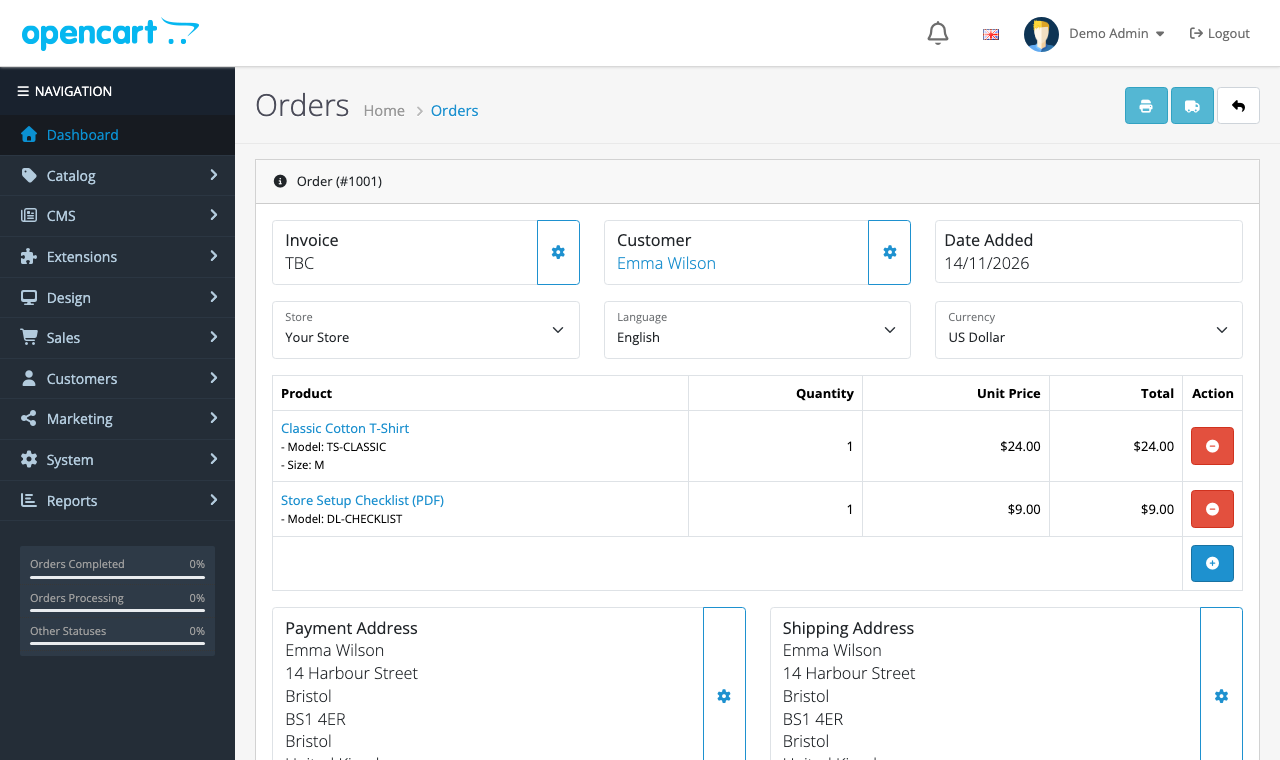
OpenCart never assigns invoice numbers automatically: not at checkout, not when payment arrives, not when you mark the order Complete. We checked the 4.1.0.4 source: the only code that creates one is the admin’s createInvoiceNo action behind that button. Click it, and the order gets the next number, here INV-2026-001. The button then greys out; an invoice number can’t be changed or removed from the admin.
That’s deliberate. Many countries require invoice numbers to run in an unbroken sequence, and numbering at checkout would burn numbers on orders that are never paid. The cost is that someone has to click the button, or install an extension that does it on a chosen order status.
How the numbering works
An invoice number has two parts: the prefix and a sequence number. The prefix is set in System → Settings → Option → Invoice Prefix:

When you generate a number, OpenCart finds the highest number already used with that order’s prefix and adds one:
SELECT MAX(`invoice_no`) AS `invoice_no` FROM `oc_order` WHERE `invoice_prefix` = 'INV-2026-00'Two details follow from that:
- Changing the prefix restarts the count. Switch from
INV-2026-00toINV-2027-00on 1 January, and the first invoice of the year isINV-2027-001. That’s the usual way to get yearly numbering. - The prefix is saved on the order at checkout, not when you generate the number. An order placed on 31 December keeps the old prefix even if you invoice it in January. If your accountant needs invoices numbered by invoice date, generate numbers before you change the prefix.
The number is just appended to the prefix, with no padding. With INV-2026-00 you get INV-2026-001 up to INV-2026-009, then INV-2026-0010. If that matters, use a prefix without trailing zeros, such as INV-2026-, giving INV-2026-1, INV-2026-10 and so on.
On a multi-store install, the prefix is shared: the extra stores’ settings have no Invoice Prefix field, so they use the default store’s, and orders from every store draw from one sequence.
Printing an invoice
On the order page, the printer button at the top right opens the invoice in a new tab, ready for the browser’s Print dialog (or “Save as PDF”):
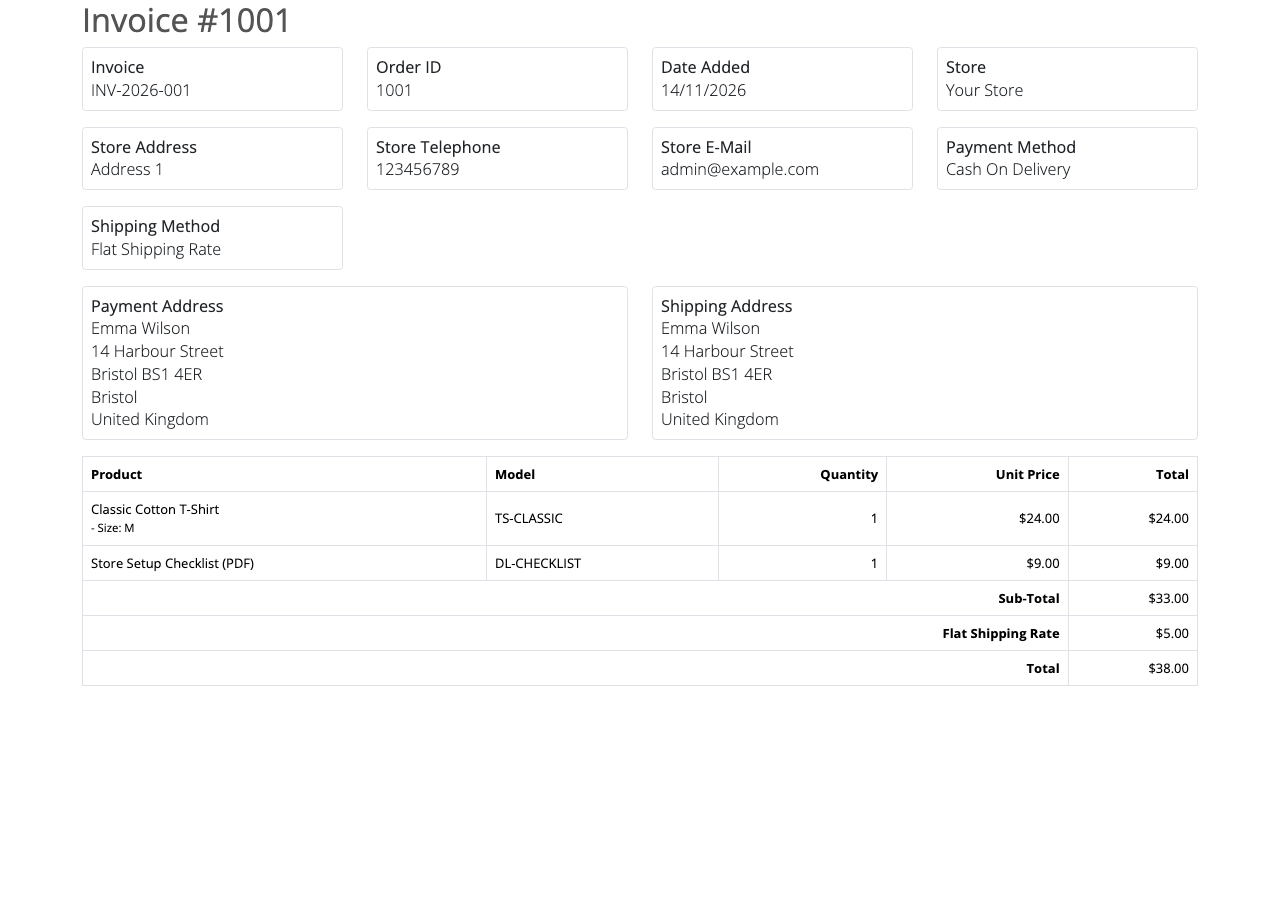
It contains:
- Invoice number (blank if not yet generated), order ID and date
- Store name, address, telephone and email, taken from the settings of the store the order was placed in
- Payment and shipping methods
- Payment and shipping addresses
- Products with options, model, quantity, unit price and line total
- The order totals exactly as at checkout: sub-total, shipping, taxes, discounts, total
- The customer’s order comment, if there was one
You can print an invoice before generating a number; the Invoice box is then empty. Generate first if the document is going to a customer.
Printing the dispatch note
The truck button prints the dispatch note, OpenCart’s packing slip, for the warehouse:
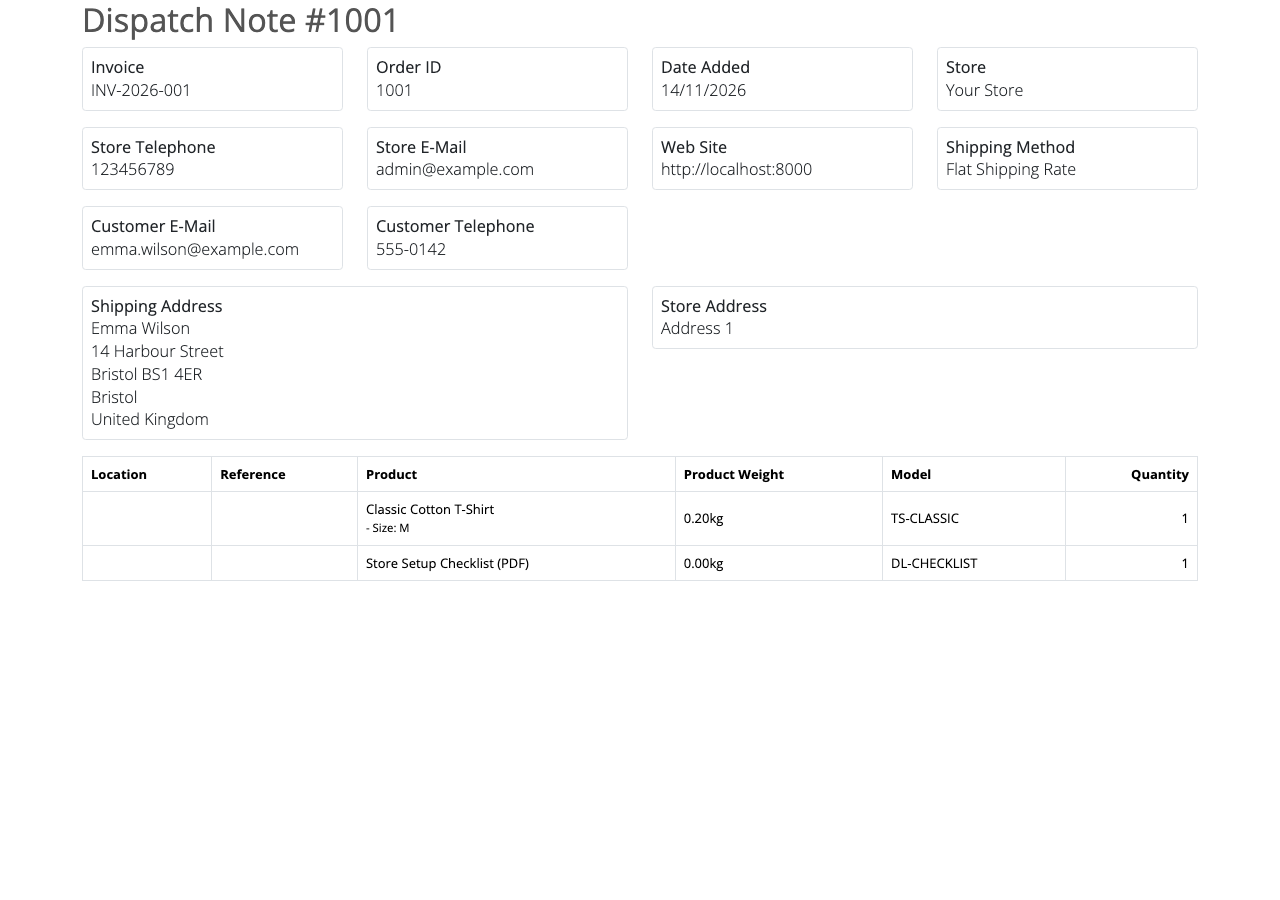
It leaves prices out and adds what the packer needs: the product’s Location (the warehouse shelf, from the product’s Data tab), reference codes such as SKU, UPC, EAN, JAN, ISBN and MPN when you’ve filled them in, and the weight per line including option weights. The customer’s email and telephone are included for the courier.
One quirk in 4.1.0.4: the dispatch note lists every product in the order, including ones that don’t need shipping. Our PDF download appears with 0.00 kg. Packers soon learn to ignore those lines, but if you sell many digital products alongside physical ones, it’s worth a note to the warehouse. (The button is disabled for orders with no shipping method at all.)
Printing many orders at once
For a day’s orders, go to Sales → Orders, filter (by status Processing, for example), tick the orders, and click the printer or truck button at the top of the list. OpenCart prints all the selected invoices or dispatch notes in one tab, one per page.
Bulk printing doesn’t generate invoice numbers: orders without one print with a blank number. Generate numbers first, order by order, or use an extension that numbers orders automatically.
What customers see
When a customer opens an order from My Account → Order History, the order page shows its invoice number once generated, and “TBC” before that. Customers can’t print or download an invoice from their account in default OpenCart; if they ask for one, print it to PDF and email it.
Customising the invoice
The layouts are Twig templates in the admin:
| Document | Template |
|---|---|
| Invoice | admin/view/template/sale/order_invoice.twig |
| Dispatch note | admin/view/template/sale/order_shipping.twig |
Common changes are a logo, a VAT or company registration number, payment terms, and a returns address. Editing those files directly works, but OpenCart updates overwrite them. Keep the change in an OCMOD modification, or an admin view event that edits the output (the same technique as OpenCart 4 events), so it survives upgrades. The admin theme editor can’t help here: it only overrides storefront templates.
Gaps to plan for
| Need | Default OpenCart 4.1 | Options |
|---|---|---|
| Automatic invoice numbers on payment | No: manual button only | An “auto invoice” extension, or an event on order history |
| PDF invoice attached to the order email | No | PDF invoice extensions (they use a library such as Dompdf) |
| Customer downloads invoice from their account | No | Same PDF extensions usually add this |
| Tax breakdown by rate, VAT number, customer tax ID | Partly: tax lines appear as order totals | Edit the template; add a custom field for the customer’s VAT number |
| Credit notes for refunds | No | Accounting software, or an extension |
Many stores sidestep all of this by sending orders to accounting software (Xero, QuickBooks and similar) that issues compliant invoices. If OpenCart’s invoice is your legal invoice, check your country’s rules on numbering and required fields with your accountant.
Troubleshooting
| Problem | Cause and fix |
|---|---|
| Customer’s account says “TBC” | No invoice number yet. Click the cog on the order page |
| The cog button is greyed out | The order already has a number |
| Invoice shows the wrong store address | It uses the address in the settings of the store the order was placed in. Check that store’s settings |
| Truck button disabled | The order has no shipping method (for example, downloads only) |
| Numbers jumped from 009 to 0010 | The prefix ends in zeros and numbers aren’t padded. Use a prefix without trailing zeros |
Related: selling downloadable products in OpenCart 4 and running several stores from one OpenCart.

Rupak Nepali is a web developer, manage Webocreation website and the author of six books:
Getting Started with OpenCart Module Development (Packt, 2013),
OpenCart Theme and Module Development (Packt, 2015),
OpenCart 4: Dev Guide for Themes & Extensions (2024),
OpenCart 4: User Manual (2025),
Cloudflare for the Enterprise Website (2026) and
The Technical Web Guide for Marketers (2026).
Rupak has built OpenCart stores and extensions since 2010, has published more than 600 tutorials on Webocreation, and shares free OpenCart extensions on GitHub.
Find Rupak on
GitHub | Amazon | LinkedIn | X | YouTube.